May 15, 2026
Handy Backup
Why do you need to back up your data? In modern IT environments, data is a core
component of every application, service, and workflow. Hardware failures, software corruption,
ransomware, and human error can occur unexpectedly, making backup an essential mechanism for maintaining data availability and system reliability.
What can happen if you do not back up your files? Without a backup layer, failures are no longer
isolated events and may affect service availability, workflows, and data consistency across the system.
Hardware failure: Physical storage devices such as HDDs, SSDs, and RAID arrays can fail due to wear, bad sectors, controller issues, or array degradation.
In redundant systems, a single point failure may still propagate if redundancy is misconfigured or incomplete.
Software corruption: File system inconsistencies, application crashes during write operations, or faulty updates can lead to broken files, incomplete transactions, or
logically corrupted datasets even when hardware remains functional.
Malware / ransomware: Malicious software may encrypt, delete, or silently alter data.
Modern ransomware often targets both production and connected storage systems, including backup repositories, if isolation is not properly configured.
Human error: Accidental deletion, incorrect overwrite operations, or misconfigured commands can result in immediate and irreversible data loss,
especially in systems with high operational complexity or large user bases.
Infrastructure failure: Power outages, network interruptions, or cloud service disruptions can interrupt write operations or leave systems in
inconsistent states across distributed nodes or services, affecting overall system availability.
What Can Happen If You Do Not Back Up Your Files: Without a backup layer, any of these failure modes can escalate into service downtime, data inconsistency, and costly recovery procedures requiring external tools or manual reconstruction.
When the backup layer is absent, failures are no longer isolated events: they begin to influence system behavior across multiple levels. The impact is not limited to a single component, but extends through dependent processes and operational flows, often cascading unpredictably.
Service downtime: applications or services become unavailable due to missing or corrupted data.
Broken workflows: automated and manual processes stop functioning correctly when data dependencies fail.
Data inconsistency: different parts of the system may contain conflicting or partial states of the same data.
Manual recovery: restoration requires time-consuming manual reconstruction and verification of data.
External dependency: organizations may need third-party recovery tools or specialists to restore operations.
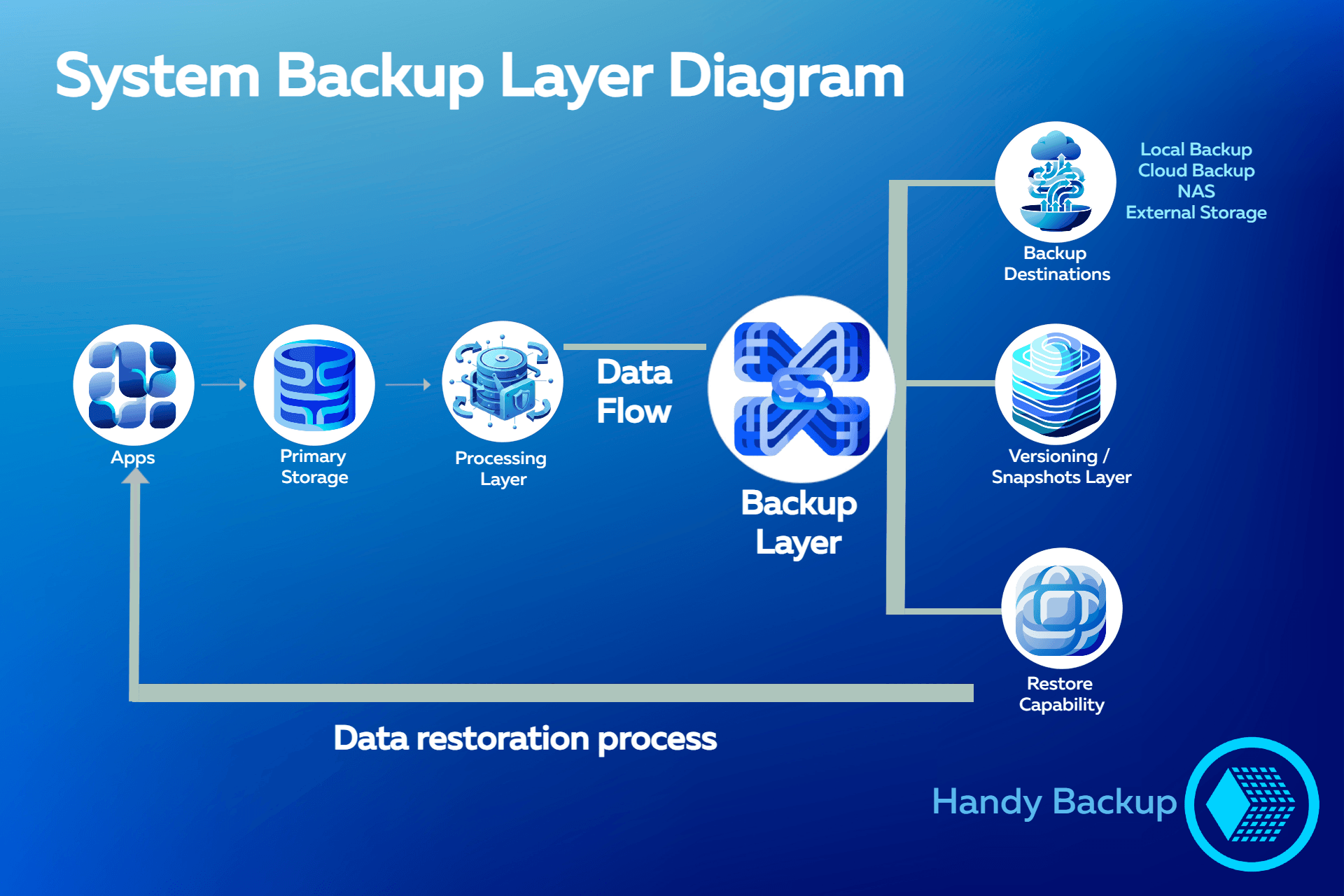
System Backup Layer Diagram
The purpose of this model is to demonstrate why backup is important, showing how it extends the stability of a data system by introducing additional recovery and redundancy mechanisms into the operational infrastructure. Rather than functioning as a standalone utility, backup operates as a structural layer that supports data continuity, controlled restoration, and system resilience under failure conditions.
-
Apps & Primary Storage:
- Applications interact with primary storage during normal system operation and continuous data processing.
-
Backup Layer:
- The backup layer extends the operational data flow with additional redundancy and recovery mechanisms.
-
Backup Destinations:
- Local backup, cloud backup, NAS, and external storage systems provide multiple independent storage targets.
-
Versioning / Snapshots Layer:
- Historical data states remain recoverable through versioning and snapshot-based retention.
-
Restore Capability:
- Controlled recovery workflows allow data restoration after corruption, deletion, or infrastructure failure.
Backup is often perceived as a standalone utility designed only for creating additional copies of data. In modern IT environments, however, backup operates more accurately as a structural layer integrated into the overall architecture of the system.
Its role extends beyond simple duplication and becomes part of the mechanisms responsible for system reliability, recoverability, and operational continuity.
Backup as a System Layer
In infrastructure-oriented environments, backup is not isolated from the operational workflow of the system. Instead,
it functions as a dedicated reliability layer connected to the broader data pipeline.
This architectural approach introduces:
- controlled recovery mechanisms;
- redundancy across storage environments;
- version-aware restoration paths;
- predictable behavior during failure conditions.
As a result, backup becomes part of the operational design of the infrastructure rather than a reactive emergency tool.
Independent of Environment Scale
The same architectural principles apply across different types of environments:
- enterprise infrastructures;
- distributed services;
- business workstations;
- personal systems and endpoints.
Although deployment complexity may differ, the underlying objective remains the same: preserving recoverable system
states and maintaining data continuity under failure conditions.
Storage Abstraction and Recovery Control
A backup layer also separates data recoverability from the physical infrastructure itself. Data can be replicated, versioned, and
restored independently of a specific storage device, server, or cloud platform.
This abstraction improves infrastructure flexibility and reduces dependency on individual system components.
Most importantly, architectural backup models enable controlled recovery behavior. Instead of relying on manual reconstruction after failure, systems can return to predefined
recoverable states through structured restoration workflows.
Although the architectural principles of backup remain consistent across all environments, recovery priorities and operational requirements can differ significantly depending on the type of system. Enterprise infrastructures typically focus on service continuity, integrity,
and controlled recovery objectives, while personal systems prioritize file protection, device recovery, and migration flexibility.
The following comparison illustrates how backup functions in business and personal environments from a system reliability perspective.
|
Business Systems |
Personal Systems |
|
Primary Objective |
Service continuity and operational stability |
Protection of personal files and device data |
|
Typical Data |
Databases, production workloads, shared services |
Documents, photos, videos, local applications |
|
Impact of Failure |
Downtime, workflow disruption, financial losses |
Loss of personal data or device usability |
|
Recovery Priority |
Minimized RTO and controlled RPO |
Fast and simple restoration |
|
Common Scenarios |
Database corruption, infrastructure failure, ransomware incidents |
Device replacement, accidental deletion, OS corruption |
|
Storage Architecture |
NAS, cloud platforms, hybrid backup infrastructure |
External drives, local storage, cloud backup |
|
Recovery Complexity |
Coordinated recovery across multiple systems and services |
Single-device or user-level restoration |
|
Backup Strategy |
Policy-driven, scheduled, incremental workflows |
Automated or periodic convenience-based backups |
Despite their differences, both environments rely on the same foundational principle: maintaining recoverable system states under failure conditions. Whether protecting enterprise infrastructure or personal devices, backup architecture provides a controlled mechanism for preserving data continuity, reducing recovery complexity, and minimizing operational disruption.
Backup systems should not be understood as a collection of isolated features, but as a mechanism that introduces specific functional properties into the behavior of an IT system.
These properties define how data and infrastructure behave under failure conditions and how recovery processes are structured.
System State Reproducibility: A backup-enabled system is capable of reproducing previously valid system states. This means that data environments are not permanently altered by failures, but can be restored to a known and consistent configuration at a specific point in time. This property ensures deterministic recovery behavior instead of ad-hoc reconstruction.
Rollback Capability: Backup introduces the ability to revert system state to a previous version. This rollback mechanism allows systems to recover from unintended changes such as data corruption, faulty updates, or misconfigurations. Unlike partial fixes, rollback restores the entire affected state coherently.
Reduced Recovery Complexity: Backup systems reduce recovery complexity by providing predefined recovery points, structured restoration workflows, and consistent data snapshots. This significantly lowers operational effort during incidents compared to manual investigation and reconstruction processes.
Elimination of Manual Reconstruction: Backup removes the need for manual re-creation of lost or corrupted data by preserving complete or incremental system states.
This enables automated restoration instead of human-driven rebuilding of configurations and datasets.
Environment Portability: Backup systems decouple data from its original execution environment,
enabling system states to be restored across different hardware, virtual environments, or cloud platforms. This makes recovery independent of physical infrastructure constraints.
These functional outcomes define backup not as a utility, but as a structural property of modern IT systems. Together, they explain why backup is important by transforming recovery from an uncertain, manual process into a controlled and repeatable system behavior.
Backup deployments are typically composed of several architectural patterns that define how data is stored, transported, and protected across different layers of infrastructure.
These patterns are usually combined rather than used in isolation, forming a layered backup strategy.
Storage Layer Models
Local backups (disk-based) provide the fastest recovery path and are tightly coupled with the production environment.
NAS-based storage introduces shared backup access across multiple systems within a controlled internal network.
Cloud storage integration extends backup scope beyond local infrastructure, adding geographic separation and external redundancy.
Architectural Composition
In real-world systems, storage models are rarely used alone. Instead, they are combined into hybrid structures that balance performance and resilience:
Hybrid backup architectures merge local speed with cloud durability.
Cloud backup storage serve as long-term retention and disaster recovery targets.
NAS backup layer often acts as an intermediate coordination layer in business environments.
Execution Strategy Layer
Independent of storage location, backup behavior is also defined by how and when data is captured:
Scheduled strategies define fixed recovery points in time.
Incremental strategies transfer only changed data to reduce load and storage usage.
Most production systems use a combination of both approaches to balance consistency and efficiency.
Backup implementation is not defined by a single deployment method but by the interaction of storage topology, architectural composition, and execution strategy. The resulting system is a configurable structure where performance, resilience, and cost are balanced dynamically rather than fixed by a single model.
Selecting a backup solution is a system-level decision that affects how reliably data can be protected, managed, and restored under real operational conditions.
In modern IT environments, the right choice is defined not only by storage or features, but by how well the solution integrates into existing workflows, automates protection tasks,
and ensures predictable recovery behavior across different failure scenarios.
For backup software like Handy Backup, this means providing a unified approach where backup, storage management, and recovery processes operate as a
single coordinated system layer rather than separate tools.
Key Selection Criteria
- Auto backup capabilities: scheduled and policy-driven backups with minimal manual intervention.
- Storage flexibility: support for local disks, NAS, and cloud storage environments.
- Security and encryption: protection of data in transit and at rest using encryption mechanisms.
- Versioning: ability to restore multiple historical states of data for rollback scenarios.
- Usability and management overhead: simplified configuration, monitoring, and maintenance workflows.
- Easy restore process: fast and predictable recovery of data and system states when needed.
Version 8.7.0 , built on May 7, 2026. 152 MB
30-day full-featured trial period
Why do you need to back up your data? The 30-day trial of Handy Backup shows how a fully integrated backup system with automated protection, flexible storage, and reliable recovery helps ensure data continuity and operational resilience.
Frequently Asked Questions on How to Backup Your Data
- What is the best way to back up data in modern IT systems?
Modern backup relies on layered protection combining automation, versioning, and incremental backups to ensure consistent recovery points and reduce risk. Backup becomes part of system design rather than a manual process. Handy Backup implements this through automated workflows with policy-based scheduling and flexible storage configuration.
- What is the difference between local, NAS, and cloud backups?
Local backups provide fast recovery, NAS enables centralized network storage, and cloud adds geographic redundancy and resilience. These models are often combined in hybrid architectures for balanced performance and reliability. Handy Backup supports all these storage types, allowing flexible backup configuration across different environments.
- How can backup systems reduce downtime after data loss or failure?
Backup reduces downtime by enabling fast recovery from predefined consistent states instead of manual reconstruction. Automation, versioning, and reliable recovery points are key factors. Handy Backup supports automated backup and recovery workflows to minimize service interruption across environments.
- What can happen if you do not back up your files?
Without backups, data loss can cause service downtime, corrupted workflows, and inconsistent system states, often requiring manual or external recovery methods that increase time and risk. Handy Backup helps reduce these risks through automated backups, versioning, and flexible storage options across local, NAS, and cloud environments.
- How often should you back up your data?
Backup frequency depends on data change rate and acceptable data loss, ranging from continuous or frequent backups for critical systems to daily or weekly schedules for less dynamic environments. Handy Backup provides flexible scheduling and incremental backup strategies to maintain consistent recovery points.















 Download for Free