Open File Backup
Open file backup allows taking "hot" snapshots of files (or entire drives and partitions) used by other software, without stopping these processes. Handy Backup allows backup open files by using the VSS (Volume Shadow copying) service provided by Windows to access files locked by other programs.
 Download for Free
Version 8.7.0 , built on May 7, 2026. 152 MB
30-day full-featured trial period
Crucial Features of Open File Backup Software

Saving Time and Efficiency
Hot open files backup allows continuing any daily and routine operations over file open by other application when backing up, removing both distractions of users emerging by the need to stop their jobs during backups and also operational mishaps and malfunctions due to stopping and restarting.

Backup Open Files without Stopping an OS
An extension of the previous feature, the open file backup technology allows taking images of entire drives (both for physical computers and for virtual machines) without stopping an OS running on a source drive. This feature makes possible taking complete snapshots of a running OS "on the fly"!

Simplifying Scheduling Jobs
When Windows backup open files, it is a method to run a data-saving task at an exact time (or by specified event) without any additional operations such as stopping collateral activities over these data. Open file backup technology helps always executing a pre-planned job, regardless of circumstances.
How to Backup Open File with Handy Backup

It is a simple thing, requiring no extra efforts. Actually, any typical backup provided by Handy Backup is "hot", utilizing the VSS for open file backup. Handy Backup utilizes open file backup not only for files and folders but also for making entire drive images, i.e., when taking a snapshot of a running OS. It is also an automatic process.
Note: For some applications, you must run Handy Backup as an administrator to access VSS! It is a system requirement of these applications, not a complication of Handy Backup. To do it, you can just right-click on Handy Backup icon in Windows "Start" menu, and then select running as administrator.
Recommended Solution
Lifetime license

Data Backup Solution for Small Business
The Small Business edition allows open file backup for any Windows server or powerful workstation, saving time and efforts by providing hot backup of any data. Free 30-days trial!
Technologies Behind Open File Backup Software
As mentioned above, the VSS service is a crucial technology used for open files backup. Therefore, a user who runs Handy Backup Client must have enough rights to start this service on a computer. Handy Backup requires no additional privileges, actions or settings to backup open files.
Caveat! Open file backup is a default option for most Handy Backup data sources, including files, databases*, virtual machines and entire drive images. To avoid backup open files (if you need it for some reasons), you must stop any software instances operating with source files!
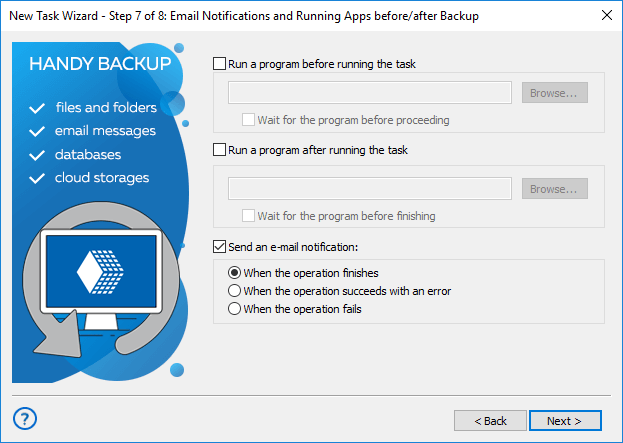
- Sometimes, you can feel undesirable to make open file backup over some data. To override default Handy Backup capabilities of taking "hot" snapshots automatically, please set up stopping your file-locking software before a task and then restart it after a task on the Step 7.
* For the generic "Database" plug-in, a possibility of open file backup depends on capabilities of a corresponding ODBC driver for a particular database.
Solutions and Versions
Any edition of Handy Backup helps Windows backup open files via VSS. In network editions, the Network Agents allow open file backup on remote machines. Any version of Windows containing VSS, e.g. Windows 11,10,8,7 and Windows Server, allows backup open files.
Download for Free
Version 8.7.0 , built on May 7, 2026. 152 MB
30-day full-featured trial period
Open file backup can save you many time and efforts. Try Handy Backup as most effective open file backup software solution,
by downloading and installing a newest edition with all features and plug-ins for a 30-day free trial period!