Complete Hard Disk Drive Backup Software
Hard disk backup creates a logical-level copy of a hard drive. All hard disk backup solutions must have a capability to make bootable disk images, either highly protected or usable as virtual drives. Handy Backup allows such operations, as well as implements any hard disk backup strategy or function.
 Download for Free
Version 8.7.0 , built on May 7, 2026. 152 MB
30-day full-featured trial period

Key Features of Hard Disk Backup Utility
Local and Online Storage
A good tool must be capable to make hard disk backup online, e.g. to some cloud such as S3 from Amazon or Google Drive. In other hand, the hard disk backup tool must also create local copies of a drive, for example, to make bootable drives or partitions from a USB external storage device.

Scheduling Backup Activities
Hard drive backup software must have some internal scheduling, to realize some hard disk backup strategy automatically. In addition, such tool must also provide “silent” hard drive backup services, to work from a batch file or just as a process in Windows, making no distractions for a user.

Preserving Security
A hard drive backup tool works with potentially sensitive data, such as Windows settings, passwords, database content or commercial project files. Therefore, a good utility for hard disk backup must have a function for encrypting hard drive images, as well as for secured connection.

Advantages of Handy Backup
Scheduling Hard Drive Backup
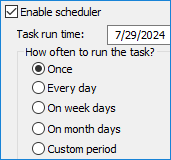
Start your tasks at a defined time, repeat by an interval from one minute to several months, or run a task when some event occurs, such as user logon to a system or plugging a USB drive related to a task into your PC slot.
Making Hard Disk Backup Secure
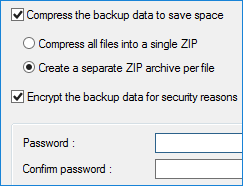
Use the built-in encryption tool to protect your hard disk backup from an unauthorized access, transfer your hard drive backup images to different secured cloud accounts or connect with an online storage by SFTP or FTPS protocols.
Run Backups Silently
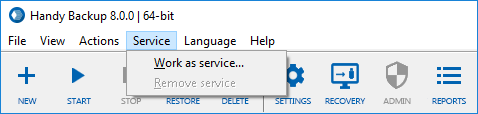
Start your tasks in a Windows service mode, making no distractions for users. In addition, you can include Handy Backup into batch files, or, vice versa, start other command-line tools before and/or after your task.
Hard Drive Backup over Network
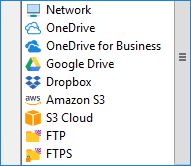
You can back up mapped drives, or use a network-oriented edition of Handy Backup as a centralized hard drive backup utility through a local network. Besides that, you have many available online backup storage media such as clouds and FTPs.
Testimonials About Hard Drive Backup by Handy Backup
Recommended Solution
Lifetime license
Handy Backup Professional
The Professional edition allows hard disk drive backup via both dedicated plug-ins just out of the box. In addition, it provides an access to a free copy of the Disaster Recovery utility! Free 30-days trial version!
How to Take Hard Drive Backup with Handy Backup?
Handy Backup has two hard disk backup software plug-ins: Disk Image and System Recovery both located in the Disk Clone group of data sources. The first plug-in makes a consistent copy of a drive partition; the System Recovery plug-in writes a hard drive backup into a VHD virtual image.
Creating a Hard Drive Backup Task
To make a task for hard disk backup, please follow the next instruction.
- Open Handy Backup and create a new task via the Management Panel or by using Ctrl+N keys.
- Select a backup task on Step 1, and go to Step 2.
Tip: You can use either simple or advanced task wizard mode, depending on your plans about complexity of these particular task settings.
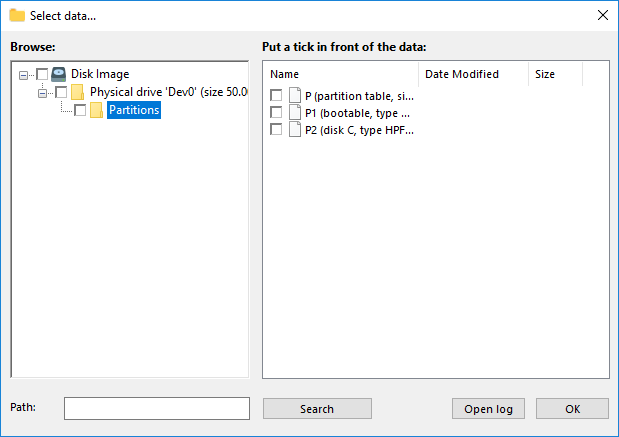
- Open the Disk Clone group on the left panel. Select a plug-in you need (Disk Image or System Recovery ).
- Now select a drive or a partition you will plan to back up. Click OK.
- Continue creating a task as described in the User Manual.
Note: To take a hard disk drive backup, you must run Handy Backup with administrator privileges!
Which Plug-in I Must Select for Hard Drive Backup?
- Disk Image: Select this plug-in when you are copying a data drive or a partition to restore it later with Handy Backup. A good option to save projects, databases, video and photo archives etc.
- System Recovery: Choose this plug-in when you are planning to restore the image of an entire hard disk with all partitions as a bootable drive, or use it as a virtual machine VHD drive.
Disaster Recovery
The Disaster Recovery utility is a third method for making hard disk backup. It is free to download and use for any buyer of Handy Backup Professional and higher editions. The Disaster Recovery tool creates bootable and non-bootable hard disk image backups, and can restore it to a bare metal machine.
Why You Need for Backup of Hard Disk?

Saving the information from your HDD is important, but saving a HDD itself can be truly precious. With a hard disk backup copy, you can do such things as recovering this image to new or repaired drive, moving from HDD to SSD while upgrading, or just expanding a copy of your system to some virtual machine.
The principal feature of hard disk backup is making a copy of an internal logical structure of a file system. Thus, you will copy not only those HDD content that you can see but also all links, unseen components and OS-related structures from it.
Download for Free
Version 8.7.0 , built on May 7, 2026. 152 MB
30-day full-featured trial period
Handy Backup is a full-featured, unified solution for hard disk backup! Try it just now by downloading a 30-day free trial version with all functions and plug-ins included!
Capterra′s Rating:
"Great product, very simple and effective backup program"
Handy Backup software were highly rated by Capterra, one of biggest online marketplace vendors throughout the world. Many functions of Handy Backup, including hard disk drive backup capabilities, were highly rated by Capterra’s specialists.
See also:
"As my WD Passport is the best hard drive to backup photos, Handy Backup is the best solution for hard disk backup! With Handy Backup, I make both necessary backup activities daily: automatic picture backup to my external disk via USB and doing this hard disk cloud backup to my OwnCloud storage. I guess what I can do without Handy Backup, which now carries a burden of all backup jobs!"
Ramakrishna Dachan, a photojournalist