Incremental Backup Software for Windows 11, 10 and Linux
Incremental backup software is designed to efficiently update backup copies by saving only the changes made since the last backup, rather than duplicating the entire dataset. This approach minimizes storage use, speeds up backup processes, and ensures quick recovery of the latest file versions. Handy Backup provides incremental backup for Windows 11, Windows 10 and Linux operating systems.
Try Handy Backup today and experience seamless, automated protection for your data! Download our free 30-day trial of the ultimate Windows 11 incremental backup software and keep your files secure with ease!
 Download for Free
Version 8.7.0 , built on May 7, 2026. 152 MB
30-day full-featured trial period

What Is Incremental Backup?
This is a method where only the changes made since the last backup are saved, rather than duplicating the entire dataset. These updates build upon the original full backup, reducing storage usage and speeding up the process. Reliable incremental backup software should automate these updates regularly and ensure seamless data recovery when needed.
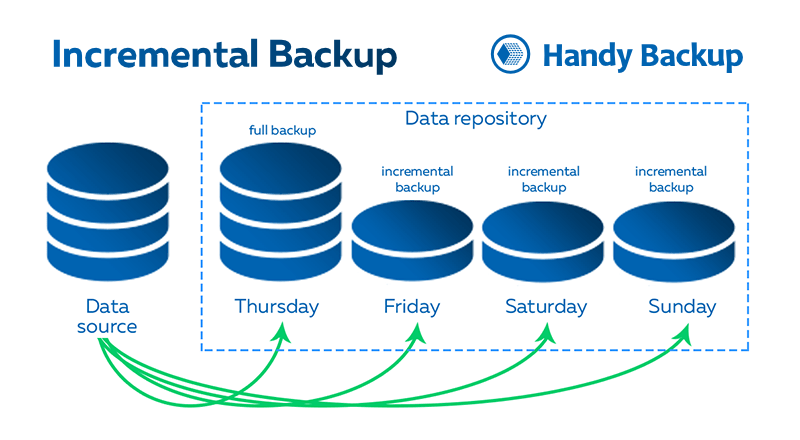
For example, if about 2,000 files are stored in a particular folder and only three of them have changed since the last backup, this operation will create a copy of just those three files. This version serves as an increment to the full backup, which keeps all files as the base copy.
Does Windows 11 do incremental backups? When setting up an incremental backup Windows 11 users may find built-in options limited, as they rely primarily on File History and Backup & Restore features. However, for more advanced, customizable, and efficient change-based backup options, third-party software like Handy Backup is recommended, providing enhanced flexibility and control over your Windows 11 backup processes.
Benefits of Incremental Backup
Partial backup is a modern and efficient method, particularly useful for Windows 11 incremental backup needs. It’s an essential tool for regular backups of work files, cloud accounts, and other critical data.

Space Efficiency
This method only saves the changes made to the original data, reducing the storage space required on your storage.
Faster Backups
Since only the modified data is backed up, the process is much quicker compared to full backup method.
Less System Load
This approach minimizes the load on your system, making the process less intrusive and more efficient.
Mixed Incremental Backup
This option initiates a fixed cycle consisting of one full backup followed by subsequent backups of changes. The cycle will restart from a full backup once the chain of backups reaches its predefined endpoint (either by time or by quantity).
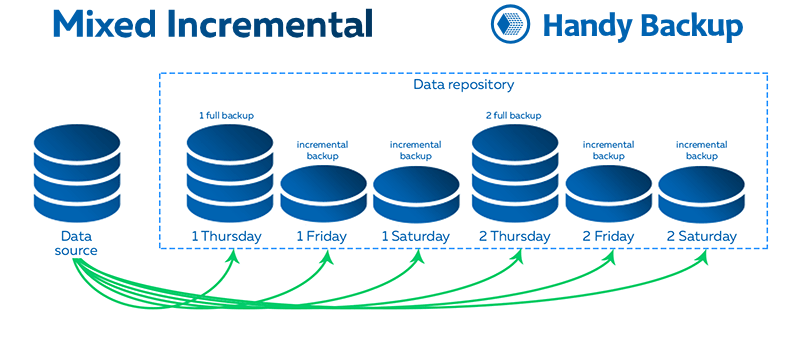
The key advantage of mixed backup is the ability to break long chains and replace them with a newer full backup. While this may slightly slow down the backup process, it significantly enhances the speed and reliability of the recovery process after extended backups.
Benefits of Mixed Incremental Backup
Mixed backup optimizes both efficiency and data recovery, providing a balanced change-based approach. It combines the best of both full and incremental methods, ensuring robust protection and performance.
Better Data Integrity
With periodic full backups and incremental updates, the risk of data corruption over time is reduced, ensuring long-term integrity.
Optimized Storage
Only the changed data is saved, reducing storage space compared to traditional full backups, making it a space-efficient solution.
Faster Recovery
The combination of full and change-based backups speeds up data recovery, ensuring you can quickly restore your data.
Benefits of Handy Backup Incremental Backup Software

Automatic Backups
Automated backup option ensures that your data is consistently and securely backed up at scheduled intervals without any manual intervention

Encryption
Advanced encryption options, including AES-256, protect your backup data with robust security, ensuring privacy and integrity.

Data Storage Options
Flexible storage options including Windows 11 backup to external devices, clouds, NAS, FTP/SFTP, and other destinations.

Backup Options
Backup a wide range of data, including files, folders, various databases, cloud services, emails, virtual machines, and more.

Scheduled Backups
Set up your backup schedule to ensure regular and timely backups without the need for constant supervision.

Native Format Backup
Backup data in its original format, ensuring easy data recovery without proprietary formats or additional software.

Hot Backup
Perform backups while the system is still running, minimizing downtime and ensuring data is always protected.

Web Version
Handy Backup offers a web-based application that supports incremental backups, giving you easy remote access to manage your backups.

Lifetime License
Enjoy the benefit of a lifetime license, with no recurring fees for using Handy Backup software, providing long-term value.
Recommended Solution
Lifetime license
Handy Backup Standard
Experience a powerful yet easy-to-use utility with full support for both differential and incremental backups. Try our full-featured 30-day free trial and discover the best incremental backup software for Windows - secure, efficient, and built for seamless data protection!
How to Do Incremental Backup in Windows 11 with Handy Backup?
Windows 11 incremental backup is a straightforward process. Simply select either the incremental or mixed incremental backup type on Step 4 when creating a new backup task.
Make sure you also have the option for differential backup enabled if you prefer to back up changes made since the last full backup.
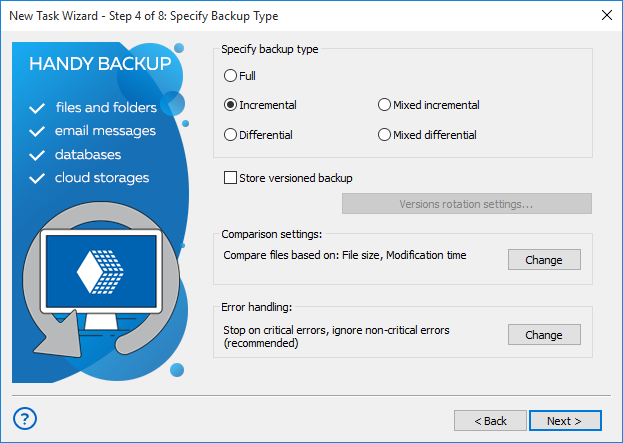
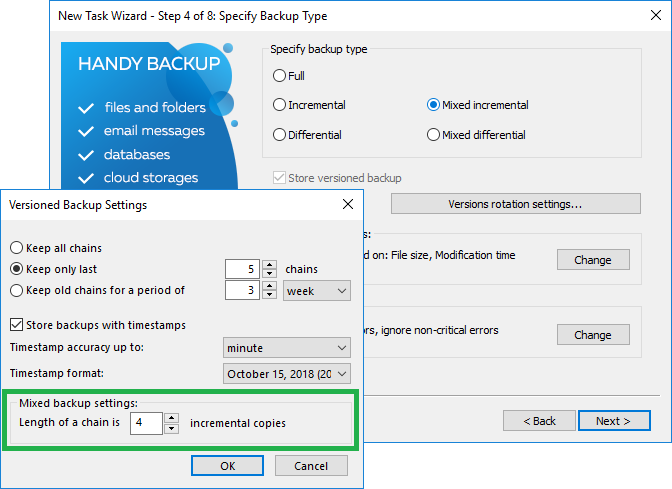
For mixed incremental backup, you can also set the length of the backup chain before starting a new cycle, either based on time or the number of increments. This option, available only in the advanced task wizard mode, allows you to customize how long your backup cycle should last, which helps maintain optimal performance and storage management.
Additionally, in this window, you can configure timestamp settings. These settings allow you to choose timestamp accuracy with a duration up to minutes, hours, days, weeks, or even months. You can also select from different timestamp formats to suit your preferences.
Examples of Using Incremental Backup Software

File backup for Windows and Linux, preserving multiple versions of frequently updated documents and projects.

Photo and video protection, allowing you to restore previous edits or recover lost versions without duplicating large files.

Windows 11 cloud backup support, such as Google Drive, optimizing storage space and bandwidth while keeping cloud data up to date.
Advice: Incremental database backups may slow down the restoration process! While you can create a task for incremental database backup, recovery will be slower compared to differential backups for the same dataset. Therefore, we recommend using this option primarily for incremental file backup!
Examples of Using Mixed Incremental Backup

Shared projects and team folders, ensuring that changes to documents, code, or design files are continuously saved.

User profiles and Windows libraries, keeping track of personal files, downloads, and application settings.

Software configurations and system settings, preserving important preferences and ensuring quick recovery after updates or crashes.
The Multi-Platform Solution
Handy Backup is the ideal incremental backup tool for all modern versions of Windows, including Windows 11, 10, 8.1/8, and 7, as well as for Windows Server Backup 2025, 2022, 2019, 2016, 2012 (including 2012R2), and 2008 (also with R2).


Linux Incremental Backup Tool
Handy Backup Server Network supports Windows and seamlessly integrates with Linux distributions such as Ubuntu 22.04, RedOS 7/8, and Debian 11/12. It allows for easy backup of file systems, PostgreSQL databases, and S3-compatible cloud storage, all managed through a Windows-based control panel. For backup solutions on other Linux distributions, feel free to contact us at [email protected].
Download for Free
Version 8.7.0 , built on May 7, 2026. 152 MB
30-day full-featured trial period
Try Handy Backup as your efficient and convenient incremental backup tool! If you'd like to learn more, don't hesitate to download the fresh and free 30-day trial edition, with all features available for you to explore!