File Filtering Backup Through File Masks
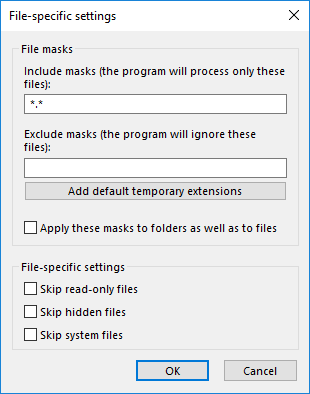
Handy Backup allows filtering data included into backup task through the use of file masks. You can back up only files of specific type (e.g. all Word documents in a folder), or on the contrary exclude certain files (e.g. backup everything except media).
 Download for Free
Version 8.7.0 , built on May 7, 2026. 152 MB
30-day full-featured trial period

Simple
Easy setup - apply backup filters in minutes, no tech skills needed.
Reliable
Back up exactly what you need - with accurate filtering and full control.
Automatic
Run filtered backups on schedule - no manual selection required.
Complete
Combine filters to protect files, folders, and entire data sets.




Why Use Backup Filtering?
Since specifying backup set file-by-file appears to be a very long process requiring a lot of attention and accuracy, most people prefer backing up entire directories. However, selecting an entire folder for backup often leads to including many unnecessary files, which may not be needed in the backup set.
To be able to skip them, there are three options of backup filtering in Handy Backup:
- Applying masks for files and folders, or for files only;
- Include and exclude masks that allow specifying most accurate backup task;
- A preset for automatic exclusion of unnecessary temporary files from the task.
Recommended Solution
Lifetime license
Handy Backup Professional
The choice of professionals for powerful computers and workstations, the Professional edition works with all types of storage, enabling selective file and folder backup for any task!
Efficient Media Data Filtering for Backup with File Masks

Video backup
If you want to back up your video files, you may specify the video file extensions such as avi, wmv, mpeg, and Handy Backup will take care of them in no time.

Music backup
Backing up your entire music collection is a one-click job with Handy Backup. You specify the music file extensions such as wav, mp3, wmf, etc. and Handy Backup backs them up to any available storage medium such as CD, DVD, HD DVD, Blu-ray etc.

Photo backup
Photos are precious memories that you would most definitely want to protect against loss and theft. With Handy Backup, you just need to specify the image file extensions such as jpeg, bmp, gif, etc., and the program will safeguard your entire photo collection easily and hassle free!
Combined with scheduling and incremental backup, backup filtering allows creating the most flexible backup strategies that will meet needs of the majority of computer users. Handy Backup allows filtering data with masks in both file backup and file synchronization tasks.
Download for Free
Version 8.7.0 , built on May 7, 2026. 152 MB
30-day full-featured trial period
Download Handy Backup and save yourself up to 100 unnecessary clicks!
See also:
Backup File Format Converter - see how our software manages file format conversion and how awesome the benefits are
Open File Backup - perform open file backup of any difficulty level without stopping other jobs