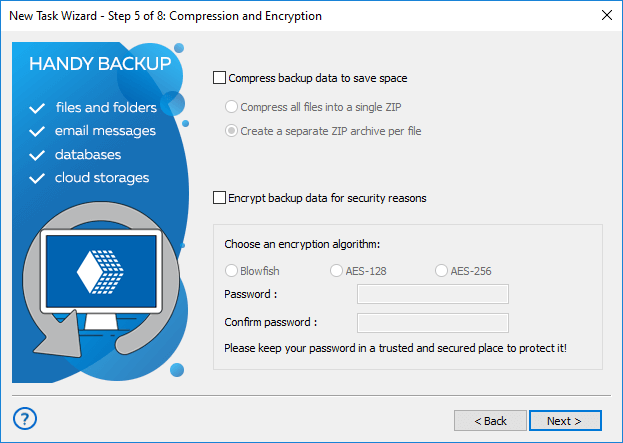
Step 5: Compression and Encryption


In this step of the New Task Wizard you need to select compression and encryption options.

Handy Backup: Compression and Encryption Options

Compression

You may choose to compress your backup to a ZIP archive, which can be useful in terms of space or time (for instance, if you are backing up to a network drive or a FTP server, it will save storage space and online time).

To set backup compression, follow these steps:


  1. Select compression type. No compression (default) leaves your data uncompressed, ZIP compression (single file) creates a single ZIP archive of your backup, ZIP compression (multiple files) creates separate ZIP files for each backed up file.

  2. If you selectedZIP compression (single file), specify the archive name.

  3. Select compression quality. Higher quality reduces size of the archive, but requires more time for the compression.

Encryption

Encrypting the backup makes it password-protected, which means that the data can’t be restored by anyone who doesn’t know the password. Currently, Handy Backup supports only one encryption algorithm known as blowfish, which provides the highest level of protection used in Internet communications.

To set backup encryption, follow these steps:


  1. Check Encrypt. Text fields below the box will become available.

  2. Enter encryption password in the Password text field. Remember that the password is case-sensitive.
  3. Confirm the password in the Confirm Password text field.

  4. Note: Make sure that you remember your password, because if you forget it, you won’t be able to restore the backup, and even our support team won’t be able to help you.


  5. When finished, click Next.


Data to Back Up:

File Backup - back up individual files and folders stored in local, LAN and FTP locations
Email Messages Backup - back up e-mail box directly from your mail server
Image Backup - perform complete hard disk image backup with all data and operating system
Email MS Exchange Backup - back up and restore Microsoft Exchange Server stores
Lotus Notes Backup - back up Lotus Notes without stopping the service
ODBC Database Backup - protect your databases by regular backups

Backup Destination:

Backup to LAN, Local and External Drives - store your backups at any drives visible in Windows Explorer
Backup to FTP - offsite backup to remote FTP server provides maximum reliability
Backup to SFTP - transfer sensitive data to a remote server via secure SFTP protocol
Backup to CD-R/CD-RW - burn your backups to optical disks with multi-drive spanning and verification options
Backup to DVD/HD DVD/Blu-Ray - record important data to DVD disks using the integrated burning tool
Handy Backup Online - store backups at Novosoft Online Backup Service instead of third-party providers
Handy Backup US English Website English
Other Languages
Handy Backup -  image
Backup software for MS Windows®
7/Vista/XP/2000 or 2008/2003 Server
Handy Backup News!