Step 4: Backup type (full, incremental, differential and mixed backup)
Backup type. (Full, incremental, differential and mixed backup)
This page describes the fourth step of creating a backup task with the New Task Wizard. This step is available only in the advanced mode.
At this step you need to decide what type of backup you want to choose: full, incremental, differential or mixed.
You can also configure additional options: Storing versioned backup, comparison settings, error handling.
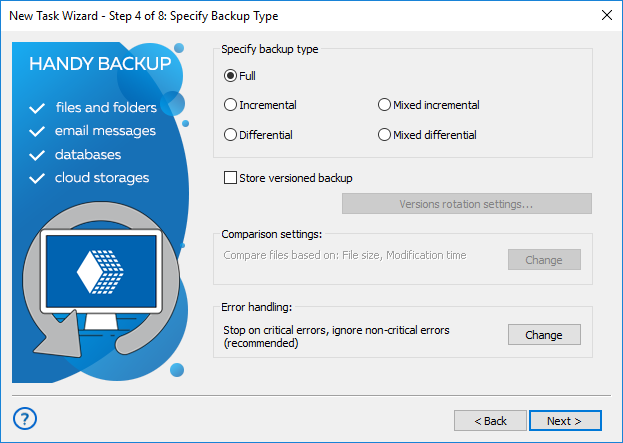
Selecting type of backup
Type of backup determines the program's behavior when running backups regularly on a schedule. There are three or five basic variants, depending from the basic or advanced wizard mode:
- Full backup is a method of backup when we copy all files each time. This type of backup takes up the most time and space.
- An incremental backup is a method of backup where we copy files that have changed since the last backup session. It is faster than full backup.
- Differential backup is a method of backup when we copy only those parts of files that were created or changed since the last full backup.. (See also about backing up with time stamps.)
- Mixed incremental backup. It contains one full backup and several incremental backups. All cycles will start a full backup again when the incremental backup chain reaches a predefined end (by time or by quantity).
- Mixed differential backup. It contains one full backup and several differential backups. All cycles will start a full backup again when the chain of differential backups reaches a predefined end (by time or by quantity)
You can select the option: Store versions of the backup. This will allow you to use timestamps. Your backups will carry information about the time of their creation.
Attention: for differential and mixed backups, timestamps are set by default. You cannot uncheck the "Store multiple backup versions" checkbox from the task in these cases!
Backup update options
Check the box marked "Store versioned backup" to backup with a timestamp.
The button "Versions rotation settings" will be available; press it.
The dialog window will appear, with all the parameters for time stamp backup settings.
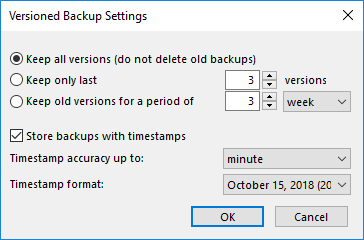
For full and mixed backup types you can:
- Keep all versions of backups.
- Keep only the latest versions. You can configure the number of stored versions (cycles).
- Keep only older versions for the selected period
For incremental and differential backups, you can only save all versions of backups.
Check the "Store backup with timestamp" box to set the accuracy (months, days, etc.) and format of the timestamp.
After setting the parameters, click OK.
Comparison Settings
By default, when running incremental or differential backup, the program will create a new version of file if File size or Modification time attributes are different. The Creation time is not checked, because some storage file systems (for example, FTP) don't have this attribute.
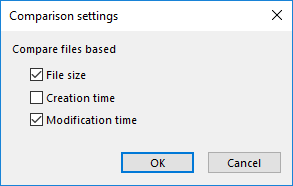
This behavior is task-specific, i.e. it can be different for different tasks. To change it, click the Change button in Comparison settings.
Error Handling
Error handling is an advanced mode option that lets you set the program's behavior when it encounters an error:
- Critical errors are plug-in specific. For example, failing to initialize Volume Shadow Copy service in MS SQL plug-in is a critical error, while in Computer plug-in it is not.
- Non-critical errors are one-time errors that are not specific to the entire backup set. For example, the "Access denied" error may be a result of a conflict with another application, and running the same task again will back up the same file successfully.
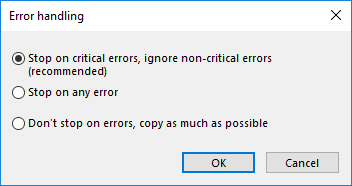
You can choose whether the task must stop on any error, stop only on critical errors, or don′t stop on errors at all.
If there are any errors during backup, the task will end with an Error status.
When finished selecting the type of backup and specifying advanced settings, click Next.
Contents: