Scheduling (Step 6, 5 or 4)
This page describes task scheduling with the New Task Wizard. Depending from basic or advanced task wizard mode, you will see all or only part of scheduling options described here.
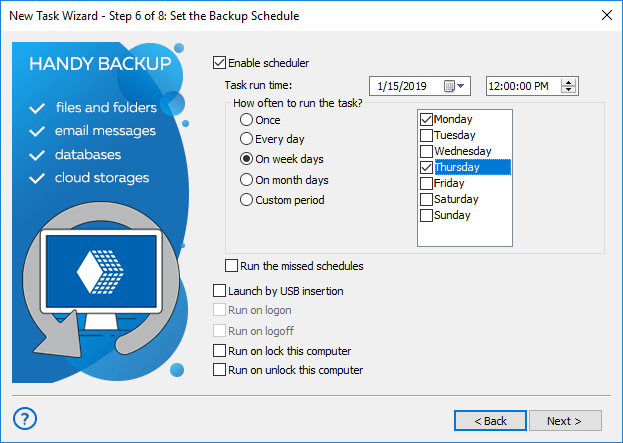
To set up a schedule, follow these steps:
- Check Enable scheduler.
- Select start date and time.
- If you want the task to be repeated automatically, check Repeat.
You can repeat the task daily, weekly, monthly, or with any custom period.
- Check Run the missed schedules if you want the program to automatically run missed tasks on program startup.
Besides time-based scheduling, you can also run the task on plugging a particular USB device (linked to a task) into a USB slot on your PC. The program will recognize the device regardless of a slot used.
- When finished, click Next.
- Select Run on logon / Run on logoff to trigger a task after user logon or logoff onto a system.
Note: To make these triggers active, please run the program as Windows service!
- Select Run on lock this computer / Run on unlock this computer for triggering a task to run when a user locks/unlocks the computer.
Contents: