English
Other Languages
Search site:


MS Windows® Vista/2000/XP/2003

Handy Backup 6.1

Step 6: Scheduling


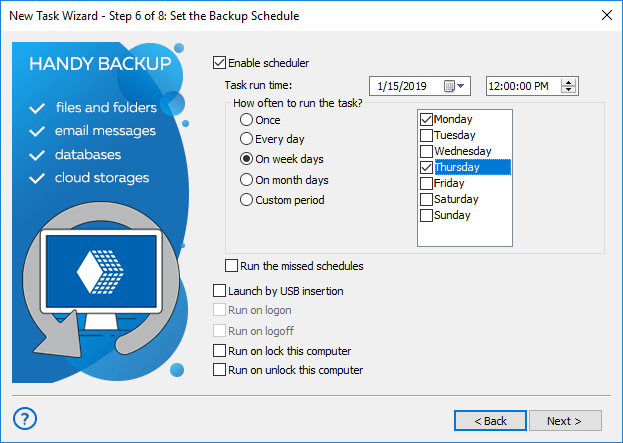
In this step of the New Task Wizard you need to define the schedule for restoring. Restore task may be performed once or on a regular basis.


1. Check Enable scheduler to perform restore task on time specified below.


2. Select the time you want the task to be launched at. To change day, month, year, hour, minute and second, click them and enter new values, or use the ↑ or ↓ keys to increase or decrease them.


3. Check Repeat if you want the task to be performed regularly.


There are four available options of repetition:

  • Every day - Schedule the task to be performed daily at the foregoing time;
  • On week days - Schedule the task to be performed on certain week days;
  • On month days - Schedule the operation to be performed on certain month days;
  • Custom period - Define the time period manually.

4. Check Run the missed schedules if you want Handy Backup to execute this task if it has been missed (as soon as you log in).


5. Check Run on logon to execute this task each upon logging on.


6. Check Run on logoff to execute this task each upon logging off.


Data to Back Up:

File Backup - back up individual files and folders stored in local, LAN and FTP locations
Email Messages Backup - back up e-mail box directly from your mail server
Image Backup - perform complete hard disk image backup with all data and operating system
Email MS Exchange Backup - back up and restore Microsoft Exchange Server stores
Lotus Notes Backup - back up Lotus Notes without stopping the service
ODBC Database Backup - protect your databases by regular backups

Backup Destination:

Backup to LAN, Local and External Drives - store your backups at any drives visible in Windows Explorer
Backup to FTP - offsite backup to remote FTP server provides maximum reliability
Backup to SFTP - transfer sensitive data to a remote server via secure SFTP protocol
Backup to CD-R/CD-RW - burn your backups to optical disks with multi-drive spanning and verification options
Backup to DVD/HD DVD/Blu-Ray - record important data to DVD disks using the integrated burning tool
Handy Backup Online - store backups at Novosoft Online Backup Service instead of third-party providers