Ready to Create New Task (Step 8, 6 or 5)
This page describes the last step of the New Task Wizard.
This step is similar for all types of tasks: step 8 of backup task, step 5 or 6 of restore task, and step 6 of synchronize task.
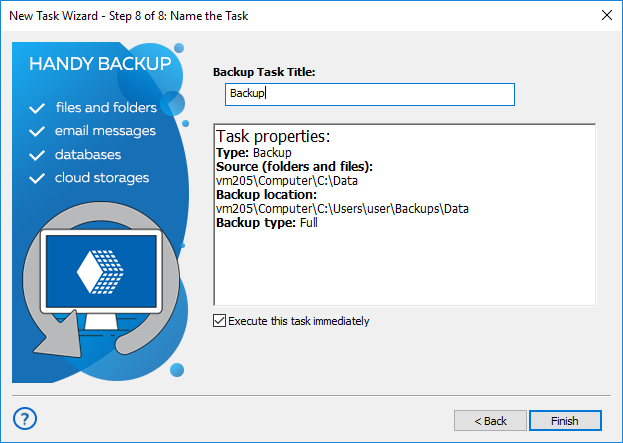
- Name the task. It is recommended that you give meaningful names, so you can then easier track overall status of your data.
- Review task parameters. If some you want to change something, you can go to the previous steps and do it.
- Check Execute the task immediately to run the task straight after you click Finish.
- Click Finish.
Running a Task Manually
You can start any task at any time in a manual mode, regardless of existing schedule for this task.
The Instruction
To start any task you want, please do the following sequence of actions.
- In the Task View section of a main window, select a task (or multiple tasks) that you are planning to run now.
Note: You can use standard Windows selecting tools (i.e. Shift and Ctrl keys in a combination with mouse left clicks) to select groups of tasks easily.
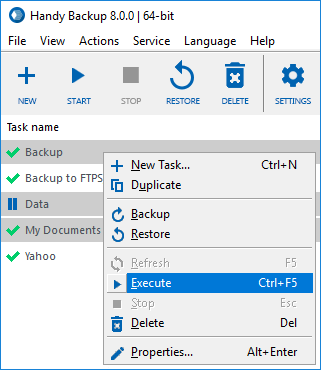
- When selected, click on an execution button on the Management Panel, or select the "Execute" item on the context (right-click) menu. (You can also just press Ctrl+F5 to run selected tasks).
Contents: