Handy Backup Works with Windows Vista Handy Backup -

Data backup and disaster recovery software for
Windows 7/Vista/XP/2000 or 2008/2003 Server

Restoring Separate Files and Folders


Handy Backup allows performing restoration of separate files and folders that are included in other backup or restore tasks created in the program.

Handy Backup: Restoring Separate Files and Folders

1. In the Task View window select backup or restore task that includes files you want to restore.

All items included into the task’s backup set will be displayed in the File View window.

2. In the File View window select needed files and folders with the help of the standard Windows selection methods (use CTRL to select a single task, SHIFT to select a row of consecutive tasks, etc.).

3. To restore a file or a subfolder contained in a backed up folder, double-click it in the File View window, and then do the selection procedure.

Note: If the backup set was formed with the use of backup presets, such as <My Documents> or <Favorites>, this method can’t be used. You can restore separate files from folders that were backed up as Folder backup item during the task creation. For more details refer to Step 2: What to backup of backup task creation.

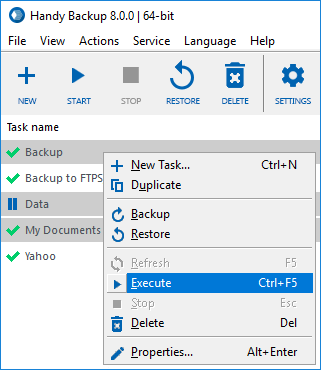
4. Right-click on any of the selected items to open the shortcut menu, and then click Restore.

The procedure of restoring separate files and folders through the File View Window doesn’t allow you to perform restoration to locations different than those defined in the task. If want to change restore location for your data, you need to edit the task first. To learn about modifying tasks, refer to Modifying Task. For more details about the File View Window, refer to File View Window.

Note: If the task contains a disk image, the File View window will display a folder named Devices. Restoration of a hard drive or its partition has several conditions that need to be observed. For details, refer to Hard Drive Restoration.

Step 7: Ready To Create New Task

Synchronizing Data

Go to Help Contents

File Backup - back up individual files and folders stored in local, LAN and FTP locations Email Messages Backup - back up e-mail box directly from your mail server Image Backup - perform complete hard disk image backup with all data and operating system Email MS Exchange Backup - back up and restore Microsoft Exchange Server stores Lotus Notes Backup - back up Lotus Notes without stopping the service ODBC Database Backup - protect your databases by regular backups

Backup to LAN, Local and External Drives - store your backups at any drives visible in Windows Explorer Backup to FTP - offsite backup to remote FTP server provides maximum reliability Backup to SFTP - transfer sensitive data to a remote server via secure SFTP protocol Backup to CD-R/CD-RW - burn your backups to optical disks with multi-drive spanning and verification options Backup to DVD/HD DVD/Blu-Ray - record important data to DVD disks using the integrated burning tool Handy Backup Online - store backups at Novosoft Online Backup Service instead of third-party providers

Handy Backup software -
Bookmark and Share