Step 2: Select the First Folder (Synchronize Task)
This page describes the second step of creating a synchronize task with the New Task Wizard.
On the second step of the New Task Wizard, you need to select the first folder for synchronization. The window consists of two panes: Data Source and Folder Selection.
- In the Data Source pane, you can see different types of storage file systems that may contain a folder you want to synchronize.
- In the Folder Selection pane, you can see folders available in the selected source.
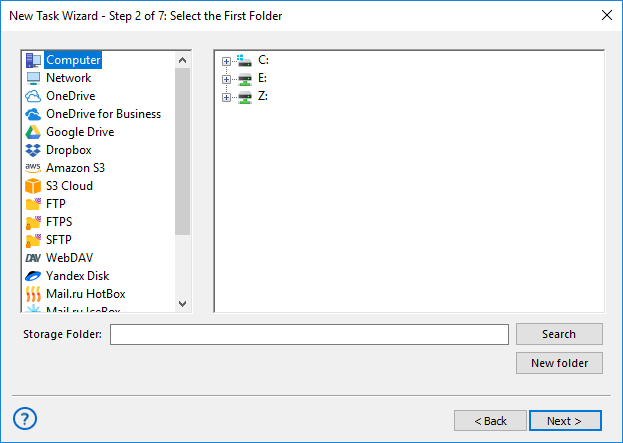
Technically, all data sources are plug-ins, and usage of some plug-ins requires you to have an appropriate license. During the trial period, you can use all plug-ins without any limitations. After registration, the list of plug-ins will be limited, respectively to the edition you register. To learn more, please refer to Registration...
To select a folder for synchronization, follow these steps:
- (Server edition only) At the top left corner of the window, select Workstation that contains the folder that you want to synchronize.
- In the left pane (Data Sources), select a source of data. For example, if you want to synchronize a network folder, select Network.
- In the right pane (Folder Selection), select a folder you want to synchronize. Don’t worry about direction of synchronization: it is set in the next steps.
- When finished, click Next.
In this section:
Contents: