Step 7: Pre-, Post-Operation Actions (Backup Task)
To use this step, you must run a Task Wizard in an advanced mode.
On this step of the New Task Wizard, you can specify a program or script to run before or after the backup task.
- Select “Run a program before running the task” if you want Handy Backup to launch an external application prior to executing the task. Specify the application or batch file you want to run.
For example, you can run your antivirus to make sure that the files included in the backup set are free from viruses. You can also scan the entire computer with your antivirus before performing a backup.
Example of running a Microsoft Defender scan, enable the “Run a program before running the task” option and enter the following command:
"C:\ProgramData\Microsoft\Windows Defender\Platform\[antimalware platform version]\MpCmdRun.exe" -Scan
You can learn more about the [antimalware platform version] on the official Microsoft documentation page.
Check “Wait for the program before proceeding” if you want Handy Backup to start the task only after the external program has completed.
- Select “Run a program after running the task” if you want Handy Backup to launch another application once the task is finished. Again, specify the program or batch file to be executed.
For example, if you’d like your computer to shut down automatically after Handy Backup completes all tasks, select “Run a program after running the task” and enter shutdown /s /t 0.
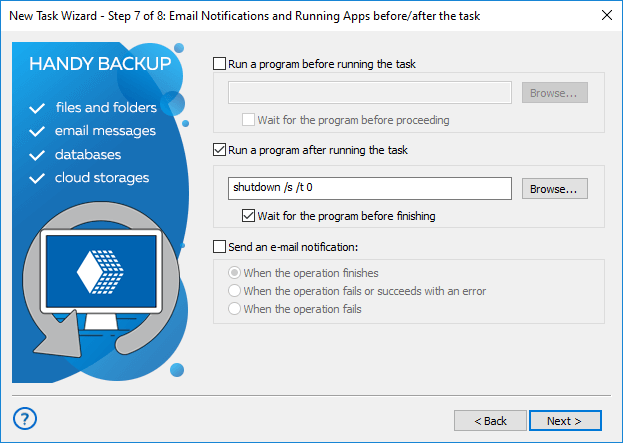
You can also check “Wait for the program before finishing” to make sure Handy Backup runs the next step only after the external application has completed.
- Finally, select “Send an e-mail notification” if you want Handy Backup to send an e-mail message after the task finishes.
- Select When the operation finishes if you want to receive notifications for all completed tasks.
- Select When the operation finishes with an error if you want to be notified about tasks that completed with ignored errors or failed to complete.
- Select When the operation fails if you want to be notified only about tasks that failed completely.
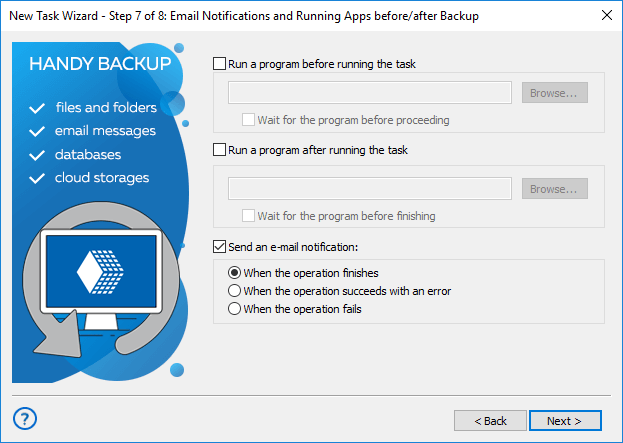
E-mail notifications can be enabled only if you have configured mailing options in Settings. If you haven’t done it, you can skip this step, and then turn it on later by modifying task properties. To learn more, see E-mail Notification Settings.
Contents: