-
Handy Backup English
General settings
General settings are used to configure different aspects of program performance.

- Check Launch agent on Windows Startup if you want Handy Backup agent to be launched on Windows startup. To learn more, refer to Handy Backup Agent.
- Check Show splash screen on program startup to see Handy Backup splash screen on program startup.
- Check Enable Windows Explorer integration to add Handy Backup commands to the standard Windows context menu.
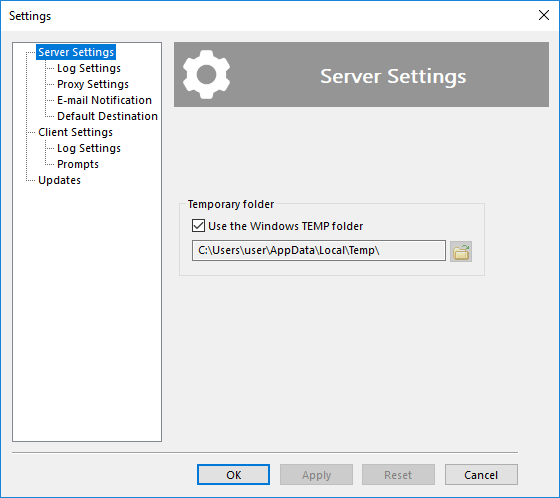
- Check Use the Windows TEMP folder if you want Handy Backup to use the standard Windows temporary folder. In certain cases, e.g. when you enable compression or encryption, Handy Backup requires a temporary directory to stores temporary files. TEMP folder must be located on a hard drive that has enough free space, or otherwise Handy Backup operations may fail. If you want to select a different folder, uncheck the box, and then type a path or click the Browse for folder
button to browse for another TEMP folder. - Check Eject the CD/DVD after a backup operation if you want the program to eject your CD/DVD after backup/restore processes are over.
- Check Verify the backup after burning if you want the application to verify if the data burned on the CD/DVD is readable.
- Check Try online help first if you want the program to refer to the online help system instead of displaying the program help file. Online help is constantly updated and in some cases can be more complete.
Installing Handy Backup Installing Handy Backup Server NEW! Installing Handy Backup Disaster Recovery Installing Handy Backup under Linux Updating Handy Backup from Earlier Versions Registration Plug-ins How to Backup (Articles)
File Backup - back up individual files and folders stored in local, LAN and FTP locations Email Messages Backup - back up e-mail box directly from your mail server Image Backup - perform complete hard disk image backup with all data and operating system Email MS Exchange Backup - back up and restore Microsoft Exchange Server stores Lotus Notes Backup - back up Lotus Notes without stopping the service ODBC Database Backup - protect your databases by regular backups
Backup to LAN, Local and External Drives - store your backups at any drives visible in Windows Explorer Backup to FTP - offsite backup to remote FTP server provides maximum reliability Backup to SFTP - transfer sensitive data to a remote server via secure SFTP protocol Backup to CD-R/CD-RW - burn your backups to optical disks with multi-drive spanning and verification options Backup to DVD/HD DVD/Blu-Ray - record important data to DVD disks using the integrated burning tool Handy Backup Online - store backups at Novosoft Online Backup Service instead of third-party providers