Upgrading from Version 3 - 7 to Version 8
To migrate from version 3-7 to version 8, you need to order the respective upgrade. Follow these steps:
- Open the Upgrades page on the product website: www.handybackup.net/order-upgrades
- Find the upgrade you need.
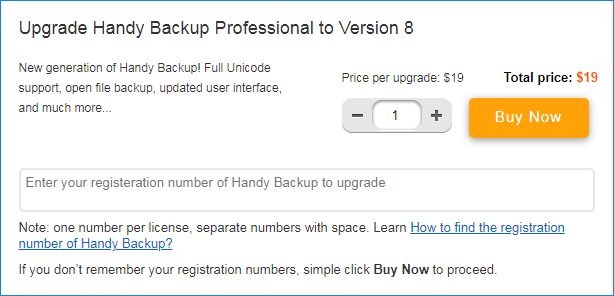
Note: The above screenshot may change from the time of publication (April, 2019).
- Enter registration numbers that you want to upgrade. Make sure that the registration numbers correspond to the upgrades, e.g. if you are ordering an upgrade for Professional edition, enter the respective registration number.
- Click Buy Now. You are redirected to a payment system where you can complete the order.
If you don′t remember your registration numbers, or need assistance, please don′t hesitate to contact our support team:
[email protected]
Generally, it takes no longer than 10 minutes before the number is updated in our database.
- When you receive an e-mail with confirmation of the upgrade, re-register the software. To do it, click the Register button on the program′s toolbar, enter your registration number in the Registration window, and then click Register.
For detailed instruction on re-registering, please see Registration.
Migrating Tasks
Version 8 of Handy Backup has undergone a major update and is not compatible with earlier versions. The only way to migrate tasks from old versions to version 8 is to create these tasks again or to export and then import tasks* (starting from version 7.8.2). Follow these steps:
- Run Handy Backup 7 and export all your tasks.
- Install the version 8.
- Import your task list into the version 8.
Note: Tasks using MS SQL and Oracle plug-ins will not available for transferring to version 8, as these plug-ins are deeply changed now!
Learn more about Export and Import tasks.
Otherwise, the only way to "export" Handy Backup tasks to version 8 is to re-create these tasks manually with all corresponding properties.
* Note that you can import tasks only in a purchased version Handy Backup, not in a free trial version!
To learn more about creating tasks, please see Managing Data.
Contents: