FTP Backup Software: a Reliable Solution for Online FTP Backup
FTP backup software provides the most secure and reliable way to back up data. Storing files on a remote FTP backup server ensures protection against hardware failures, natural disasters and other causes of data loss. To back up to FTP you need an online FTP backup software, such as Handy Backup.
 Download for Free
Version 8.7.0 , built on May 7, 2026. 152 MB
30-day full-featured trial period

What Is FTP?

FTP (file transferring protocol) and its advanced versions, SFTP and FTPS, are some of the oldest online storage types. The FTP protocol allows transferring files and folders to and from some remote storage, available by predefined name or by an IP address.
Due to popularity of this technology, you can easily find and download some free FTP backup tool. Compared to Handy Backup, these tools often lacks a versatility, convenience, automation or security, maybe, all of these features. Still, these tools are free.
Handy Backup and Features of the Best FTP Backup Software

Advanced Online FTP Backup Transfer Engine
Handy Backup is equipped with a robust FTP client that offers advanced capabilities for transferring data in various directions. You can utilize this feature to remotely store PC backups, back up data from an FTP server, or simply copy files between different FTP servers.

Enhanced Compatibility of FTP Backup Software
Handy Backup offers full Unicode support, allowing you to back up files with names in languages such as Japanese, Russian, German, and more. With advanced algorithms, you can back up or synchronize data from any type of FTP server, including SOCKS5 and SOCKS4 proxy servers.

FTPS (FTP over SSL) and SFTP (SSH File Transfer Protocol)
While the Standard edition enables automatic backup to FTP, higher editions (Professional and above) provide support for secure protocols SFTP and FTPS. These powerful features are all accessible in the trial version of the software at no cost.
FTP Backup Service for Home and Business: the Recommended Solution
With a rich set of features and strong focus on user experience, Handy Backup is widely recognized as the most powerful backup utility in its class. If you are a just home user, or you are seeking for FTP backup software for your business; Handy Backup always will be your best choice!
Recommended Solution
Lifetime license

Handy Backup Professional
If you want to back up to FTP, SFTP or FTPS servers, please purchase the Professional edition, which has all FTP-related plug-ins just out of the box. Free 30-days trial version!
Testimonials About FTP Backup Software by Handy Backup
How to Backup FTP Files
You can use the FTP server either as a source of backup data or as a destination where you will keep your backups. In both cases, you need to link FTP backup software Handy Backup with a particular FTP server, creating a new connection.
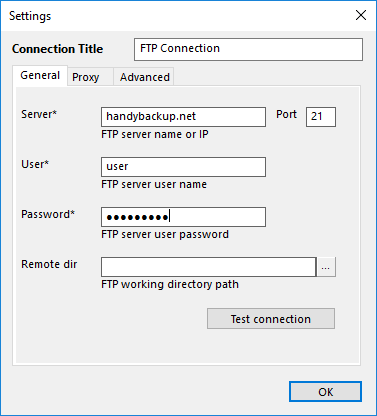
On the connection dialog, set up a name of that new connection, a server name, and provide a pair of login and password for accessing to FTP. You can also select a remote folder on an FTP server to access it as backup source or destination. After entering all parameters, click OK.
Choosing an FTP Backup Hosting as Data Destination
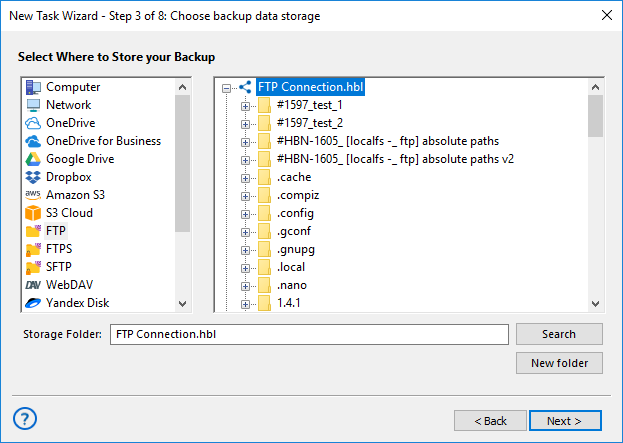
To use FTP backup storage, select FTP as the destination. You can perform it on Step 3, when you are creating a new backup task, or later, by editing task properties, on the “Storage” tab.
Selecting an FTP Server as Data Source
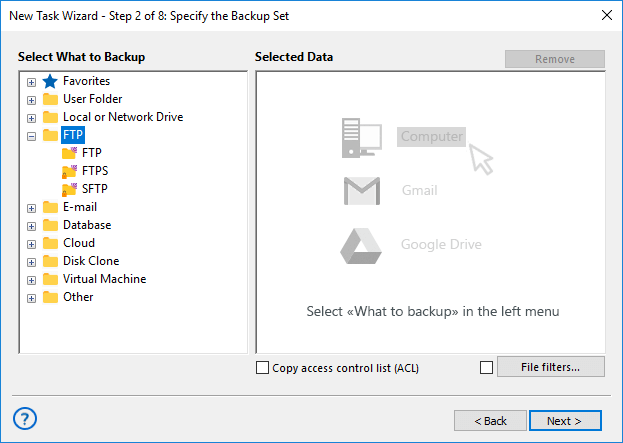
If you want to perform FTP backup (e.g. copying website content through FTP connection), choose FTP as the source of data. Again, you can apply it on Step 2 when you are creating a new task, or by editing an existing task using the tab "Backup set".
For comprehensive guidance on configuring and utilizing FTP backup software, refer to the corresponding chapter in the User Manual.
FTP Backup Hosting
When you choose an FTP backup storage media, Handy Backup allows you using any modern storage type, from a local drive or an USB external disk to a local NAS or shared folder to a private or commercial cloud based on S3 or WebDAV data protocols to popular cloud storage, and, of course, to another FTP.

Can I FTP to Google Drive, Amazon S3 or Other Cloud?
Yes, Handy Backup provides plug-ins for most popular cloud services, including Google Drive, Dropbox, Box, Amazon S3, OneDrive and OneDrive for Business, as well as for some other clouds.
Due to constant updating of cloud security protocols, some services are sometimes unavailable for Handy Backup or require additional setup to use these services properly. It is not a fault of Handy Backup, and program updates fix these small problems as soon as possible!
Handy Backup for Remote Backup Hosting Service Providers
Utilizing online FTP backup has become an essential business practice in today's digital landscape. In connection with growing interest in this FTP backup service and software, we present you to the family of our backup utilities, Handy Backup.
With our powerful and easy to use remote backup software, you can offer your customers a completely new sense of security and protection for their business. Additionally, our solution supports data center backup, ensuring that your clients' critical data is safeguarded in a comprehensive and reliable manner.
To learn more about partnership opportunities, please visit the online backup software for service providers section.
Key Features of FTP
Today, FTP boasts a range of features that make it a versatile tool for file transfer and management. Key points include:
- Ease of Use: FTP remains one of the simplest ways to transfer files, making it attractive for small to medium-sized businesses without extensive IT resources.
- Transfer Speed: Efficient for handling large data volumes with proper setup.
- Customization Flexibility: FTP can be tailored to different needs and usage scenarios, allowing adaptation to specific business processes.
- Reliability: FTP, with its long history, is widely used across diverse domains due to its stable data transmission and relative ease of setup.
- Security: While vulnerable to attacks, secure iterations like FTPS and SFTP provide protection.
FTP Client Software
In the realm of backup solutions, Handy Backup stands out as a versatile powerhouse, transcending traditional data protection. Explore the efficiency of Handy Backup's FTP capabilities, designed for secure and reliable online FTP backup:
FTP Backup Utility: Copy, mirror, or synchronize data locally and remotely, including website content through FTP connections, ensuring comprehensive data protection.
FTP Client Functionality: As an FTP client, Handy Backup facilitates seamless information sharing, making FTP tasks straightforward and reliable.
Advantages of Handy Backup as an FTP Backup Software
Now, let's delve into the specific capabilities of Handy Backup as an FTP software:
- Two-Way FTP Client Exchange: Handy Backup enables bidirectional data storage and transfer using FTP.
- Organizing and Automating Data Transfer: our auto backup software offers scheduled FTP tasks with automated encryption and compression.
- Saving Data in Native Format: Handy Backup stores backup data in native formats, supporting seamless uploading and synchronizing through FTP servers.
- Exchanging Information between FTP Servers and Storage Media: Handy Backup simplifies tasks by facilitating the download of website or FTP service folders.
- Off-Site Storage Using Data Clouds: Handy Backup supports secure off-site storage on various clouds, aligning with the modern trend of utilizing cloud resources.
FAQ: FTP Backup Best Practices
- Why is it important to back up files before performing an FTP transfer?
Performing a backup before an FTP transfer is crucial to safeguard your data. In case of any unexpected issues during the transfer, having a backup ensures that your files are protected and can be easily restored, minimizing the risk of data loss.
- What additional security measures can be applied with FTP backup?
Implement additional security measures such as access control, data encryption, and regular server security monitoring when using FTP backup solutions. These measures enhance the overall security of your data during transmission and storage.
- Can FTP backup be used for backing up large files?
Yes, FTP backup is highly effective in handling the transfer of large files, ensuring a reliable backup process. Its efficient data transfer capabilities make it suitable for backing up extensive datasets and large-sized files securely.
- How to choose suitable FTP backup software?
Select a versatile FTP backup software that offers backup functionality, supports secure protocols such as SFTP and FTPS, and provides the option to configure regular automatic backups. Handy Backup stands out for its advanced capabilities, automation features, and security enhancements, making it a preferred choice for modern file transfer and backup needs.
Video: Using Handy Backup as FTP Backup Software
In this video, we will show how simple is to make an FTP backup with the dedicated Handy Backup “FTP” plug-in. You will find out how to make an FTP backup task, how to recover data easily by using this FTP backup software, and what a saved copy on an FTP server looks like.
Note: For SFTP or FTPS backup, the procedure contains only slight changes in a connection setup dialog. Otherwise, these are as simple procedures as FTP backup shown here.
Download for Free
Version 8.7.0 , built on May 7, 2026. 152 MB
30-day full-featured trial period
Discover the power of Handy Backup's reliable and user-friendly FTP backup software for seamless data transfers and secure storage! Download a free 30-day trial version with all functions and plug-ins just now!
"I backup to FTP and SFTP, as well as restore files to same locations, when I make websites. Handy Backup automates all actions for me, working as quickly and precisely as I even could dream, and all my preset tasks still work through the years without any need for modifying or updating!"
Mark Eldritch, a Web designer