How to Install Plug-ins
Note: XML-based plug-ins are temporarily unavailable in the latest version, Handy Backup 8.5.3 (released on March 5, 2024). We are planning to add this feature in several weeks - and if you need it right now, we recommend that you use version 6.9.7 instead.
You can add plug-ins to Handy Backup either through Settings -> Plugins, or by downloading them manually and adding to the XmlPlugins in the Handy Backup installation folder.
Download the plug-in or plug-ins you need from this web site. Save downloaded files in ZIP format on your computer, and then extract the archive to the following folder: Program Files/Novosoft/HandyBackup/XmlPlugins.
To check the success of your plug-in installation, do the following:
- Launch Handy Backup.
- On the File menu, click Settings.
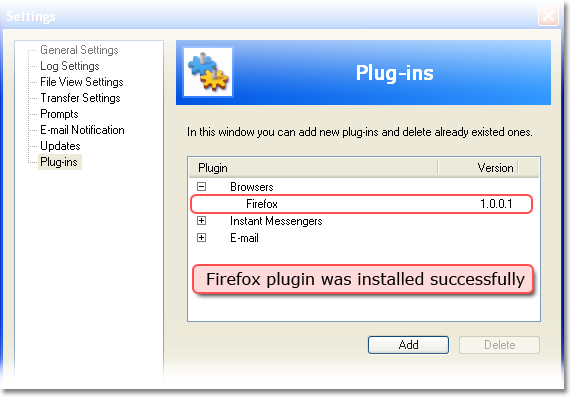
- In the left pane, click Plug-ins. Plug-in categories appear in the right pane.
- Click the “plus” sign next to the category you need, and check if your plug-in is in the list.
- If you can see your plug-in, then the installation was successful.
Using Plug-ins with Handy Backup
To use the plug-in in Handy Backup, follow these steps:
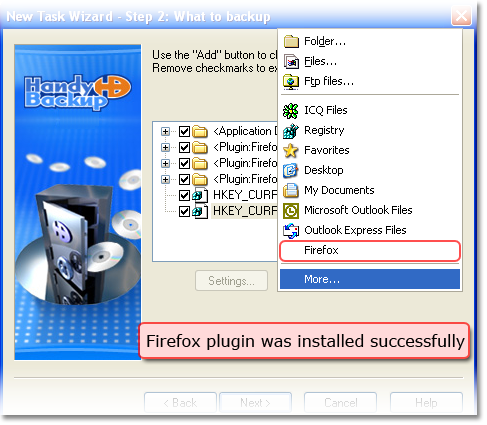
- Launch the New Task Wizard and start creating a new backup task.
- Click Add.
- Click your plug-in in the context menu.
Contact Us
What to Back Up
My Documents Backup - one click backup of the My documents folder including pics, videos, music, text files
Website Backup - most reliable solution to protect your business web representation
Disk Image Backup - back up your hard drive by creating a hard drive image and saving it to the storage medium
MySQL Backup - simple, comprehensive backup of the MySQL database tables
Where to Back Up
Backup USB - back up your data to any USB connected device such as USB flash key
Backup to FTP - transfer your backups to remote FTP server for more data security
How to Back Up
Synchronizing files and folders - one click synchronization of files and folders across multiple locations including remote FTP servers