How can I restore a specific file or folder?
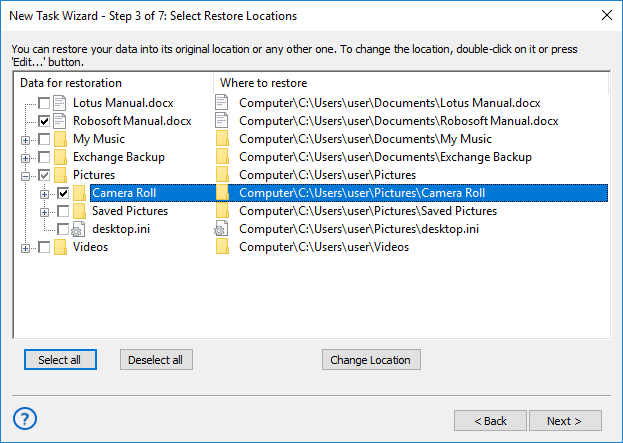
To restore a separate file or folder from a backup set, please make a new recovery task. On Step 3, "Select restore location", click "Deselect all" to remove all files from a recovery list.
Now use the left panel for file browsing and find a file or folder that you need. Mark a checkbox against a name of this item. Note that when you mark a subfolder, it will also mark all items inside this subfolder, both files and folders.
Changing Recovery Location
In the advanced task wizard mode, you can also select a new recovery location for a separate file or folder. To do it, please use the next instruction:
- Create a new restoration task and select an advanced wizard mode on Step 1.
- Select a recovery dataset and go to Step 3, "Select Restore Locations".
- Select a single file or folder as described above.
- Click "Change Location" to open a new location dialog.
- Select a new location for data recovery.
- Some plug-ins (e.g., MS Outlook or MS Exchange) do not accept changes for recovery location. You must always restore data from these plug-ins to original places.
- You can also recover some complex data types (such as databases and virtual machines) into a new location, but only under the same plug-in. For example, you can recover a MS SQL Server database to another MSSQL server only.
See also: FAQ | Program Installation and Usage:
⇒ How I Can Copy Data from Several Workstations at Once?