Synchronize Files between Computers for Servers, Laptops and Desktops
Synchronize files between servers or other computers with Handy Backup!
In addition, Handy Backup allows you automating tasks to synchronize your laptop and desktop, PC and mobile devices, external drives, NAS units or other data sources, including synchronizing via Internet.
 Download for Free
Version 8.7.0 , built on May 7, 2026. 152 MB
30-day full-featured trial period
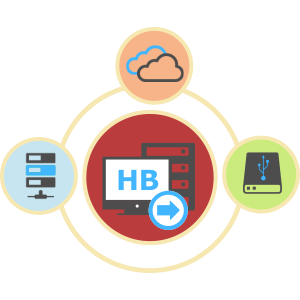
If you have more than one machine containing valuable data, the difference between files on each machine has a tendency to grow constantly. To eliminate the discordance caused by this difference, please synchronize files between computers.
Available Methods to Synchronize Computers
Here we will describe some techniques and methods capable to synchronize files between computers (or else, keeping another computer in actual data state), allowed by Handy Backup under Windows 8.1, Windows 7 and other modern editions of Windows (including servers).

Synchronizing using a network drive
This is the fastest and simplest method for synchronizing the two machines in some local network, such as synchronizing laptop and desktop on the home network. Use a drive connected to the network as synchronization data storage.
Synchronization with a removable drive
This slow but undemanding method requires a USB drive pen or external disk. The syncing process divides into two phases; firstly, one of computers synchronizes with a drive as "first folder", and then another computer syncs as "second".
Synchronization through FTP
Another method of local or global network data synchronization is an implementation of syncing through some FTP server, accessible by both computers. It is sometimes a best way to synchronize files between servers.
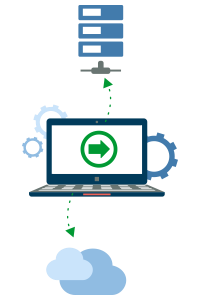
Syncing via clouds
This is the most advanced and modern method of data synchronization. An account on some popular commercial cloud, like Windows Azure, Google Drive or Dropbox, is used as a storage for syncing.
Any of these methods can give you some advantage in a particular case. For example, to synchronize Favorites between computers, online methods are more effective then offline. In other hand, syncing via removable drives provides also an advantage of "extra" backup for your data.
Advantages of Handy Backup as Synchronize Files Program

Automating file syncing
Schedule or trigger up your file sync tasks with an internal tool of Handy Backup, allowing controlling any actions to a precise time and repeating interval. You can also use automated connection to sources and control all tasks via the simple, comprehensible and mighty graphical interface!

Securing data transfer
Handy Backup always utilizes most secured connections to data sources, to synchronize files between computers or other storage with most protected ways. You can use cloud storage API protocols, WebDAV and S3 interfaces, SFTP and FTPS connections, etc.
Customers about Handy Backup Solution
Recommended Solution
Lifetime license
Handy Backup Professional
The Professional edition provides you the best choice of devices and methods for synchronization between two or several computers, as well as entire computer backup! Free 30-day trial version!
Synchronize Files on Two Computers with Handy Backup
If you want to synchronize computers, e.g. laptop and desktop, when using Handy Backup as your synchronization files program, please firstly select one of sync methods described before. Here we will tell you about syncing via the network drive, used for storing a common dataset.
To set up a task capable to synchronize files across multiple users, please follow the sequence described below on each computer you will plan to synchronize!
- Start Handy Backup and make a new task by pressing Ctrl+N or by clicking on the panel button "Create". Select a synchronization task. Use an advanced mode for this example.
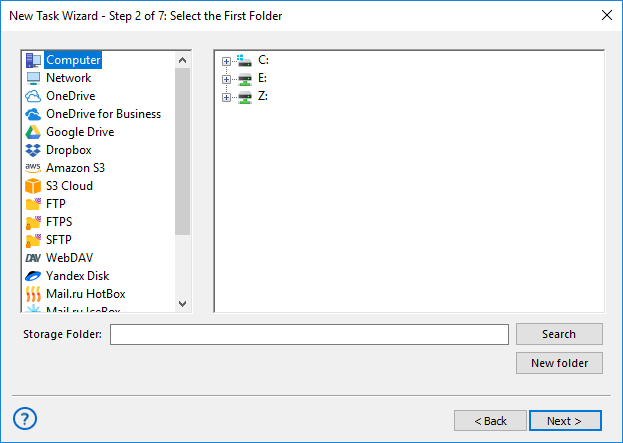
- Choose a folder that you will plan to synchronize on the computer on Step 2. Then go to Step 3 and choose a folder located on your network drive as the second folder.
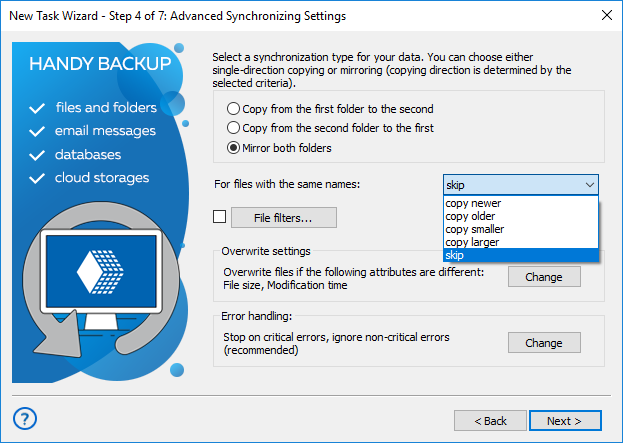
- On a Step 4, select the "Mirror both folders" option for full synchronization (or other option for rewriting a content according to local computer status, depending of your task).
Tip. Here are some options to synchronize files between sources:
- The first two options ("Copy from the first folder" and "Copy from the second folder") overwrite files in the destination folder by the files from a folder selected as a source.
- The "Mirror both folders" option copies all newer files from each folder to another, making the folder content identical after a task.
- Schedule a task to run with some frequency you feel right for synchronizing your data. Set up all other parameters for your task, including a task name. (These steps are not specific for sync.)
- Finish creating your task. Now for every time when a planned period of scheduling will occur, Handy Backup will automatically run the task, completing the file synchronization between a PC and a network drive folder.
Note: To get full advantages of this method, you must create a similar task for each computer you will plan to synchronize such a way!
To use this technique in other ways of synchronizing data between computers, the main difference will be another selection of data. Therefore, Handy Backup can be an effective “synchronize computers software”, regardless of physical or logical synchronization method you prefer!
Download for Free
Version 8.7.0 , built on May 7, 2026. 152 MB
30-day full-featured trial period
Synchronizing files between computers with Handy Backup is quick and effortless!
"I use Handy Backup to synchronize my cloud files on Amazon S3 with several local computer folders, and it works great! I have a bunch of completely mirrored folders every day before and after my worktime, without even a slight extra effort!"
Virginia Lawrence, a selling manager