Full System Backup Tools and Options
System backup is a crucial security procedure for any computer. Handy Backup can serve as excellent software for system backup and restore, creating recovery images either as binary files or in a readable VHD format. Try it now for a 30-day free trial!
 Download for Free
Version 8.7.0 , built on May 7, 2026. 152 MB
30-day full-featured trial period

What Is System Backup Term Means?

System backup makes a copy or a snapshot of your entire system, with all data, settings and applications. It can take a form of a system drive snapshot, as Handy Backup does, or copy crucial system parameters, such as user libraries, registry and application backup.
Why I Can Have a Need for Constant System Backup?
The answer is simple: it is an ultimate protection from as many threats for your system data as existed, including ransomware, virus attacks, hardware malfunction or destruction, configuration errors and data damage due to installing some unwanted software applications.
Principles of System Backup and Restore
Ideally, a procedure of system backup divides into the three stages. Each of these stages can bring some problems, often distracting a user from backing up a system on a regular basis. Let us see how Handy Backup removes all these problems completely.

Stage One: Saving an Image
Some system backup tools (e.g. Handy Backup) saves a whole drive snapshot in a logical (file-level) or a physical (block-level) format, skipping no any single byte on a system drive.
Problem:
This action may require stopping the system, taking out the time!
Problem:
Logical format cannot be turned into a bootable disk!
Answer:
Handy Backup takes snapshots of a working OS without stopping it.
Answer:
Handy Backup uses a physical-level format of system copies.

Stage Two: Keeping System Backups
Users can keep files containing full system backup until these files will be needed for restoration, although thy can expect some difficulties with storing these files as a dead load.
Problem:
Files and other data from system copies can be unreadable in physical format!
Problem:
A single copy of a whole system can have a healthy size, even more for a bunch!
Answer:
Handy Backup stores system backup in a readable, mountable VHD format.
Answer:
In Handy Backup, you can always select data storage of a suitable size for your drive.

Stage Three: Restoring Backups of an Entire System
A user can create a bootable drive using a system backup, to restore a copy of a system or even to clone it to another machine. (Or a user may need just a single file from an image?)
Problem:
How to create a recovery drive using existing system backup options?
Problem:
It is too long and uncomfortable to restore a whole drive to copy only a bunch of data!
Answer:
Handy Backup contains a special tool called Disaster Recovery to do it.
Answer:
You can mount a drive file created by Handy Backup as a virtual disk to browse it freely.
Testimonials About System Backup by Handy Backup
Recommended Solution
Lifetime license

Handy Backup Professional
The Professional edition has a System Recovery tool allowing backing up your system out-of-the-box. You will also get the free Disaster Recovery utility with this or upper solutions.
Handy Backup as System Backup Software

Partial System Backup Options
With Handy Backup, you can copy and restore not only a whole drive but also separate files (including system files) or such components as Windows registry, taking only “partial” system backup to save time, space and efforts from unnecessary job.

Scheduling Actions
Handy Backup allows you scheduling your system backup task to run at an exact time (for example, by early morning when it becomes no distraction for anyone) with an exactly set repeating period from a minute to a couple of months, or even trigger your task by some system event such as use logoff.

Advanced System Backup Options
You can use such advanced system backup tools as encryption for drives containing crucial data, storing different versions of the same dataset in one storage (perhaps with time stamps for auto processing) or running Handy Backup as Windows service to remove user distraction during backup actions.
How to Do a System Backup with Handy Backup?
Please create a system backup with a dedicated System Recovery tool. To set up a system image backup task, you can follow the instruction below:
- Open Handy Backup and create a new task by pressing Ctrl+N or by using the “Create” button.
- Select a backup task type (and an advanced mode if you need), and then proceed to Step 2.
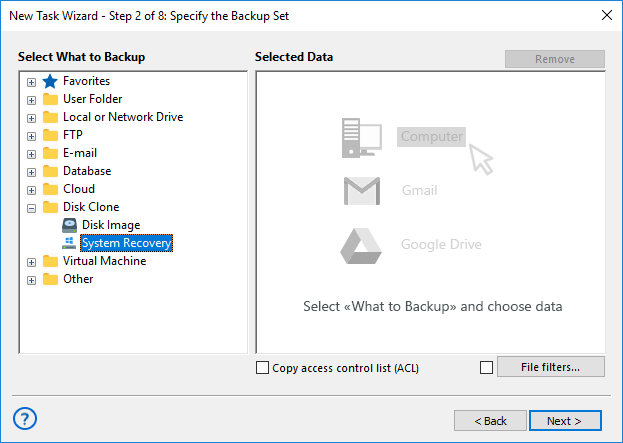
- On the left panel containing data sources, click on the System Recovery option in the Disk Clone group.
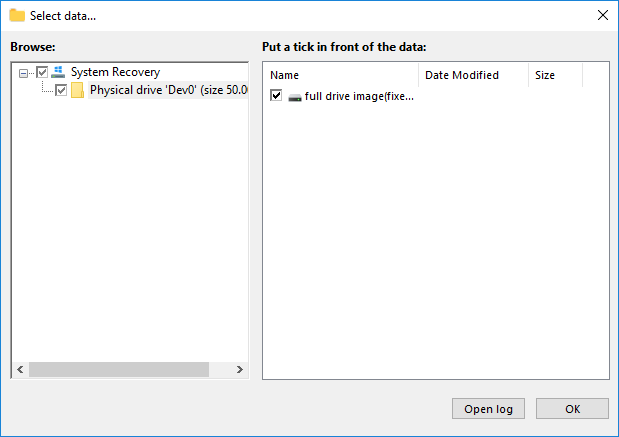
- Select a disk device you want to back up by marking a checkbox against it.
- Click OK and then “Next” to move to Step 3, where you must select storage for your system backup.
- Again, click “Next” and proceed to create other task parameters, as described in the User Manual.
You can schedule your task to run repeatedly at some exactly defined time, or by system starting or stopping, or even by plugging some specified external USB device to your machine to store a fresh copy of your full system backup. An initial access to these options is related to the current task wizard mode.
Tip: When you are selecting storage for your backups, please be sure that a selected storage contains enough free space to store a copy of your disk. Drive copies often have a healthy good size!
System Backup vs Disk Backup
You can save a disk image using the System Recovery tool from Handy Backup, even if a disk is not a system drive.
Obviously, you cannot turn such disk copy into a “bootable drive”; you can only map it to a physical or virtual machine to browse its content, or restore it.
Legacy and UEFI Bootable Devices
As Handy Backup copies data in a physical-level format, it can create a perfect image for a Legacy or MBR-based (Windows 7 and lower, most Linux and BSD distros).
Also, for a UEFI (Windows 8/8.1, Windows 10, some Linux editions and even a Mac OS X) bootable drives.
Note: Modern versions of Handy Backup do not copy a BIOS boot settings, which can be actual for UEFI boot. Please back up your BIOS or keep all required settings manually or by a built-in BIOS backup utility, instead of Handy Backup system backup tool.
Basic Tips about System Backup
Here are some tips and hacks that can help you avoiding obstacles related to system backup issues.
- Choose secure storage for system backup data, as a copy of your system always contents something sensitive!
- Always provide a storage option with a good amount of free space for system backup files.
- Do not relate to manual techniques, use dedicated system backup tool for save and recovery.
- Provide enough time to backup action (scheduling to some inactive period such as night is a good option).
- Another security tip: Keep your system backup files protected, maybe even by data encryption!
Recovery from System State Backup

This is no problem to make a recovery from previously saved system backup. Just create a task for automatic system recovery, and Handy Backup will do all things automatically. Still, if you plan to recover a main system drive, rely on Disaster Recovery utility as recommended here.
Common Questions and Answers about System Backup
Here are some answers to typical questions from different users planning to attempt a system backup.
Are the Built-in Windows System backup Utilities Ineffective or Problem-making?
All modern editions of Windows, including Windows 10, Windows 8 and Windows 7, contain utilities for system backup. These built-in tools are quite reliable, although long-running and somehow too simple, allowing almost no comfortable setting up the particular backup conditions.
How Long a System Backup Takes Place?
The procedure of copying an entire disk image cannot be quick as flash by definition. However, Handy Backup uses a Volume Shadow Copying service (VSS) to speed up a job, as well as allow a “hot” backup, requiring no stopping other operations on a particular machine during backup.
Which Size I Can Expect from Backup Images?
Roughly, you can estimate a size of your Windows drive file as an equivalent of a used space in the disk you are planning to back up. You can see the amount of used space by clicking at the “Properties” option in the context (right-click) menu of your drive in the Windows Explorer.
Can I Perform System Backup Online?
Yes, with Handy Backup, it is completely possible. You can save your system backup to OneDrive, Amazon S3, an FTP server or many other online storages available directly or indirectly in Handy Backup. The only limiting factors are the available space at your online storage and your connection speed.
What Storage Type Is Optimal for System Backup?
Due to both security reasons and relatively big size of system backup image files, it is more efficient and convenient to store these images on local or nearest network sites, including non-system local drives, external USB disks and flash pens, or on FTP and NAS devices in a protected local network.
Download for Free
Version 8.7.0 , built on May 7, 2026. 152 MB
30-day full-featured trial period
"I use automatic tasks for regular system backup. In Handy Backup, it is very quick and very flexible. One of my tasks copies my data when I insert a USB disk to a computer, and other makes a weekly backup on my NAS. In a last few years, I have three or four situations when I need to recover from one of these system backups. It was also quick and highly automated."
John L. Mitchell, a journalist