FAQ on Required User Privileges

English

English

  • French
  • Russian
  • Spanish
  • German
  • Japanese
  • Italian
HomeContact UsPartnersOnline Backup
CloseRegister

Login

Password

  • Backup Software
  • Download
  • Order
  • Support
  • About
  • Backup Software for Home
  • Handy Backup Home Standard
  • Handy Backup Home Professional
  •  
  • Backup Software for Business
  • Handy Backup Small Server
  • Handy Backup Network Server
  •  
  • Handy Backup for Android
  • Online Backup Service
  •  
  • Compare Versions
  • Screenshots
Backup Software
  • Handy Backup
  • Handy Backup Server
  •  
  • Handy Backup Plug-ins
  • Language Packs
  •  
  • Sources for Partners and Press
Download
  • Purchase Handy Backup
  • Upgrade Handy Backup
  • Help Me Choose Edition
  •  
  • Volume Order Pricing
  • Special Offers
  •  
  • Information for Resellers
  •  
  • Contact Sales
Order
  • Contact Support
  • FAQ
  • Handy Backup User Manual
  • How to Register
  •  
  • How to Back up
  • Backup Terms Glossary
  •  
  • Feedback Form
Support

Handy Backup / Support / FAQ / Backing up Data that Requires Administrative Privileges to be Accessed

Backing up Data that Requires Administrative Privileges to be Accessed

For security reasons, Windows may block access to certain computer data. The following operations, under some systems, may require you to have administrative privileges:

  • HDD image backup and restore. Access to the list of the computer's physical devices, as well as their backup and recovery are unavailable to non-administrators.
  • Windows registry backup and restore. Some system registry keys are protected from unauthorized access.
  • Import/export Handy Backup settings. To import and export Handy Backup's settings, you need to be an administrator.

How to Enable Advanced Functions (If You're Experiencing Problems)

In order to use disk imaging, registry backup and to import/export program configuration, you need to configure Handy Backup's start-up settings. Follow these steps:

  1. Make sure that your user account is a member of Administrators group.
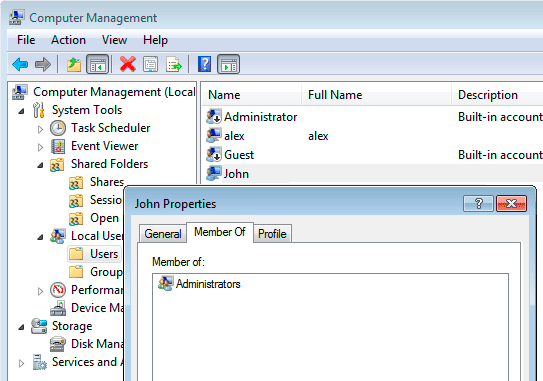
Administrator Privileges in Windows
  1. Close Handy Backup and Handy Backup Agent (in system tray).
Exit Handy Backup Agent

This can be also done through terminating processes called hbagent.exe and backup.exe.

  1. Open Handy Backup installation folder and configure both hbagent.exe and backup.exe to be launched with administrator privileges. To do it, follow these steps:
    1. 3.1 Right-click the program icon, and then click Properties.
Program Properties in Windows Context Menu
    1. 3.2 Under the Compatibility tab, check Run this program as an administrator, and then click OK.
Run with Administrator Priviliges in Windows

The next time you run Handy Backup, you will have enough privileges to use advanced functions.

If the User is Not a Member of the Administrators Group

Users that are not members of the Windows Administrators group can't enable the Run this program as an administrator option as shown above.

In this case, the only way to use advanced plug-ins is to close hbagent.exe and backup.exe, and re-run them through the Run as Administrator... option in Windows context menu.

Run as Administrator in Windows

This approach is generally not recommended, because it runs Handy Backup from a different user and may result in a conflict of user privileges.

Handy Backup Software FAQ

Essentials

Installing Handy Backup

Installing Handy Backup Network Server

NEW!Installing Handy Backup Disaster Recovery

Installing Handy Backup under Linux

Updating Handy Backup from Earlier Versions

Registration

Plug-ins

How to Backup (Articles)

Download User Manual in PDF (3MB)

Who uses Handy Backup?

Loading client logos...

Copyright © 2004-2012 Novosoft LLC. All rights reserved. Handy Backup software.

Loading...

You are currently being redirected to a payment system. Please wait...

Back to Top