Clone Hard Drive Software for HDD and SSD | Windows Drive Cloning Solution
Clone hard drive software creates a copy of a hard drive on another disk (which will be a "clone").
With Handy Backup, you can clone HDD or SSD drives to an exact copy in a VHD format, accessing both local and network drive, and restore the image to a local or external disk (except a current system drive).
 Download for Free
Version 8.7.0 , built on May 7, 2026. 152 MB
30-day full-featured trial period

The Principle of Hard Drive Cloning
Clone hard drive software creates not a simple copy of all files from one disk to another. Instead, it copies a disk mirror on a logical level, sector by sector, reading and replicating an internal hard disk structure including file allocation tables, boot records and all the information stored on a drive.
Best Features to Clone Hard Drive Software
These are some necessary functions for any hard disk cloning tool, providing efficiency and stability. Handy Backup meets all these requirements, allowing scheduled, automated hard disk cloning, without stopping using a copied hard drive for other purposes during saving an HDD clone image.

Scheduling Hard Drive Cloning Operations
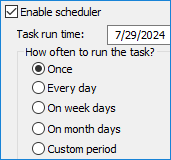
A clone HDD software solution must allow automatic schedule for running tasks on a regular basis, by either a time (or an interval) or by an event occurred in the system.

Cloning HDD over Network
The network-based edition of Handy Backup (Server Network) can schedule and perform HDD clone on a remote machine in a local network under the centralized control.

Hot Hard Drive Cloning
To create a copy of a disk in use without compromising efficiency, hard disk mirroring tools must copy the drive content in a hot mode, e.g. without stopping using a disk by other applications.
Where to Store Temporaries for Hard Drive Clone?

Despite that Handy Backup supports all modern storage solutions to clone hard drive temporary file (e.g., network drives, NAS, FTP or commercial clouds such as Google Drive), we are recommending using local disks (either built-in or external USB units) to store a temporary copy of a hard drive.
Note: Before running a hard drive cloning software task, please be sure that your selected storage has enough space to store a bulky copy of a hard drive image. This may require 20-100 gigabytes or more, according to the quantity of the basic information stored on a source drive.
Advantages of Handy Backup
As clone hard drive software for Windows and Linux, Handy Backup has some principal advantages over manual or script-based HDD clone jobs.
- Hot HDD cloning using the VSS (Windows Volume Shadow Copy Service);
- Job by schedule allowing making a hard drive clone by a period or by an event;
- Making bootable images in a readable VHD format for mapping as virtual or VM drives;
- Effective drive loading, protecting hardware and saving time during the cloning process;
- Logical-level output, allowing clone HDD to HDD or SSD, and SSD to HDD or SSD.
Recommended Solution
Lifetime license
Handy Backup Small Business
Best clone HDD software for a single machine, the Small Business edition also allows creating backups for any other server-level or user data existed!
How to Clone Hard Drive with Handy Backup
To clone HDD to HDD or (HDD to SSD, or any other possible media into another) with an automatic task for Handy Backup, please follow the next instruction.
- Run Handy Backup and create a new backup task, calling a Wizard by a button on the panel.
- After Step 1, select the "Disk Clone" option on the Step 2 by clicking on a "+" on it.
- Select the "System Recovery" plug-in by clicking on it.
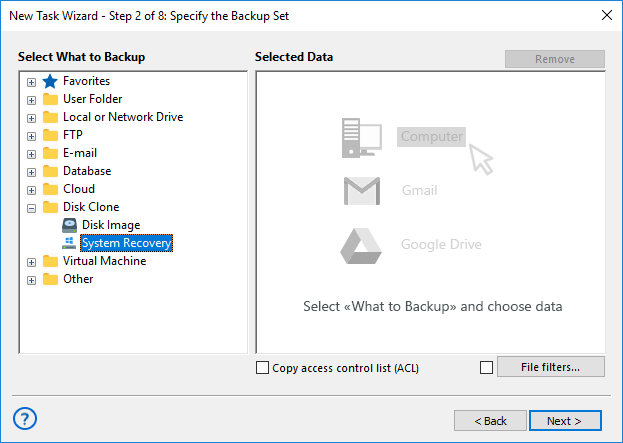
- Mark the drive(s) that you plan to mirror by a checkbox besides a drive name.
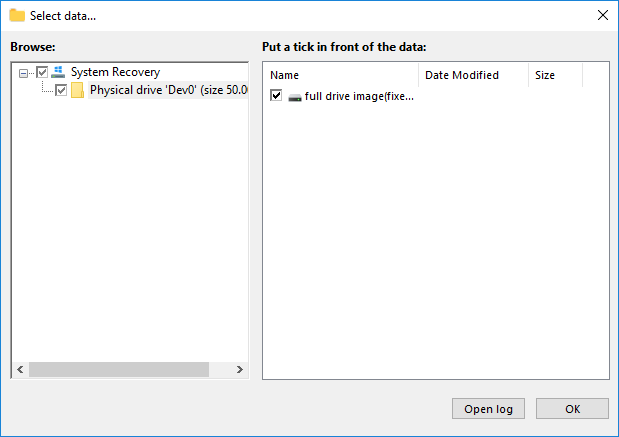
- Click OK and return to the Task Creation Wizard. Make all other task parameters step by step.
- On Step 4 or 5 (depending on the task wizard mode), you can clone hard drive with encryption.
- When finishing, run a task or wait for a scheduled running.
- Now create a new restoration task. On Step 2, enter into your storage of HDD/SSD clones.
- Find a file called backup.hbi and select it by double-clicking.
- In the appearing dialog, click the "Change location" button.
- Select a new drive to write a hard drive clone on it. Click OK and continue creating a task.
After you finish, all done! Your tasks will run as a pair, one creating a HDD clone image and the next restoring this image into a different hard drive than an original. We will strongly advise to keep a big amount of space on the intermediate file storage where your clone lives before restoration!
The Disaster Recovery Utility
The Disaster Recovery tool provides another way for software hard disk cloning. You can copy an entire drive to an external device containing a Disaster Recovery boot loader and then copy this drive clone to any other disk (including "bare metal" copying to a new or scratch PC).
- For details of Disaster Recovery utility, please refer to the User Manual. Disaster Recovery is freely available for customers of Handy Backup Professional, Handy Backup Small Business and Handy Backup Server Network editions. It even allows creating a bootable HDD or SSD image to boot with a Disaster Recovery loader!
Download for Free
Version 8.7.0 , built on May 7, 2026. 152 MB
30-day full-featured trial period
Hard drive cloning is easy and accurate with Handy Backup!
See also:
Capterra′s Rating:
"Great product, very simple and effective backup program"