CD Backup Software - Handy Backup 7
Backup to CD was a good way to prevent data from accidental loss caused by human mistakes or hardware failures. Now it is obsolete, and most modern machines even have no CD drives. However, you can use the CD backup software - Handy Backup 7, to backup a CD nowadays!
 Download for Free
Version 8.7.0 , built on May 7, 2026. 152 MB
30-day full-featured trial period

Note: Modern Handy Backup 8 has no support for PC backup CD functions. Please download Handy Backup 7.x.x (32-bit) to utilize backup CD functions.
Backup CD Trivia

Backups on CDs were compact, reliable and transportable, which makes them very popular among all kinds of users. In most cases, a single CD had enough capacity to store backups for several data sources, which was very convenient for any backup rotation scheme of early 2000’s.
Use Cases for CD Backup Software
Availability and cheapness of backup CD media produced many typical use cases to implement this type of backup. Some of these cases are still quite actual.
- Windows 7 backup CD download: this is necessary when you are planning to install a fresh copy of Windows or to move an image of your system to another place.
- Backup CD audio: for those who have a big collection of early CD music or other audio data, this is a necessity to move these collections as backups to modern storage media;
- Backup CD to ISO: it is also actual for older CD collections such as retro games, software or even workdata stored on compact optical disks.
Caution! You must be sure that your actions related to backup a CD are legal, such as for Steam backup CD or DVD to add to a game collection, or backup music CD to a public data storage service. Local and international copyright laws can deny some of these operations.

Handy Backup has an option to automatically divide large sets of data that cant fit a single disc (e.g. when you back up disk image). Disc changing must be performed manually but thats the only disadvantage of backing up to CD.
Apart from it, the utility provides full automation of all PC backup-related processes including backup compression, encryption, etc. With the help of a flexible scheduler your CD writer turns into a powerful backup engine and eliminates all worries regarding data loss.
Advantages of Backup a CD with Handy Backup
The Handy Backup solution supports all types of CD discs and provides full automation of all processes:
- Integrated CD recording tool. Handy Backup features a built-in CD burning tool, which allows you to burn backup to CD without any external software.
- Automatic disc erasing. If you want to backup to CD-RW, you can turn on automatic erasing of a disk media before writing.
- Spanning data across multiple CD discs. If a single CD cannot store an entire data set, Handy Backup will split it and burn the backup to CD discs one by one.
- Backup verification. To ensure backup integrity and consistency, the program can automatically check CDs after recording, so you can be sure that you will recover a backup free of errors.

Recommended Solution
Lifetime license
Handy Backup Standard
Download our software now and backup to CD/DVD/Blu-Ray easily and conveniently! Please use this link to download an appropriate version. Free 30-days trial!
How to Backup to CD
To backup data to CD, you will need only two things: Handy Backup 7.x.x (32-bit) and a CD burning device with an appropriate CD-R or CD-RW inside. The utility supports all types of CD discs and provides full automation of all processes. Just follow the next instruction.
- Open Handy Backup, create a new task and select a backup task on Step 1.
- On Step 2, choose data to backup. Click "Next" and go to Step 3.
- On this step, double-click onto the CD/DVD/Blu-Ray plug-in.
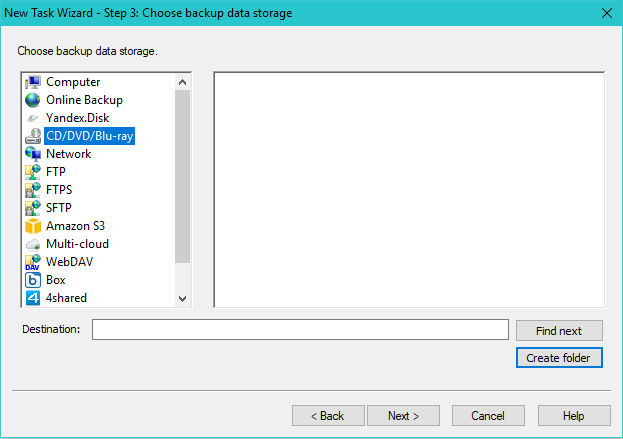
- Choose additional parameters for backup CD. Click OK.
- Continue creating a task as usual.
Caveat! Before making a backup to CD, please be sure that you already has an appropriate CD media inserted into an optical drive. Because of this necessity, we recommend considering migrating from CD backup software to cloud backup services and fully automated backup tasks!
How to Backup CD to Hard Drive

If you want to create a perfect CD image, the most convenient way is to backup CD to ISO with an appropriate tool. However, to save some data from a CD to another place, you can use Handy Backup. Just make a new backup task, and then select "CD/DVD/Blu-Ray" from the "Local or Network Drive".
Note: To make file selection, you must insert a CD unit into an optical drive before making data selection during creating a backup task! Later, you must be sure that this unit is loaded into a drive during a backup task execution.
Restoring Data from a PC Backup CD

Restoring data backup from CD discs is very easy. Make a recovery task using a CD as backup storage on Step 2. All you need to do is to insert a first backup disc, then select the index file and execute the task. Handy Backup will automatically do all other things.
Tip. Number or label a sequence of your multiple backup CD units when distributing your data across several discs. You can save much time when the program will prompt you inserting a next disc.
Unified Optical Drive Plug-In

In addition to backup CD, Handy Backup also supports burning backup to DVD and Blu-ray Backup optical drives, with just the same plug-in. For detailed instructions on how to backup to CD or other optical media, please refer to appropriate articles in the User Manual.
Download for Free
Version 8.7.0 , built on May 7, 2026. 152 MB
30-day full-featured trial period
Convert your tasks using backup to CD into modern automated ways and big data storage types with Handy Backup 8, or download Handy Backup 7 if you still have a need for automatic backup to CD! A 30-day free trial version!