Main Menu -> File
The File menu is used to manage tasks and change program settings.
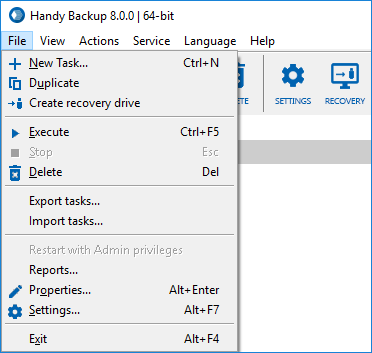
The menu is organized as follows:
- New Task - Calls for the New Task Wizard which starts with selection of task type: Backup, Restore or Synchronize. For more details see Backing up data, Restoring data, or Synchronizing data.
- Duplicate - Clones task(s) selected in the Task View window. This command is especially useful if you want to create a task very similar to an existing one without repeating all steps of the New Task Wizard. To learn more, refer to Duplicating Task.
- Execute - Launches task(s) selected in the Task View window. These tasks will be executed regardless of their schedule and even if they were created for a one-off launch. To learn more, refer to Running Task.
- Stop - Interrupts running task(s) selected in the Task View window. In some cases this procedure can take several minutes. To learn more, refer to Stopping Task.
- Delete - Deletes selected tasks. To learn more, refer to Deleting Task.
- Properties - Allows modifying task properties. This is a way to change virtually everything you defined during the process of task creation: from task name to scheduling options. Here you can also enable e-mail notification and define if you want to launch third-party applications before or after executing the task. To learn more, refer to Task Properties.
- Settings - Opens the utility’s settings. To learn more, refer to Settings.
- Configuration - This submenu allows you to export or import tasks, logs and preferences of the program. To learn more, refer to Configuration.
Note: This feature was removed in version 6.0 and brought back in version 6.1 with major changes in storage format. Because of this, data exported from version 5.8 and lower can’t be imported into version 6.1 and higher. However, if you install a new version above the old one, all data is converted automatically.
- Exit: quits the program.
Contents: