Log Settings
All backup, restore and synchronize operations are logged. There are two types of logs:
- Short logs are available in the Log View pane of the main window. They contain brief information on time, size and status of a task.
- Detailed logs contain complete information about each file backed up. Link to detailed log is available in the beginning of a short log.
Each time you run a task, the program checks size of detailed log, and if it is large enough, deletes it. Log Settings are used to specify maximum size of the log. Log Settings window:
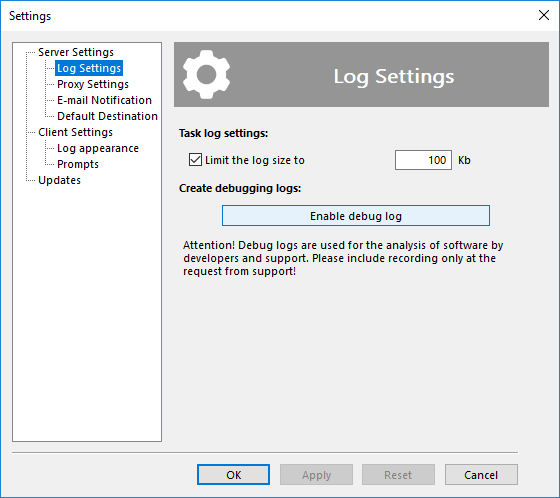
- Check Limit the log size to if you want to save disk space by automatically deleting unnecessary logs. Specify the limit in the field to the right.
Caveat! By default, the log size is limited by 100 Kb. If you will disable log size restrictions, it will be unlimited.
- Click Enable debug log to save all program actions to a detailed log. Please restart the program after using this option.
Attention! You will need to restart for writing debug logs, as the program must have access to all its processes just from start to log activities correctly!
You can find all logs in the folder:
C:\ProgramData\Novosoft\Handy Backup 8\Users\[username]\Logs
Note: The program deletes old logs in the beginning of the task, so the latest log always comes without any limitations.
Contents: