Main Menu -> Language
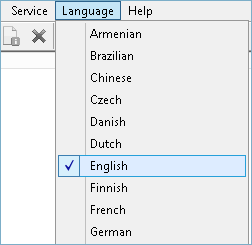
The Language menu defines the program interface language.
Handy Backup 8 supports a multilingual interface. If you are using a version earlier than 5.5 and would like to upgrade, please visit the upgrade page.
To change the interface language, go to: Main Menu → Language and select the desired language. The program will restart the interface and display it in the selected language.
You can also translate the Handy Backup interface into any language yourself. For details refer to the next section, How to Create Different Language Versions.
Contents:
- General Information
- Installation
- Registration
- Quick Start
- Managing Data
- Technologies Behind the Software
- Architecture
- Plug-ins
- Plug-in File Systems
- Plug-in Configurations
- Data Source and Storage Plug-ins
- 1C:Enterprise plug-in
- 4shared Service
- Amazon s3 plug-in
- Backblaze Plug-in
- Box Cloud Data Storage
- Plug-in CD/DVD/Blu-Ray*
- Computer Plug-in
- Database Plug-in
- DB2 Plug-in
- Disk Image Plug-in
- Dropbox Plug-in
- Dropbox Plug-in
- E-mail Plug-in
- FTP, SFTP and FTPS Plug-ins
- Gmail Plug-in
- Google Drive Plug-in
- Hyper-V Plug-in
- Lotus Notes plug-in
- Mail.ru Hotbox Plug-in
- Mail.ru Icebox Plug-in
- MariaDB Plug-in
- MS Exchange Plug-in
- MSSQL Plug-in
- MySQL Plug-in
- Network plug-in
- OneDrive Plug-in
- Online Plug-in
- Oracle plug-in
- Outlook Plug-in
- PostgreSQL Plug-in
- Registry Plug-in
- S3 Cloud Plug-in
- System Recovery Plug-in
- User Folders Group (My Desktop, Documents, Music, Pictures, Videos Plug-ins)
- VK Cloud Plug-in
- VMware Workstation Plug-in
- WebDAV plug-in
- Windows Libraries Plug-in
- Yandex.Disk Plug-in
- Selectel Plug-in
- User Interface
- Settings
- Extras
- Disaster Recovery Module
- Installation and operation of the Disaster Recovery utility in the WinPE
- Browsing Backups
- Configuring FTP Locations
- Creating Backup and Restore Tasks
- Installation of Disaster Recovery Utility
- Managing Data with Disaster Recovery
- Product Overview
- Quick Start
- Registration
- Restoring Image Backup Made in Windows
- Running Tasks
- User Manual v8: Handy Backup Web Interface Guide (Beta Version)
- Disaster Recovery Module