Task View
The Task View pane contains all tasks with their status, names, progress and scheduling information. It is a central part of the program’s main window that lets you easily track overall status of your backups.
The pane is customizable. In the View menu, you can point to Task View, and then select columns to be displayed in it. Generally, there can be six columns:

- № - Unique Task Identifier
- Task name. This column contains task name and status, so you can quickly track failed operations.
- Action / Task Type. By default, this column has a button that lets you quickly run the task. To prevent accidental operations, you can change it to task type in the View menu.
- Last run time. (Not displayed by default) In this column you can see last time when the task was run.
- Next run time. In this column you can see time of a next scheduled run.
- Progress. For running tasks, this column shows a progress bar and percentage indicator.
- Status. This column shows current task status.
You can sort tasks by clicking the column name.
Tracking Task Status
Each task can be in several statuses, as follows:

Success. The task has completed successfully.

Success with Warning. The task has completed successfully, but there were minor errors during copying. This can happen, for example, if the program could not back up some file’s attributes, or if some other application modified the backup set during the process. In most cases, repeating the task will end with success.

Success with Scheduling. The task is scheduled, and last run ended with a success.

Success with Scheduling, Ignoring Errrors. A task was completed successfully, ignoring any minor error occured during execution.

Error. The task has ended with an error.

Error with Scheduling. An error that occurs during execution of a scheduled task (e.g., server failure).

Scheduled. The task is scheduled, but has never been executed yet.

Idle. The task is not scheduled and has never been executed yet. New task.

Running. The task is running.

Stopped. The task was stopped by the user.
Task Context Menu
You can right-click each task, to open a dropdown menu and see the full list of available operations.
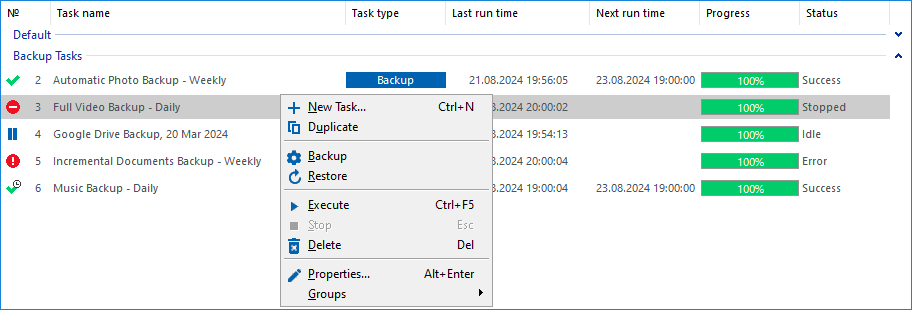
- New Task. Opens the New Task Wizard. This is the only non-task-specific command in the list.
- Duplicate. Duplicates the task. As a result, a task named "Copy of <Task Name>" appears.
- Backup, Restore or Synchronize. Runs the task. For backup tasks, there are two commands: Backup and Restore. The latter option restores the latest version of the backup.
- Refresh. Does nothing (old option, not removed since version 6).
- Execute. Runs the task.
- Stop. Stops the task. Can be used only for running tasks.
- Delete. Deletes the task.
- Properties. Opens properties of the task.
- Groups. Organize tasks into groups to simplify searching, management, and editing. Learn how to add and delete groups.
As many of these commands are universal across all tasks, you can apply them to multiple tasks simultaneously. To do this, select the tasks using standard Windows techniques (hold the CTRL key to select individual tasks or the SHIFT key to select a consecutive range of tasks), then right-click on any of the selected tasks to open the menu. The menu will show a list of common commands that can be executed on all selected tasks.
Note: Most context menu commands are common for all tasks, and can be used for multiple tasks at once.
Contents: