Log View
The Log View pane contains short log of all operations related to a task that is selected in the Task View pane.
Besides the short log, there also is a detailed log which is written to a file on the disk. Link to a detailed log is given in the beginning of each short log.
Together with the Task View pane, the Log View pane is one of the most important control elements. When one of your task finishes with an error, the fastest way to understand what went wrong is to select it in the list, and skim through the respective log. In most cases, the problem can be found in several seconds.
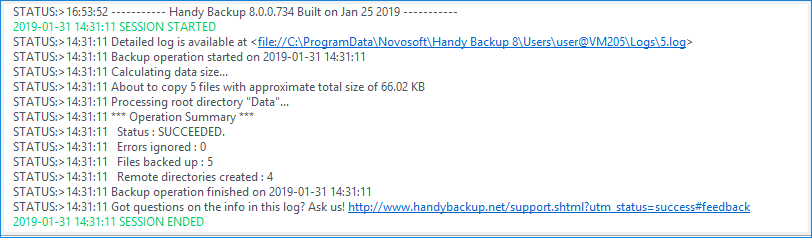
If you want, you can hide the Log View pane. To do it, go to the View menu, point to Log View, and then click Hide/Show Log.
Managing Logs
There is a number of commands related to logs and the Log View pane.
- Copy to Clipboard. To copy the log into the clipboard, right-click it top open the shortcut menu, and then click Copy.
- Save to File. To save the log, right-click it to open the shortcut menu, and then click Save Log.... The Save As dialog opens. Select a path and a file name, and then click OK.
- Clear Log. To clear log, right-click it to open the shortcut menu, and then click Clear Log.
All of these commands are also available in the View menu.
You can also tune log appearance by selecting colors for different type of messages (status, errors, warning, etc.) To do it, right-click the log to open the shortcut menu, and then click Colors. This command opens Log Settings.
Contents: