Backup Software > Support > User Manual Version 8 > User Interface > Tray Menu
Tray Menu
After installation of the program, its icon appears in system tray. To open the tray menu, right-click it.
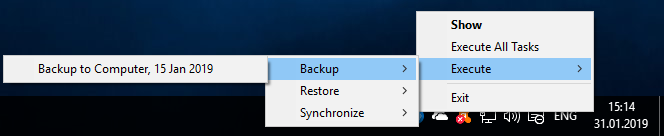
The tray menu contains four commands:
- Show - opens the program′s main window
- Execute All Tasks - runs all tasks simultaneously
- Execute - opens a submenu where you can select a previously created task that you want to run
- Exit - in Standalone version, closes the program and all related processes. In Server version, closes Client GUI only.
Contents:
- General Information
- Installation
- Registration
- Quick Start
- Managing Data
- Technologies Behind the Software
- Architecture
- Plug-ins
- Plug-in File Systems
- Plug-in Configurations
- Data Source and Storage Plug-ins
- 1C:Enterprise plug-in
- 4shared Service
- Amazon s3 plug-in
- Backblaze Plug-in
- Box Cloud Data Storage
- Plug-in CD/DVD/Blu-Ray*
- Computer Plug-in
- Database Plug-in
- DB2 Plug-in
- Disk Image Plug-in
- Dropbox Plug-in
- Dropbox Plug-in
- E-mail Plug-in
- FTP, SFTP and FTPS Plug-ins
- Gmail Plug-in
- Google Drive Plug-in
- Hyper-V Plug-in
- Lotus Notes plug-in
- Mail.ru Hotbox Plug-in
- Mail.ru Icebox Plug-in
- MariaDB Plug-in
- MS Exchange Plug-in
- MSSQL Plug-in
- MySQL Plug-in
- Network plug-in
- OneDrive Plug-in
- Online Plug-in
- Oracle plug-in
- Outlook Plug-in
- PostgreSQL Plug-in
- Registry Plug-in
- S3 Cloud Plug-in
- System Recovery Plug-in
- User Folders Group (My Desktop, Documents, Music, Pictures, Videos Plug-ins)
- VK Cloud Plug-in
- VMware Workstation Plug-in
- WebDAV plug-in
- Windows Libraries Plug-in
- Yandex.Disk Plug-in
- Selectel Plug-in
- User Interface
- Settings
- Extras
- Disaster Recovery Module
- Installation and operation of the Disaster Recovery utility in the WinPE
- Browsing Backups
- Configuring FTP Locations
- Creating Backup and Restore Tasks
- Installation of Disaster Recovery Utility
- Managing Data with Disaster Recovery
- Product Overview
- Quick Start
- Registration
- Restoring Image Backup Made in Windows
- Running Tasks
- User Manual v8: Handy Backup Web Interface Guide (Beta Version)
- Disaster Recovery Module