Installation
The program can be installed using the common installation file, regardless of OS version used.
 Download Trial
You can download a required file from a downloading page.
Editions
You can install the program in one of several editions:
- Standard
- Professional
- Small Business
- Server Network
You will install any edition from the common setup file; you will define an exact functionality of your version by entering a registration number. To learn more, please see Registration.
32- and 64-bit Versions
By default, Handy Backup installs a version that matches a type of your OS, i.e. a 32-bit version for a 32-bit OS, or a 64-bit version for a 64-bit OS.
Plug-in Dependencies
Some plug-ins (including Database, CD/DVD and just a few more), can work correctly only under a particular 32- or 64-bit version of Handy Backup. If you need to change a version to a 32- or a 64-bit, please read a reference at the end of this article.
Installing
To install the program, please follow these steps:
- Launch the setup file.
- On the welcome screen, change recommended parameters if you want by clicking “Change recommended parameters”. Click Next.
- Read end user license agreement, and then click Next.
- Select what you want to install. There are the two variants:
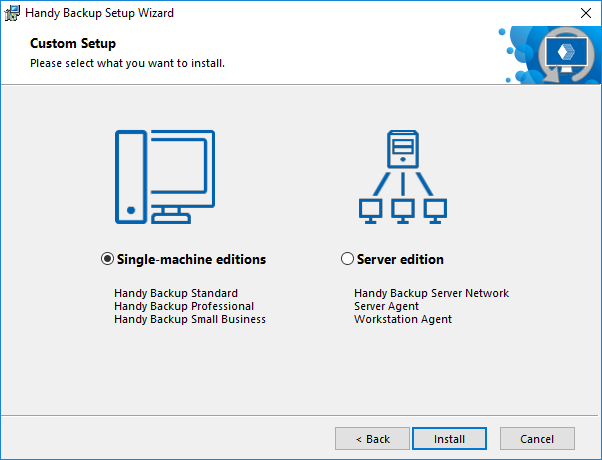
- Single-machine editions. Select this option if you are planning to back up only one computer or small server.
- Server edition. Select this option to install the Server Network edition or a Network Agent.
Selecting Between 32- and 64-bit Versions
Sometimes you need to force a 32- or a 64-bit version to install on your machine. In this case, select an OS type in the installation settings window, as shown below.
- Launch Handy Backup setup.
- On the welcome screen, select "Change recommended parameters".
- In a new window, select a desired version (32-bit or 64-bit) for your copy of Handy Backup.
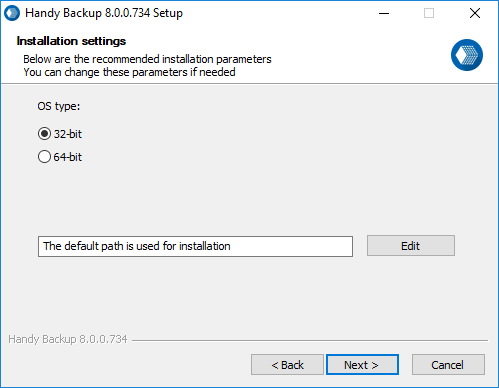
- After selecting a version type, continue installing as described above.
Contents: