Plug-in Order, License Update
Updated on June 11, 2026
Applies to: Handy Backup
How to order a necessary plug-in for my edition of the program?
To order a necessary plug-in for your edition of the program you should go to our Order Handy Backup Plug-in section and follow the next steps:
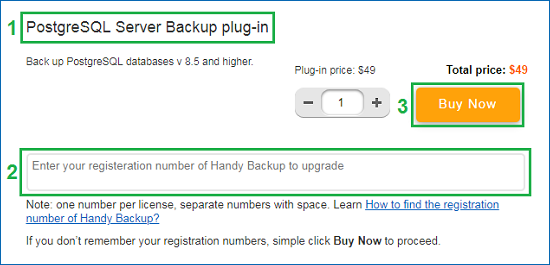
- Select a necessary plug-in that you want to buy.
- Enter your registration key to the program. If you do not remember it, do not worry, you can find it out through the registration management section of our website. Just select the "Forgot the registration number" option and follow the provided instruction.
- Click the button "Buy Now" and the selected plug-in will become available in your program.
If you have any problems, send us a letter to [email protected] explaining your problem. We will be glad to help you!
What will happen to my backups after the 30-days trial period?
Upon the expiration of our backup software trial period, Handy Backup stops working, but your backups remain intact.
- Unencrypted data. You can easily access them in the place where your backup is saved. The program backs up your data in native format.
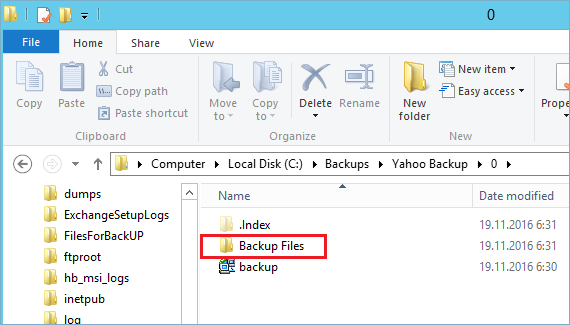
- Encrypted data. You do not have access to your files until you decrypt them using Handy Backup. In this case you need to order Handy Backup.
If you have any problems, send us a letter to [email protected] explaining your problem.
I have paid for an additional plug-in, but the program still gives an error
After purchasing an extra plug-in for Handy Backup Standard or Handy Backup Professional, you need to re-register your copy of the program.
- Please check that you provide a registration number from main version of Handy Backup (Standard or Professional) when purchasing a plug-in. For example, enter your registration number below the button when you are purchasing the MS Exchange plug-in!
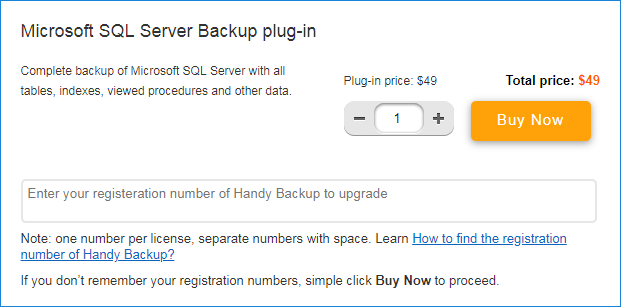
- If you forget to do it, please send us an email to [email protected], providing your Handy Backup registration number and attaching an email with purchase confirmation. Then wait for a reply that will confirm updates of your copy of Handy Backup.
Note: If you do not remember your main registration number from the program, please read about how to find the Registration Number of Handy Backup.
Re-registering the Program
- Open Handy Backup.
- Click onto a "Register" button on the management panel or go to the main menu and select "Registration" in the "Help" section.
- In the dialog window, enter your registration number and click "Re-register".
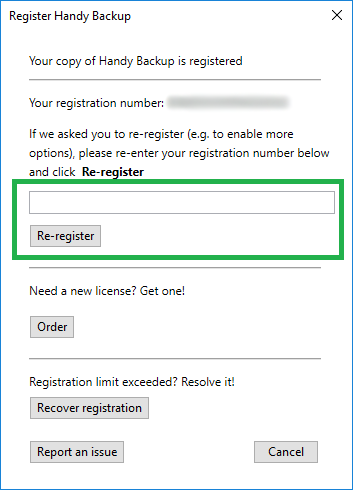
Now you will show your new plug-in in the Task Wizard and can create tasks by using it!
How to update to the latest version and save all tasks and settings?
The architecture of Handy Backup 8 differs drastically from previous versions. Therefore, it is no possibility to convert tasks made under Handy Backup 7.8.1 or earlier versions (including major versions 6 and 5) to the new version 8.
If you use Handy Backup 7.8.2 or upper version, you can export your tasks from the version 7 and then import these tasks* into the version 8:
- Start Handy Backup 7 and export tasks to the file.
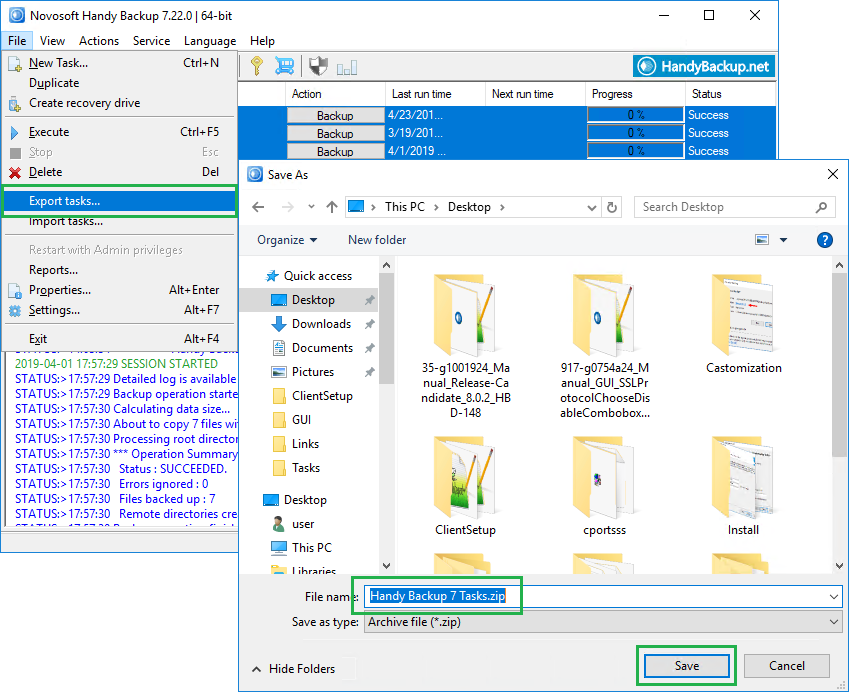
- Install Handy Backup 8 to your machine.
- Import tasks from the export file to Handy Backup 8.
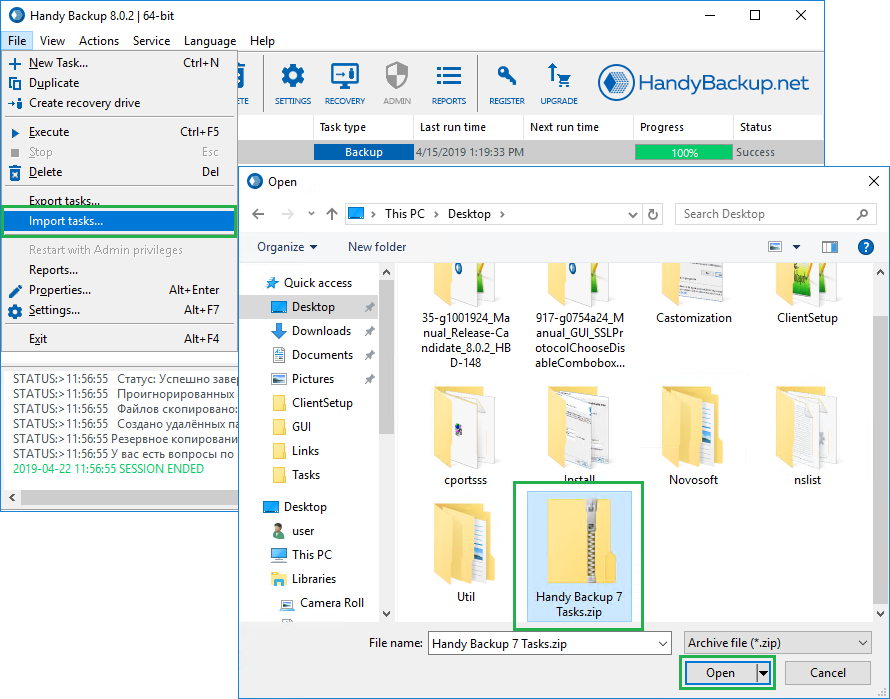
Caution! You cannot import tasks containing MS SQL and Oracle plug-ins, as the version 8 uses completely different principles for database connection via these plug-ins!
* Caveat: You can import tasks only in paid editions of Handy Backup.
If you have Handy Backup 7.8.1 or earlier, and you do not want to create tasks from scratch, then please send us a letter to [email protected]. We will try to help you with task migration.
I have not received a new registration number after updating the program
You don’t need to obtain a different registration number after updating Handy Backup to a newer version or purchasing a plugin. During the update, our database automatically renews the information about your product number, so you can continue using it in a new version of the program.
You do not need to recreate any backup tasks after installing a new version. When you update Handy Backup, it automatically imports all of your old tasks, keeping all backup files accessible.
