Disaster Recovery Software by Handy Backup
Disaster recovery software enables you to create a bootable USB drive with a system image for disk recovery. If your primary system fails, you can use this backup to restore your operating system and data. Handy Backup offers a USB-based tool called Disaster Recovery, which stands out for its flexibility and numerous options, making the recovery process convenient and efficient.
Download the free trial version of Handy Backup to experience our comprehensive disaster recovery planning software and ensure your data is always protected and recoverable.
 Download Trial





Planning a Strategy for Disaster Recovery
Handy Backup software allows you to create a bootable USB drive equipped with comprehensive backup and recovery features. The Disaster Recovery tool operates with sector-level images of Windows boot disks and supports both Legacy and UEFI interfaces, enabling recovery operations to be performed independently of the primary operating system. Currently, the tool features two plugins for creating bootable disks:

- Disk Image Backup: Allows you to create images of any local or external disk, including individual partitions, regardless of the file system in use.
- System Recovery: Automatically mounts all connected hard drives, enabling you to copy specific files and folders.
Backup copies of the bootable disk can be saved on the following storage media, allowing system recovery with Disaster Recovery:
- Local and external hard drives;
- External data storage devices (USB drives);
- FTP servers.
Advantages of Handy Backup and Disaster Recovery Solution
Streamlined Automated Backups

Our backup and disaster recovery software offers robust automation for disaster recovery solutions, allowing scheduled backups at any specified interval. It also supports version recycling, enabling the replacement of older backups with newer ones.
Safe and Convenient Storage of Backups

Ensure the security of your disaster recovery data by encrypting it with a built-in algorithm, preventing unauthorized access. Additionally, utilize secure storage services, such as cloud-based disaster recovery.
Seamless Disaster Recovery as a Service

With Handy Backup as your disaster recovery tool, there's no need to interrupt your daily activities when taking backups. You can run it using pre-configured backup tasks as a silent Windows service.
Testimonials About Disaster Recovery Software by Handy Backup
Recommended Solution
Lifetime license

Handy Backup Professional
The Professional solution is a user-friendly disaster recovery tool designed to meet the needs of experts and IT professionals. Our backup and disaster recovery software allows you to save data from your disk, perform recovery, or backup and restore an entire drive!
Capabilities of the Disaster Recovery Tool

Windows-Style Interface
The program utilizes a graphical web interface that allows convenient management of the main functions and elements of the utility through windows, objects, and buttons, similar to the desktop of the Windows operating system.

Selective Backup
The Disaster Recovery utility can create full copies of entire physical disks or copy individual disk partitions.

Complete Computer Backup
Handy Backup Disaster Recovery loads the operating system from a disk image, enabling you to restore and transfer any information from the main system HDD or SSD.

Sector-Level Backup
The disk image plugins used in Handy Backup perform sector-by-sector data copying, allowing the creation of FAT/NTFS file system images for Windows.

Compatibility with Windows Backups
The HBDR utility is fully compatible with the Handy Backup version for Windows and allows the recovery of disk images created in Windows.

Hard Disk Cloning
With Handy Backup Disaster Recovery, swiftly create a clone of a hard disk. Boot from the recovery disk, set up a recovery task, select the original disk image as the data source, and designate the destination device for cloning.

Operation Log
Keep track of all operations executed by the program, enabling users to review reports detailing task completions or errors encountered during processes with our advanced IT disaster recovery program.
How to create a bootable USB disk using the HBDR utility
To create a bootable drive, use a 4GB or larger USB flash drive and download the Handy Backup Disaster Recovery for WinPE file. Use software such as Rufus, UNetbootin, or WinUSB to format the drive and create the bootable USB flash drive.
What to do if the USB flash drive with Disaster Recovery doesn't boot?
- In the BIOS settings, configure the boot priority to prioritize the USB drive.
- When you boot the system from the recovery disk, Handy Backup Disaster Recovery will start automatically. You'll be welcomed by a utility window that has an interface similar to the one in the single-PC version.

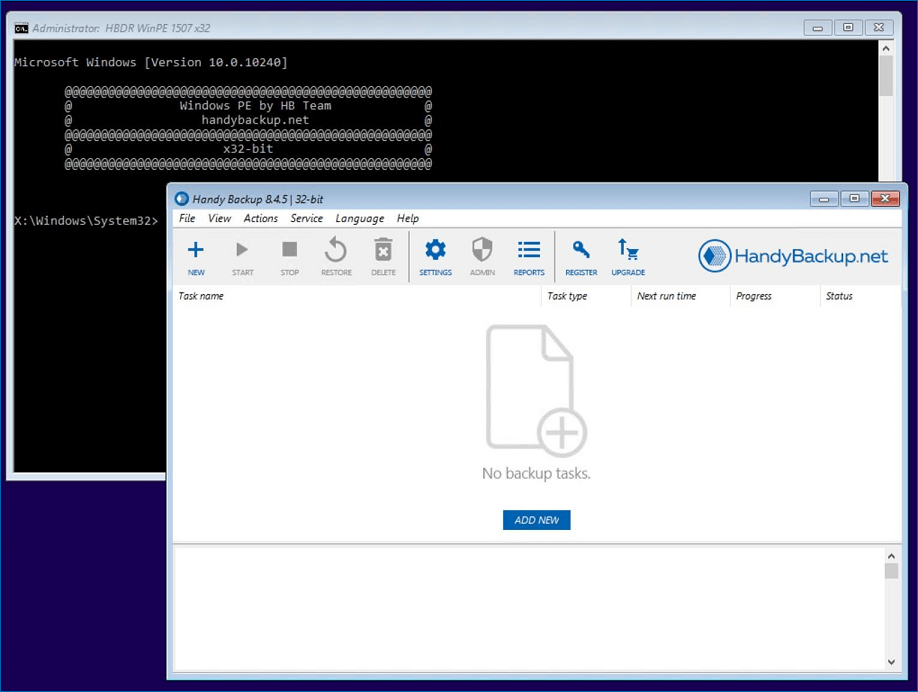
- You can create backup and restore tasks using the same interface and most available data storage plugins as in the main program.
Note: Starting with Handy Backup Professional, users can use the same license key to activate both the main backup program and Handy Backup Disaster Recovery.

Video Titorial: Recovery Image Disk with Handy Backup Disater Recovery
This video tutorial guides you through setting up a Windows disk image backup using the Disk plugin for disaster recovery!
Download Trial
Searching for reliable and convenient disaster recovery tools? Discover the power and convenience of Handy Backup!
Try it free for 30 days and unlock all premium features and plugins!
"Handy Backup is an exceptionally powerful disaster recovery solution. I regularly back up my drives once a month using the internal scheduler, and occasionally, I need to recover one of these drives with Disaster Recovery. Both functions work flawlessly! It's also relatively quick for such tasks. I dream of having a full-time, dedicated disaster recovery cloud to restore my laptop drive from anywhere."
Eric Donehall, a system administrator of Great Roe Magazine, Quebec