Hard Drive Recovery Tool

Recovery drive lets you restore a system after a disaster. If your primary system crashes so badly that your computer can’t start, a recovery drive will let you boot up your PC and restore a backup, perform virus scanning, and much more. Handy Backup can serve as an effective HDD recovery program.
 Download for Free
Version 8.7.0 , built on May 7, 2026. 152 MB
30-day full-featured trial period
Hard Drive Recovery Tool: Advantages
Simple Graphical Interface
The Disaster Recovery utility provides a Windows-like graphical user interface (GUI) based on objects and tasks. Objects are the drives and partitions for backing up and recovering, and tasks are complete operations of hard drive backup and restore, all controlled by the same GUI.

HDD Data Recovery Software for Bare-metal Hardware and Virtual Machines
You can create a recovery drive for "bare" computers, i.e. utilize this hard drive recovery tool for a computer that has no pre-installed system or even for a scratch drive. Another possibility is to create a file recovery drive in VHD format that you can use as a system disk for some virtual machine.

Cross-platform USB Recovery Drive
The Disaster Recovery, a HDD recovery tool provided by Handy Backup is completely platform-independent, allowing creating hard drive backup recovery for desktop or server Windows editions, Linux or even for such systems as Mac OS X or FreeBSD. Thus, you can use it for any drive or partition

Recommended Solution
Lifetime license

Handy Backup Professional
The Professional edition is an excellent hard drive recovery software solution, allowing creating recovery drive file images and restoring drives either directly or through the Disaster Recovery utility.
How to Create a Recovery Drive with Handy Backup?
In this section, you can learn about creating hard drive recovery tasks. For this purpose, you can either utilize some of disk cloning plug-ins of Handy Backup (Disk Image or System Recovery), or use the Disaster Recovery utility – a dedicated HDD recovery software solution.
- The Disk Image plug-in creates a solid binary image file for recovery drive.
- The System Recovery plug-in makes a readable VHD image of an entire drive.
- The Disaster Recovery utility is a standalone hard drive recovery tool. It can make and restore recovery drive images by itself, or use images created by Disk Image and System Recovery.
Utilizing the Disk Image and System Recovery Plug-ins
To use one of these plug-ins, create an image for hard drive recovery program firstly with the same plug-in. You can learn more about creating drive images in the User Manual. When you want to recover a drive, please use the next instruction.
- Create a new recovery task, as described in the User Manual.
- Select an image file for hard drive recovery.
- Select a physical drive or partition to restore this image.
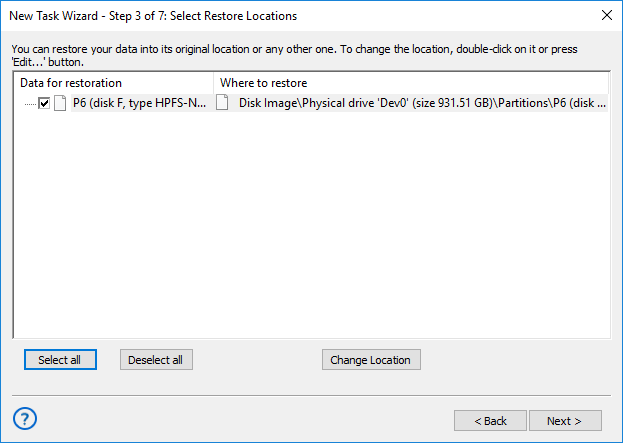
- Make all other steps for creating a new restoration task.
- Run this task (after backing up a target partition or drive, for avoiding data loss).
Caveat! You cannot use this technique to recover your primary system drive! If you need for such thing, please use the Disaster Recovery utility instead!
Using the Disaster Recovery: Video
In the next video lesson, you will learn about utilizing the Disaster Recovery as hard drive recovery software. The video will show all details of utilizing this tool, from creating a recovery file to rewriting it to a partition or a drive that you need.
Note: The Disaster Recovery tool is free for users of Professional, Small Server, Network and Server Network editions of Handy Backup!
Download for Free
Version 8.7.0 , built on May 7, 2026. 152 MB
30-day full-featured trial period
Try Handy Backup as your hard drive backup and recovery program by downloading a full and free 30-day trial edition!