Oracle plug-in
Oracle Database is a database management system produced and marketed by Oracle Corporation. Oracle Database software have been translated into more than 60 languages.
The Oracle Backup plug-in allows protecting data stored and used by Oracle database, without stopping the service.
Before using Oracle plug-in you must configure the Oracle database engine first, and then add a specific user in a ORA_DBA group allowing him or her to run Oracle backup and restoration procedures. If you have already configured the plug-in, please refer to the next chapter.
Configuring the Oracle Plug-in
In order to make "hot backups" without stopping an Oracle engine, it is necessary first to enable the ARCHIVELOG mode. If the database runs in the NOARCHIVELOG mode, then it will backed up in "cold" mode only (after stopping it).
To check which mode is active just now, use the following SQL operation:
SQL> select log_mode from sys.v$database;
If the value of LOG_MODE is NOARCHIVELOG, then you need to change it applying the following query:
SQL> alter database archivelog;
Note: To change the mode, your Oracle database instance must be mounted but not open. If it is open, you need to shutdown it, startup it with the mount option, enable the ARCHIVELOG mode, and then open the database for normal use:
SQL> shutdown immediate;
SQL> startup mount;
SQL> alter database archivelog;
SQL> alter database open;
Configuring of Remote Backup
If you use the Server Network edition of this software, it is possible to work with Oracle databases located on a workstation connected with the server via network. Follow these steps to set up this option properly:
- First, install Workstation Agent on the computer with Oracle database.
- Add the user account under which the Workstation will be launched to the ORA_DBA group.
Backups of local database can be created with any edition that has the Oracle plug-in available. The user account under which the program runs must have membership of the ORA_DBA group.
Adding Users to the ORA_DBA Group
To add a user to the ORA_DBA group, you must perform these next operations:
- Make sure that you have Oracle installed on your PC.
- On the Windows Start menu, right click Computer, and then click Manage. The Computer Management dialog opens.
- In the left pane, expand System Tools, then expand Local Users and Groups, and then click Users.
- In the right pane, right-click the desired user account, and then click Properties. The User Properties dialog opens.
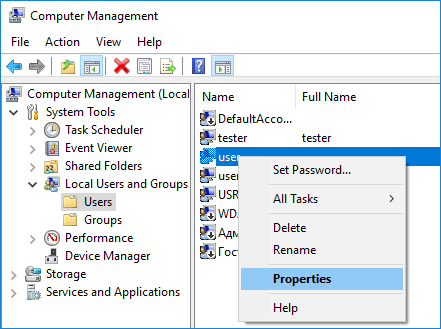
- Under the Member Of tab, click Add.
- In the bottom pane, select ORA_DBA, and then click OK.
- Click OK.
- Click OK.
Backing up Oracle databases
After an Oracle engine has tuned properly, you can easily make backup or restoration tasks using Oracle databases as target data type.
To make a backup, do the following:
- Select Backup task in New Task Wizard.
- Select Oracle option in the Database group on Step 2 of New Task Wizard.
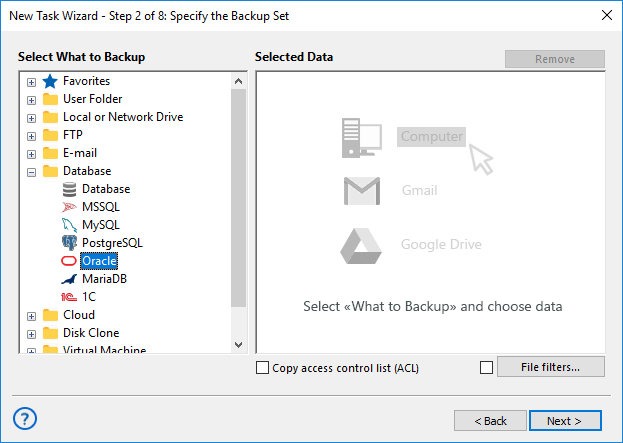
- Click on Oracle plug-in name.
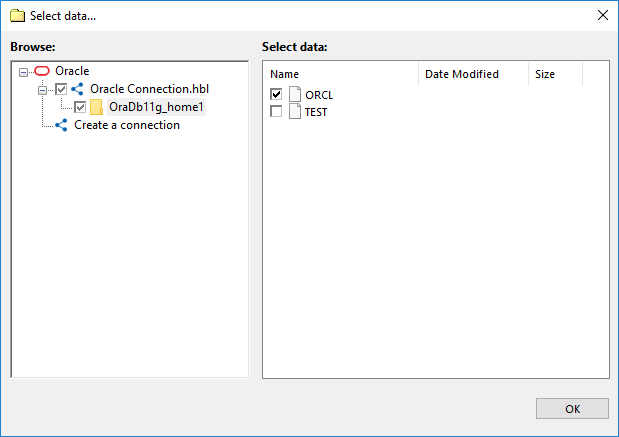
- If you still have no Oracle connection, click onto Create a connection string.
- In the connection setup dialog, provide all parameters to access an Oracle server.
- Click on a chosen connection name. In a data selection dialog, mark checkboxes against Oracle data that you plan to back up.
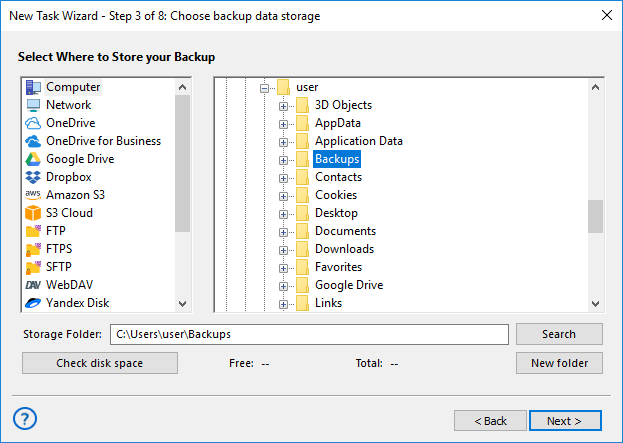
- Set up all other task parameters and click OK. Your backup is ready.
Ralated page: Oracle Backup Software
Contents: