Creating Backup and Restore Tasks
To back up or restore your drive or partition image, you need to create the respective task. To make a new task with Disaster Recovery, please follow these steps:
- On the desktop, open Tasks.
- Click New Task on the window"s toolbar. The New Task dialog opens.
- In the Name field, specify a name for a task.
- Select Backupas the task type.
- When finished, click OK. Disaster Recovery will open a task window for a new task.
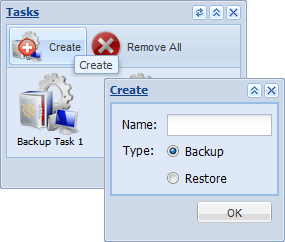
Each task has a unique Name and a task type, Backup or Restore.
Backup tasks are defined by two parameters:

What to Back up defines a set of data that will be backed up. This folder accepts any object from My Computer.

Where to Back up defines places where to store backups. This folder accepts only containers (folders) from My Computer.
To select backup destination, click on My Computer and select root$. Then go to the folder named mnt. You see all your connected partitions named sd*n where asterisk is a letter marking physical device sign and n is a number of partition located on it, e.g. sda1, sdb0, sdb1 etc. The letter after “sd” is a mark of placement signing that partition is physically located on one of connected drives. Just select a folder on any partition you plan to use.
If you want to select a particular physical device for placing backup or restoration data, open a command terminal using cmd and enter a command line:
df -h
You will see all devices with sizes available.
There may be cases when you need to perform partial restoration, or restore data to a different place. That"s why you can also create specific Restore tasks which are defined by following two parameters:

What to Restore defines data to be restored.

Where to Restore defines the place where to restore the backup.
You can specify all of the above parameters by drag-and-dropping objects from My Computer into respective task folders.
To remove an element from any folder, just drag-and-drop it into Trash which is located in the bottom right corner of the screen.
Tags: backup restore
Related Feature Pages
Contents: