Quick Start
In this section you can find quick instructions for backing up or restoring your HDD.
- Backing up HDD
- Restoring HDD
Backing up HDD
Note: Below you can find quick instructions for backing up an HDD. For a detailed description, please see Managing Data with Disaster Recovery.
To back up your HDD, follow these steps:
- Boot with a device containing a copy of Disaster Recovery utility.
- On the desktop, open My Computer.
- On the desktop, open Tasks.
- In Tasks, click New Task on the window"s toolbar.
- Enter a name for the task, and then click OK.
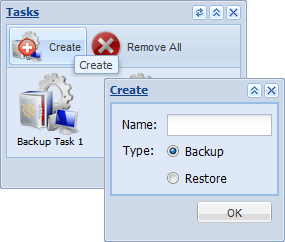
Note: If the program doesn"t find any tasks during the startup, a new task is created automatically.
- Find your HDD in the list of physical devices in My Computer, and then open it. To back up the entire HDD, drag-and-drop full drive image into the What to Back up folder of the task. To back up a partition, drag-and-drop an object from Partitions.
- In My Computer, browse for a folder where you want to store the backup. This may be a folder on another HDD, an FTP location, or your Online Backup account. Drag-and-drop this folder into the Where to Back up folder of the task.
Note: FTP locations and Online Backup are configured via FTP Configurations which is available on the desktop. To learn more, please see Configuring FTP Locations.
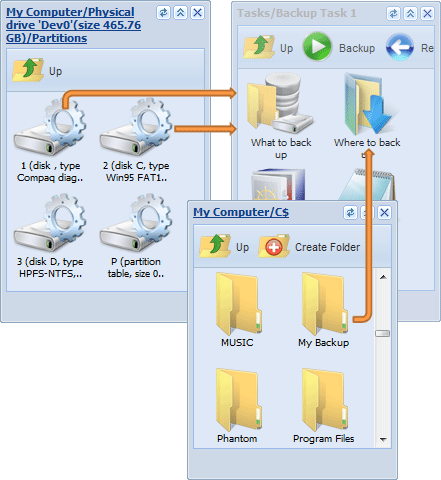
- Click Backup on the task"s toolbar.
Immediately after you click Backup, the program starts copying data from What to Back up to folders specified in Where to Back up.
- To see a detailed log of all operations, double-click Logs.
Restoring HDD
Note: Below you can find quick instructions for restoring an HDD or a partition. For detailed description, please see Managing Data with Disaster Recovery.
To restore your HDD, follow these steps:
- On the desktop, open Tasks.
- In Tasks, open the task that you used to create the backup.
- Click Restore on the task"s toolbar.
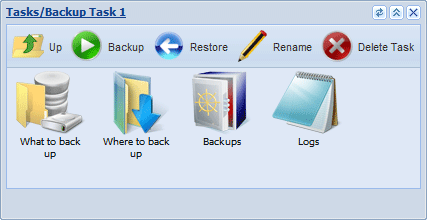
If you don"t have the task, follow these steps:
- On the desktop, open My Computer.
- In My Computer, browse for the folder where the backup is stored.
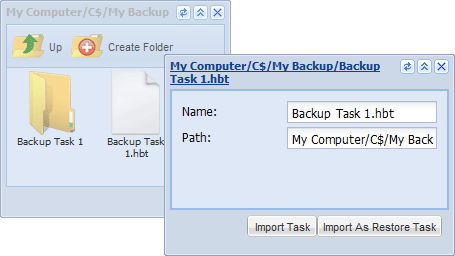
- Double-click the Handy Backup Task (.hbt) file. The Import Task dialog opens.
- Click Import as a Restore Task.
- Click Restore on the task"s toolbar.
Immediately after you click Restore, the program starts restoring the backup to the original place.
If you have a disk or partition image file which is not accompanied by a .hbt file, for example, an HDD backup created in Windows version of the program, you can create a restore task from scratch. For more details, please see Restoring Image Backup Made in Windows.
Related Feature Pages
Contents: