Restore system via a recovery drive

English

English

  • French
  • Russian
  • Spanish
HomeContact UsPartnersOnline Backup
CloseRegister

Login

Password

Backup Software
Download
Order
Support
About
  • Backup Software for Home
  • Handy Backup Home Standard
  • Handy Backup Home Professional
  •  
  • Backup Software for Business
  • Handy Backup Small Server
  • Handy Backup Network Server
  •  
  • Handy Backup for Android
  • Online Backup Service
  •  
  • Compare Versions
  • Screenshots
Backup Software
  • Handy Backup
  • Handy Backup Server
  •  
  • Handy Backup Plug-ins
  • Language Packs
  •  
  • Sources for Partners and Press
Download
  • Purchase Handy Backup
  • Upgrade Handy Backup
  • Help Me Choose Edition
  •  
  • Volume Order Pricing
  • Special Offers
  •  
  • Information for Resellers
  •  
  • Contact Sales
Order
  • Contact Support
  • FAQ
  • Handy Backup User Manual
  • How to Register
  •  
  • How to Back up
  • Backup Terms Glossary
  •  
  • Feedback Form
Support

Handy Backup / Support / Handy Backup User Manual / Restoring Image Backup Made in Windows

Restoring Image Backup Made in Windows

Handy Backup Disaster Recovery is completely compatible with image-based backups made by Windows version of Handy Backup, but can’t properly read its "index files" that carry information about tasks.

To restore a disk image made in Windows, you need to create the respective restore task and configure it manually. To do it, follow these steps:

  1. On the desktop, open Tasks.
  2. Click New Task on the window’s toolbar. The New Task dialog opens.
  3. In the Name field, specify a name for a task.
  4. Select Restore as a type of the task.
  5. When finished, click OK. The respective task window opens.
  6. On the desktop, open My Computer.
  7. Browse for the file containing a disk image that you want to restore.
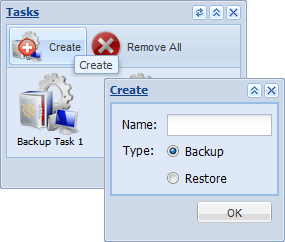
Image backups made by Windows version of Handy Backup are organized as followed:

/Task Name/
/backup.hbi
/Devices/
/Devices/full drive image
/Devices/Partitions/
/P (partition table ...)
/P1 (disk ...)
/P2 (disk ...)
...
  1. Drag-and-drop the desired image file into the What to Restore folder of the task.
  2. Go back to My Computer and double-click the physical device where you want to restore the image.
  3. If you want to restore the entire hard drive, drag-and-drop full drive image into the Where to Restore folder of the task.
  4. If you want to restore a specific partition, go to Partitions, and then drag-and-drop the desired partition into the Where to Restore folder of the task.
  5. To run the task, click Restore on the task’s toolbar.

Browsing Backups

Configuring FTP Locations

Go to Help Contents

Contact Us

support@handybackup.netsales@handybackup.net+1 (707) 703-13-11

Essentials

Installing Handy Backup

Installing Handy Backup Network Server

NEW!Installing Handy Backup Disaster Recovery

Installing Handy Backup under Linux

Updating Handy Backup from Earlier Versions

Registration

Plug-ins

How to Backup (Articles)

User Manual in PDF (version 7.1.2, 5.3 MB)

User Manual in PDF (version 6, 3 MB)

Who uses Handy Backup?

Loading client logos...

Copyright © 2004-2012 Novosoft LLC. All rights reserved. Handy Backup software.

Loading...

You are currently being redirected to a payment system. Please wait...

Back to Top