Backup Task
There is the two ways to add a dataset to a backup task.
You can create a completely new backup task, using one of the next instructions:
- Select the New task item from the File menu.
- Click on a "New task"
 button on the management panel.
 - Press Ctrl and N simultaneously.
- Right-click on a task view section of the main window to call for a context menu, and then select "New task".
Each time the backup task is executed (manually or by schedule), all data included in the backup set will be saved.
If you want just to add some data to an existing backup dataset, edit a backup task to include these data. To do it, follow the instruction below:
- In the task view section of the main window, select a backup task that you want to modify.
- Go to the What to Back up tab and select objects that you want to add to a backup list.
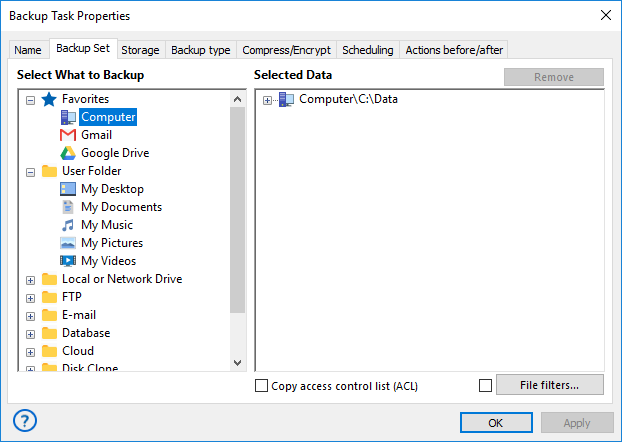
The program will copy all data that you add during the next run of this particular task.
Backup tasks have six main parameters:
- Backup set*
- Storage destination*
- Type of backup*
- Versioning
- Compression
- Encryption
*Required parameter
The New Task Wizard guides you step-by-step through specifying these and other parameters. For quick start, you can only select what to back up and where to store the data, and skip all other steps by clicking Next. By default, the program will make a full backup. For detailed description of all options, please refer to next chapters.
Contents: