FTP, SFTP and FTPS Plug-ins
The FTP plug-in, and its secured SFTP and FTPS counterparts, transfers files to a remote server using the FTP (File Transfer Protocol) and the SSH (Secure Shell) protocol.
A user can utilize these configurable plug-ins for saving data from an FTP server, to an FTP server, or for restoring data from a FTP vault.
Plug-in File System
The file system provided by the plug-in is organized as follows:
- Top-level folders are FTP/SFTP/FSTP configurations
- Folders correspond to common folders on the FTP/SFTP/FTPS server. They have no attributes.
- Files correspond to common files on the FTP, SFTP or FTPS server. Supported attributes: file size, modification time.
To learn about virtual file systems and file and folder attributes, please see Plug-in File Systems.
Using FTP/SFTP/FTPS Plug-in as Destination
In most cases, the FTP/SFTP/FTPS plug-in is used as a target destination for backups.
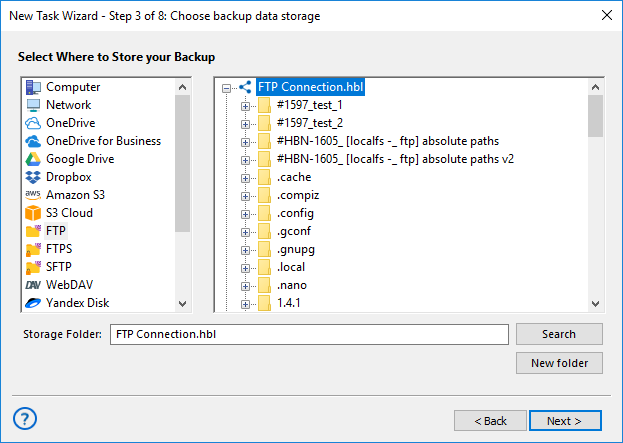
Destination selection is made on the third step of the New Task Wizard (see Select Destination for more details). To select an FTP, SFTP or FTPS as a target destination, follow these steps:
- In the Storage Destinations pane to the left, select FTP, SFTP or FTPS. The list of configurations appears in the Folder Selection pane to the right.
- If you don’t have a configuration for your FTP/SFTP/FTPS server, click Create a connection. The Settings dialog will appear.
- In the Settings dialog, fill in the fields, and then click OK. Learn more about FTP configuration, SFTP configuration or FTPS configuration.
- In the Folder Selection pane, expand a top-level folder (configuration) to make the program connect to the respective FTP/SFTP/FTPS server, and then browse for a target folder.
- Select a folder of the FTP, SFTP or FTPS server, and then click Next.
All next steps are common for all backup tasks (not specific to the plug-in). To learn more, please see Backup Task.
Using FTP/SFTP/FTPS Plug-ins as Data Sources
FTP, SFTP and FTPS can be used not only to store backups, but also as data sources. To back up FTP/SFTP/FTPS files and folders, please follow these steps:
- Open the New Task Wizard.
- Select Backup Task, and then click Next.
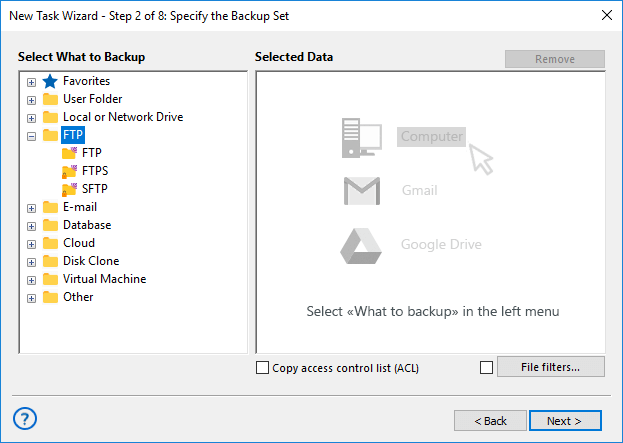
- In the Data Sources pane to the left, click onto FTP, SFTP or FTPS in the FTP group,. The Select data... dialog will open.
- If you don’t yet have a configuration for the FTP/SFTP/FTPS server you want to back up, click Create a connection. The Settings dialog will appear.
- In the Settings dialog, fill in server and authorization parameters, and then click OK. Learn more about FTP configuration, SFTP configuration or FTPS configuration.
- Check the boxes next to FTP/SFTP/FTPS files and folders that you want to back up.
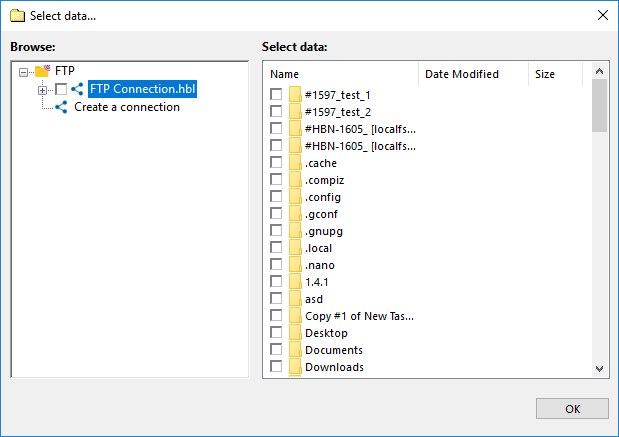
- When finished selection, click OK. Selected data appears in the Backup Set pane of the New Task Wizard.
Next steps of New Task Wizard are common for all backup tasks, and are not specific to the plug-in. Please see Backup Task for more details.
Restoring Copies from FTP, SFTP or FTPS Server
To restore a backup stored on an FTP/SFTP/FTPS server, follow these steps:
- Open the New Task Wizard.
- Select Restore task, and then click Next.
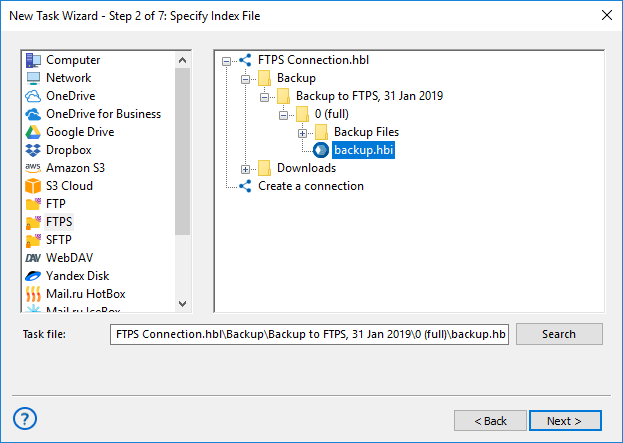
- In the Storage Destinations pane to the left, select FTP, SFTP or FTPS. The list of your FTP configurations will appear in the Index File Selection pane to the right.
- If you don’t have a configuration for the particular FTP/SFTP/FTPS server where your backups are located, click New configuration. The Settings dialog appears.
- In the Settings dialog, specify server address, user and password, and then click OK. Learn more about FTP configuration, SFTP configuration or FTPS configuration.
- Browse for the index file (backup.hbi) located in the destination folder on your FTP, SFTP server. Select it, and then click Next.
In the next steps of New Task Wizard, you need to verify restoration details, specify different options, and name the task. These steps are common for all restore tasks, and are not specific to the plug-in. For more details, see Restore Task.
Contents: