Plug-in CD/DVD/Blu-Ray*
- On the Step 3 of a new task wizard, select the "CD/DVD/Blu-Ray" plug-in and click the ">>" button (or double-click on the plug-in name) to choose an optical disk as backup destination.
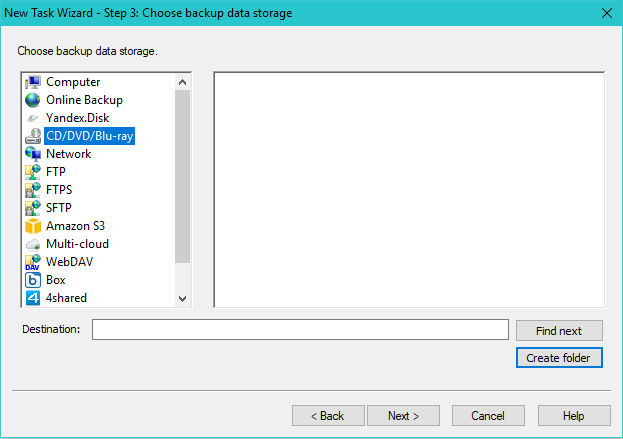
To set up your CD/DVD/Blu-Ray backup task, please choose the next parameters:
- Device: Choose your CD/DVD/Blu-Ray device.
- Folder: Enter the folder name for your backups. Keep in mind that the maximum length of a folder name is 64 characters, and it must not contain any "wildcard" character: "* ? : ; ."
- Speed: Select an appropriate speed to write on CD. The lower the speed, the lower the probability of a disk error during data copying.
- Check Allow splitting large copies to split too large files to parts that fit for optical drives of selected type. The program marks these files as "XXXXname", where X are the hexagonal digits making a unique number for a file.
- Check the Scratch disk before writing option if you want to wipe out content of a Blu-Ray/HD-DVD, CD-RW or DVD-RW диска before taking backup.
Important! You can use a scratch new CD-R/W drive or clean out an optical disk formatted by a third-party utility (such as DirectCD). Caveat! If you want to check out quality of your backup immediately after writing a disk, you must check the appropriate option in the server settings section of "Settings" menu. When you turn this option on, the program will automatically check a consistency of any backup taken on a CD/DVD.
* You can use this plug-in only under the 32-bit edition of Handy Backup.
Contents: