Online Plug-in
Online Backup is a configurable plug-in that allows working with our proprietary cloud storage service HBDrive. To learn more about the service, please refer to Handy Backup Drive.
The plug-in is primarily designed to be used as a destination, but can also be used as a source of data. File system provided by the plug-in is organized as follows:
- Top-level folder is a plug-in configuration.
- Folders are common folders. They have no attributes.
- Files are common files. Supported attributes include file size and modification time.
To learn about files, folders and attributes provided by plug-ins, please refer to Plug-in File Systems.
Using Plug-in as Destination
In most cases, the Online plug-in is used as a storage destination for backups (see Select Destination).
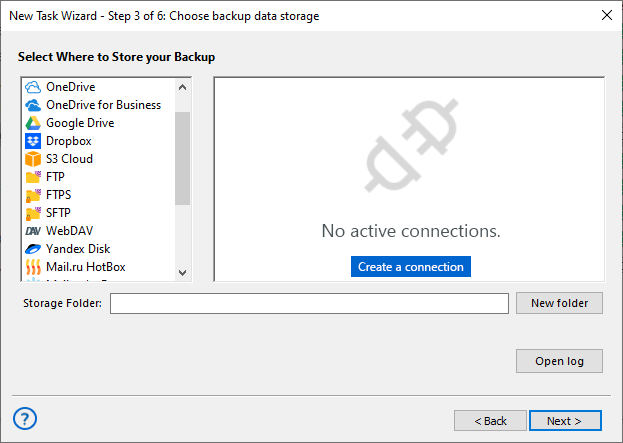
To select Online Backup as a destination for your data, follow these steps:
- In the Storage Destinations pane, select Online Backup. The list of configurations appears in the Folder Selection pane.
- If you don’t have a configuration for a HBDrive account, click Create a connection. The Settings dialog will appear.
- Fill in the fields in the Settings dialog, and then click OK. For details, refer to Plug-in Configurations.
- In the Folder Selection pane, browse for a target folder on HBDrive. When you expand a configuration, the program connects to the HBDrive account specified in it, and then displays contents of the respective path. Since you don’t have direct access to the HBDrive file system, it is recommended that you always back up to the root folder, i.e. select configuration as a target for backups.
Using Plug-in as Data Source
Handy Backup allows making snapshots from HBdrive backup accounts. To do it, click on the Online Backup plug-in from the Cloud group on the Step 2 of a New Task Wizard.
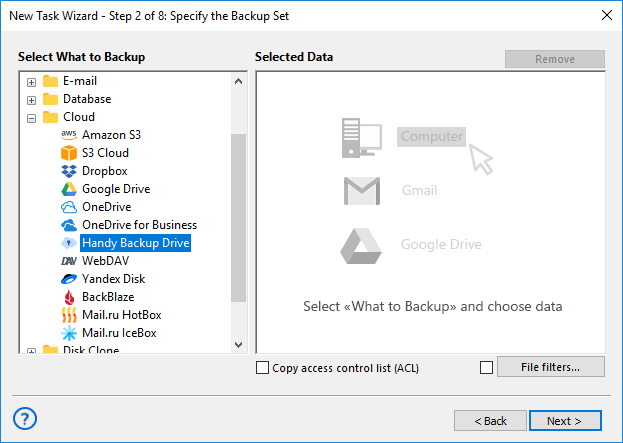
Make a connection with an existing Online Backup account if you need. To do it, click on the "Create a connection…" string at the plug-in window.
To learn about configurations of the plug-in, refer to the next chapter, Plug-in Configurations.
Restoring Data from Online Plug-in
To make a restoration task, select this task type on the Step 1. On the next step, find and select the "Online Backup" as storage. Browse for the folder on your account containing a particular backup, and select the file backup.hbi, which contains all necessary backup data. Go to the next step.
Restoring from HBDrive requires no one specific option to do. Just create a restoration task as usual, according to this User Manual.
Contents: