Step 4: Advanced Restore Settings (Restore Task)
This page describes the fourth step of creating a restore task with the New Task Wizard.
On the fourth step of the New Task Wizard, you need to select type of restoration. Advanced users can also change comparison settings and error handling settings (read below).
Type of restoration determines if the program must check files* that already exist in folder where you restore the backup.
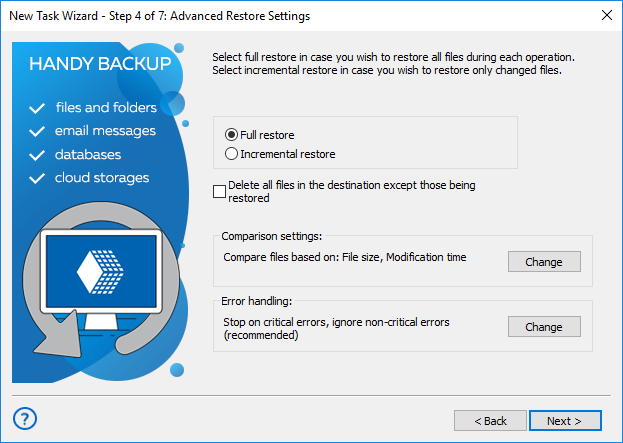
- Full restore always restores all files, overwriting any data in the restoration folder.
- Incremental restore compares attributes of files in the backup with files in the target folder, and restores only missing and modified files. You can read about comparison settings below.
*Note: In these instructions, "files and folders" may also mean databases, tables, HDD partitions, and other objects. To learn more, please see Plug-in File Systems...
Comparison Settings
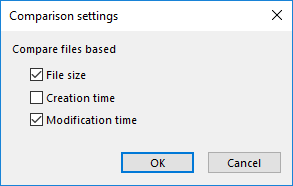
By default, when running incremental restore, the program compares data in the backup and in the restoration folder, and copies only files with different File size or Modification time attributes. This behavior is task-specific, and can be changed in Comparison settings. To change it, click the Change button.
Error Handling
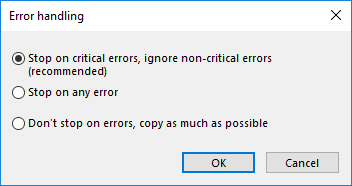
Error handling lets you set the program’s behavior when it encounters an error:
- Critical errors happen, for example, when you try to restore an encrypted backup with a wrong password.
- Non-critical errors are one-time errors that are not specific to the entire restoration. For example, the "Access denied" error may be a result of a conflict with another application, and running the same task again will back up the same file successfully.
You can choose whether the task must stop on any error, stop only on critical errors, or don’t stop on errors at all.
If there are any errors during restoration, the task will end with an Error status.
When finished selecting type of restoration and specifying advanced settings, click Next.
Tags: backup restore
Contents: