MS Exchange Plug-in
The MS Exchange plug-in allows backing up and restoring Information Stores of Microsoft Exchange Servers. The plug-in allows working with Exchange Server located on local computer only. Its work relies on the following Windows services:
- Exchange VSS Store Writer (always installed as a part of an Exchange Server)
- Volume Shadow Copy Service
Backup is made without stopping the server (the use of the VSS service ensures consistency and recoverability of snapshots). To restore data, the plug-in firstly stops Exchange Store Service and all dependent services, then copies the files, and then re-launches them.
Supported Versions
The plug-in supports all versions of Microsoft Exchange Server 2003,2007,2010, 2013 and 2016. It is important that your version of Handy Backup match your operating system, i.e. for 64-bit version of Windows Server, you need to use 64-bit version of the program.
Privileges
To use the MS Exchange plug-in, Workstation must be launched from a user account that can make API calls to the Exchange VSS Store Writer and Volume Shadow Copy Service services.
Plug-in File System
In the file system provided by the plug-in, any path starts with Microsoft Exchange Server\Microsoft Information Store. Inside these folders, the file system is organized as follows:
- Folders correspond to Exchange Servers and carry the respective names. They have no attributes.
- Files correspond to Stores (databases) available on the respective Exchange Server. File names correspond to internal identifiers of the databases. They have no attributes.
Since the plug-in provides no attributes for files and folders, it cannot be used with incremental backup option. When files of the MS Exchange file system are compared to files already backed up, they are always considered as new, which means that each increment is effectively a full backup. To optimize the usage of disk space, use differential type of backup.
Format of Backup Files
During backup, the software creates files that are named similarly to identifiers of databases. Each file is basically an archive that contains all data files and logs of the respective database.
Backing Up
The MS Exchange plug-in can only be as a source of data for backup tasks. See Specify Backup Set for more details.
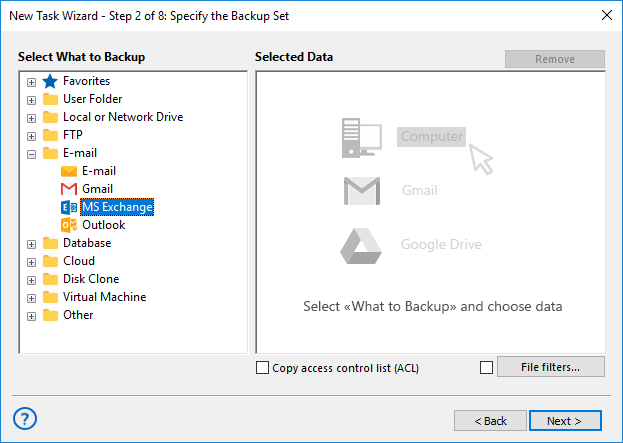
To add an Exchange Server Store to backup set, follow these steps:
- In the Data Sources pane, select MS Exchange in the Email group. The Select data... dialog will open.
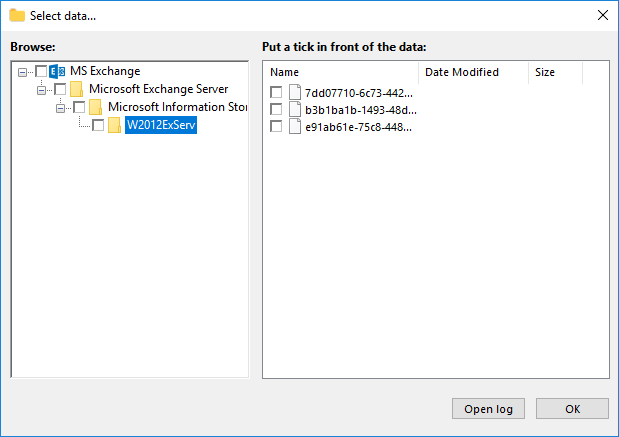
- Check the boxes next to databases (files of the MS Exchange plug-in) that you want to back up.
- When finished the selection, click OK. Selected data appears in the Backup Set pane of the New Task Wizard.
Restoring
At present, you can only restore backups made with the MS Exchange plug-in only to their original locations. Because of this, the process of restoration is very straightforward:
- Open New Task Wizard.
- Select Restore task, and then click Next.
- Browse for the index file (backup.hbi) located in the destination folder. Select it and click Next.
- Skip the Select Restore Locations dialog by clicking Next (as there is no way to restore data to a different location).
- Skip the next steps by clicking Next.
When you run the restoration, the plug-in firstly stops the Exchange Store Service and all Windows services that depend on it. Then it copies the files to their original locations, and re-launches the services.
In this section:
- Technologies Behind the Software
- Architecture
- Plug-ins
- Plug-in File Systems
- Plug-in Configurations
- Data Source Plug-ins
- Computer
- Disk Image
- MSSQL
- MS Exchange
- MySQL
- Storage Plug-ins
- Filters
- Incremental and Differential Backup
Contents: