How to Backup Files Online
How to Backup Computer Online is the question that many digital users ponder in today's data-centric world. With the exponential growth of digital information and the increasing reliance on technology for both personal and professional tasks, safeguarding data has become paramount. In this article, we delve into the concept of online computer backup and its significance in ensuring data integrity and security.
Ready to safeguard your digital assets? Dive into our 30-day free trial. Discover simplicity, reliability, and security firsthand. Don't wait - secure your data today!
 Download for Free
Version 8.7.0 , built on May 7, 2026. 152 MB
30-day full-featured trial period

Key Features of Handy Backup for Seamless Online Computer Backup
Handy Backup offers a range of advantages for online backup, alongside native support for various storage options and WebDAV. Here's a brief overview of some of these key advantages:
- Schedule Backup Tasks: Set up backup tasks to run at precise times, with options ranging from minutes to months, allowing for customized scheduling.
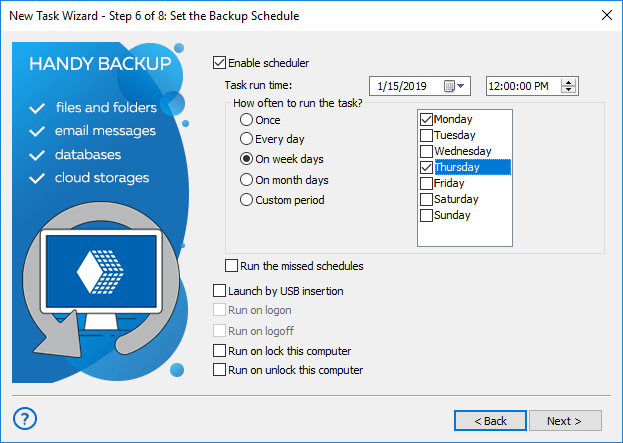
- Run Missed Tasks: Automatically initiate missed tasks, triggered by significant events like user logon or logoff.
- Built-in Encryption and ZIP Compression: Secure your data with encrypted backup, while optimizing storage space through integrated encryption and compression features.
- Multiple Backup Types: Choose from full, incremental, differential, and mixed (full/differential) backup types, along with versioned backups for added flexibility.
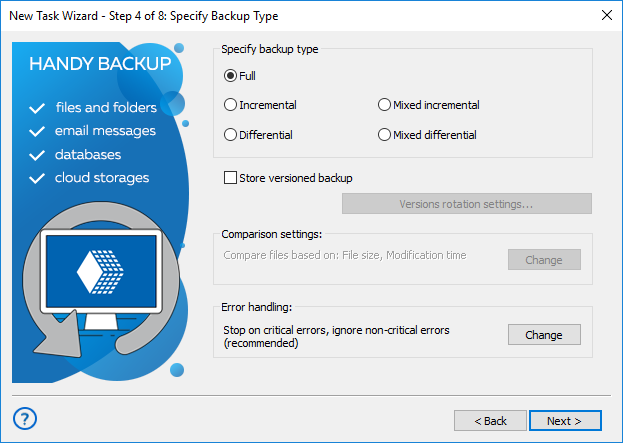
- Automatic Restoration: Enjoy automatic restoration capabilities, as well as the option for manual restoration of individual files as needed.
In addition to these features, Handy Backup provides numerous other functionalities and customization options to facilitate online computer backup tailored to your personal data storage preferences.
Attention: Some advanced options may only be accessible in advanced task mode or when reviewing completed tasks.
Explore Handy Backup's Online Data Backup Options


+ WebDAV and network machines, whether virtual or physical
Online Backup Comparison
Below is a summary table outlining the key features of remote data copying, compiled from various online backup reviews. Delve into the essential advantages and disadvantages of online backup compared to storing data locally on drives or external on-site storage (DAS).
| Local Storage | Online Backup | |
| Accessibility (Local) | Very Good | Depends on Network Functions |
| Accessibility (Worldwide) | Poor (USB Drives) to None | Good (FTP) to Excellent |
| Security (Hardware/Disasters) | Relatively Low | Excellent |
| Security (Hacking/Theft) | Depends on Measures | Average to Good |
| Cost (for Same Data Size) | Relatively Low | Relatively High |
Recommended Solution
Lifetime license
Online Data Backup for Small Business
Discover the extensive capabilities of Handy Backup's Small Business edition, equipped with tools tailored for today's best online backup services and designed to accommodate any data type imaginable. Take advantage of our free 30-day trial version to experience it firsthand!
How to Backup Computer Files Online Using Handy Backup
Here, we'll demonstrate how to backup computer files online using the Box storage plugin:
How to Backup Your Files Online
- Start by creating a new backup task.
- On step 2, in the "Select What to Backup" section, expand the "Local or Network Drives" folder and click on the "Computer" plugin.
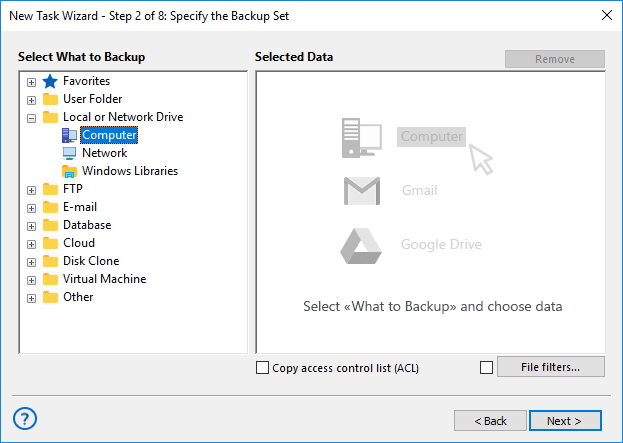
- Using the system tree, select the files you want to backup and click "Ok."
- Then, click "Next" and proceed to the third step, where you'll select the "Box" plugin as your backup destination.
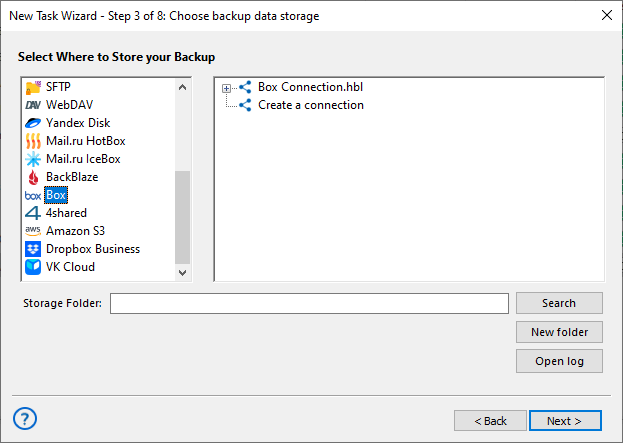
Note: When selecting the "Box" plugin, click "Create a connection" and enter your account login and password in the pop-up window.
- Complete the backup setup by configuring any additional parameters discussed in the "Key Features of Handy Backup for Seamless Online Computer Backup" section, ensuring seamless backup to Box cloud storage.
How to Restore Your Online Backup
Handy Backup automates both backup and restoration tasks. You can create a restoration task with manual control or schedule it for specific purposes, such as auto mirroring, just as easily and quickly as a backup task!
How to Restore Data from Your Online Backup?
This is a simple guide for services like Google Drive or OneDrive. For NAS or FTP backups, simply use the "Network" or FTP, SFTP, FTPS plugin instead of a cloud plugin.
- Create a new recovery task, either in simple or advanced mode.
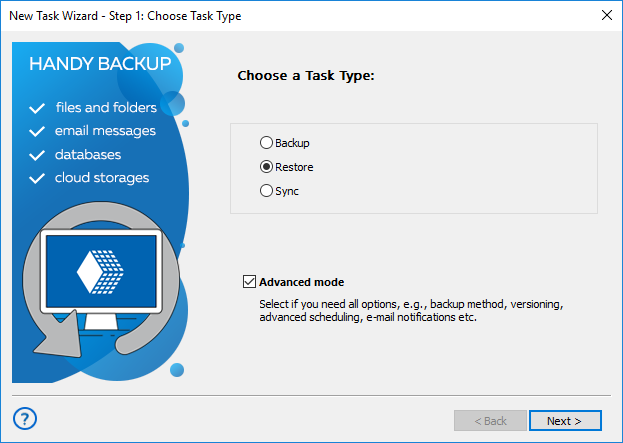
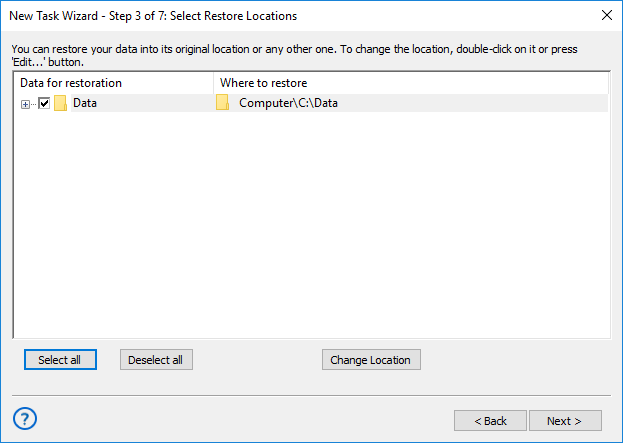
Note: In advanced mode, you can restore your online backup to another location by clicking the "Change Location" button on Step 3. You will also have access to other advanced options related to computer backups, such as an extended scheduler for automatic recovery/sending data.
- On Step 2, open the appropriate plugin for your online backup.
- Locate the backup folder and select the backup.hbi file.
- Proceed to Step 3 and continue creating the task as described in the User Manual.
How to Manually Restore from Your Online Backup
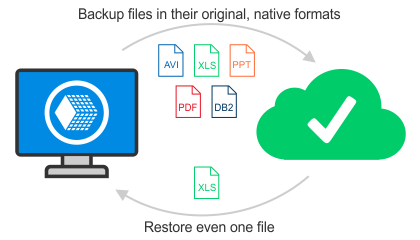
Handy Backup stores data in uncompressed and unencrypted native formats, allowing you to easily restore any file or folder from your backup without the need for a complete dataset restoration.
For database backups stored as a dump (a list of SQL instructions), an alternative method enables you to edit these instructions before copying. This feature is particularly useful for tasks such as changing a storage engine or editing table data before mirroring.
 Download for Free
Version 8.7.0 , built on May 7, 2026. 152 MB
30-day full-featured trial period
Don't wait to experience the online backup capabilities of Handy Backup! Download your 30-day free trial now and access all features for seamless online data backup.

Reviews About Online Backup Service by Handy Backup
"I use this program for online backup since 2009. It is marvelous! I can not only save my files to OneDrive for Business, or even make online backup hard drive copy to my NAS, but also to send my photos, diagrams and projects to my office desktop automatically when I run an automated recovery task. This option simplifies my work greatly! "
Laurel J. Norton, a scientist