Effective Backup Scheduling Strategies in 2024
Backup scheduling is one of the most valuable features of data backup software. The best backup schedule practices eliminate the need for manual backups, encompassing tasks such as filtering, compressing, transferring, and more.
Handy Backup enables you to create a comprehensive backup schedule for any type of data, ensuring your files are always protected and up-to-date. Download the free 30-day trial version today and see how effortless data protection can be!
 Download for Free
Version 8.7.0 , built on May 7, 2026. 152 MB
30-day full-featured trial period

Why You Might Need Backup Scheduling?
It's no secret that many people neglect data backup due to its time and effort requirements. Do you want to ensure uninterrupted backups and be confident in your ability to recover data or perform hard disk recovery in case of a disaster? If so, backup scheduling with Handy Backup is your solution!
Typical Tasks for Backup Scheduling
Here are some essential tasks for automated backups:
- Implementing backup strategies like the 3-2-1 backup rule or GFS backup
- Automatically copying large data amounts to an external USB drive upon connection to a PC
- Regularly backing up databases or taking snapshots of virtual machines
- Daily backups of projects, photos, or other critical information (e.g., through cloud backup)
- Scheduling regular data center backups to ensure the protection of critical infrastructure and business data
Backup Schedule Best Practices
Implementing effective backup schedules in 2024 remains crucial for safeguarding data integrity and ensuring business continuity. This section highlights key best practices that optimize backup processes, ranging from automated backups to customized schedules based on data criticality. Effective backup scheduling strategies ensure that data is consistently protected and available for recovery, thereby mitigating risks
associated with data loss and system failures.

Regular and Automated Backups: Automate backup processes to ensure consistency and reliability. By setting up automated backups, you reduce the risk of human error and ensure that backups occur even during off-peak hours, making the process efficient and less disruptive to regular operations.

Differentiated Schedules for Data Types: Tailor backup frequencies based on data criticality and volatility. For example, critical databases might require more frequent backups compared to less critical user files. By setting appropriate schedules, you ensure that essential data is protected more rigorously, while less critical data does not consume unnecessary resources.

Distributed Backup Windows: Allocate backup tasks across defined time windows to prevent resource contention with operational tasks and ensure optimal performance. By spreading out backup operations, you can avoid peak usage times and reduce the load on your network and servers, thus maintaining smooth business operations.

Retention Policies: Define retention periods based on compliance requirements and business needs. This ensures data availability for recovery while managing storage costs effectively. By implementing clear retention policies, you can keep your backup storage organized and ensure that old or obsolete data is archived or deleted, freeing up space for new backups.

Testing and Validation: Regularly test backups to verify integrity and reliability. Periodic validation ensures backups are viable for restoration when needed. By conducting regular tests, you can identify and fix potential issues before they affect your ability to recover data, ensuring that backups are not just theoretically reliable but practically usable.

Various Backup Types: Utilize different types of backups based on your needs. Full backups capture all data, incremental backups save changes since the last backup, and differential backups store changes since the last full backup. Each type has its own advantages and is suited for different scenarios.
Recommended Solution
Lifetime license
Handy Backup Professional
The Professional edition is a full-featured, workstation-level backup solution containing all backup scheduling options. Try it free with a 30-day complete trial version!
Data Backup Plan Template
Explore the comprehensive components that ensure a robust data backup strategy with our detailed backup scheduler plan template. This table highlights essential aspects crucial for safeguarding your critical information. This table highlights essential aspects crucial for safeguarding your critical information with the help of advanced scheduled backup software.
| Description | Details | |
|---|---|---|
| 1. Data Sources | Identify all critical data sources to be backed up. | Specify databases, servers, applications, etc. |
| 2. Backup Schedule | Define the frequency and timing of backups. | Specify daily, weekly, or custom schedules. |
| 3. Backup Methods | Determine the backup methods to be used. | Full, incremental, differential, etc. |
| 4. Storage Location | Specify where backups will be stored. | On-site, off-site, cloud storage, etc. |
| 5. Retention Policy | Define how long backups will be retained. | Specify retention periods for different backup types. |
| 6. Testing | Plan for regular testing of backup and restore procedures. | Simulation Schedule tests and document results. |
| 7. Monitoring and Alerts | Establish monitoring and alert systems for backup processes. | Set up notifications for failures or issues. |
| 8. Documentation | Create documentation for the backup plan. | Include procedures, contacts, and recovery steps. |
Scheduling Backups of Your Computer Data
Our utility is an automated Windows backup software that allows you to organize nearly any backup rotation scheme. It incorporates best practices and strategies for backup scheduling, offering a backup scheduler equipped with several useful options:
- Automation of all tasks: By scheduling backup tasks, you can automate all backups to run without user intervention, ensuring timely execution.
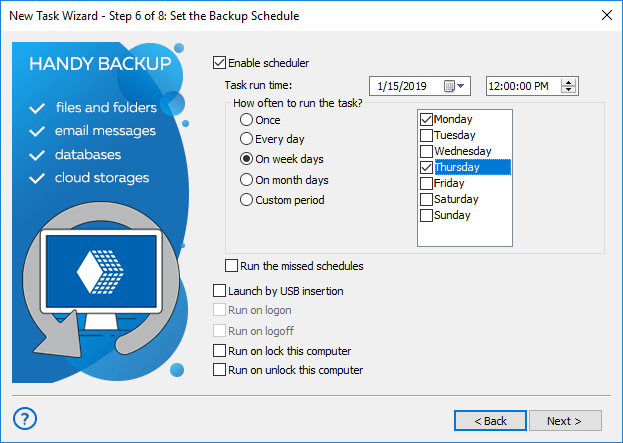
- Flexible schedule configuration: Customize backup schedules for different data types, performing tasks regularly from minute intervals to months. For instance, you might schedule database backups twice daily and photo archives twice weekly, as illustrated below.
- Email notifications: Once you've set up a backup schedule, you can receive task reports via email notifications, eliminating the need for manual monitoring of backup procedures.
- Run backups as Windows service: The utility can operate as a service on Windows 11, 10, 8, 7, and Windows Server 2022, 2019, 2016 operating systems. This capability allows tasks to run without loading a graphical interface or requiring user logon. Explore more about running backups as a service.
Scheduling Backup to Online Storage

Some storage options may impose additional requirements that can restrict backup scheduling. This is particularly evident with online storage, where a stable network connection is crucial during scheduled backup tasks. Even common tasks like scheduling backups to NAS in local networks rely heavily on connection reliability.
How to Organize Cloud Backup Scheduling
When scheduling cloud backup tasks (e.g., if you schedule backup to OneDrive or Google Drive), an additional consideration is the technical availability of the data exchange interface, which may be temporarily disrupted by a firewall or maintenance job. Implementing an option to run missed tasks can help mitigate this issue!
Download for Free
Version 8.7.0 , built on May 7, 2026. 152 MB
30-day full-featured trial period
Automate your backup tasks and ensure the regular and efficient saving of all your data! Get a copy of Handy Backup now with a free 30-day trial and start implementing backup schedule best practices!
See Also: