Configuring FTP Locations

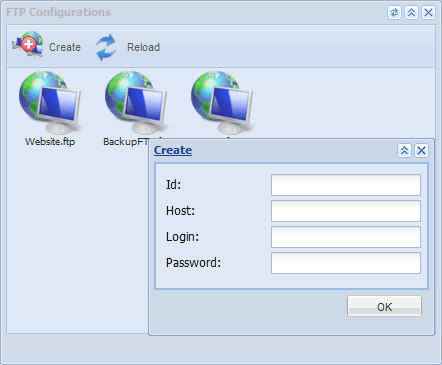
The FTP Configurations folder on the desktop allows you to add FTP locations, to use these FTP servers in different backup and restore tasks. To create a new FTP location, follow these steps:
Creating New FTP Location
- On the desktop, open FTP Configurations.
- Click Create on the window toolbar. The Create FTP dialog opens.
- In the Id field, enter a name for a location as you want to see it in My Computer
- In the Host field, specify an IP address, or a hostname of an FTP server.
- Specify Login and Password for authorizing on the server.
- When finished, click OK.
After you provide all required data, you will need to confirm the creation of a new FTP location by clicking Save.
FTP locations automatically appear in My Computer. You can use these locations in Backup and Restore tasks as common folders.
Related Feature Pages
Contents: