Lotus Notes plug-in
The Lotus Notes/Domino (IBM Notes) plug-in is a dedicated tool for Lotus database backup. To utilize it properly, please follow the next instruction.
Preparing for Backup
To save Lotus Domino databases, you must prepare the system firstly. Do this sequence only once per a new or re-installed system configuration before executing the first backup task.
- Open the "System" section on the Windows Control Panel.
- Click on the "Advanced settings" in the "settings" section.
- In the next dialog, select and view the list of environment variables.
- If the PATH has no way for Lotus folders, add the paths to these folders to the list.
- Click ОК and restart Windows.
Making Backup
To make a backup, do the following:
- Select Backup task in New Task Wizard.
- Select the Lotus Notes option in the Database section on the Step 2 of New Task Wizard.
- Click once on this option to open a data selection dialog.
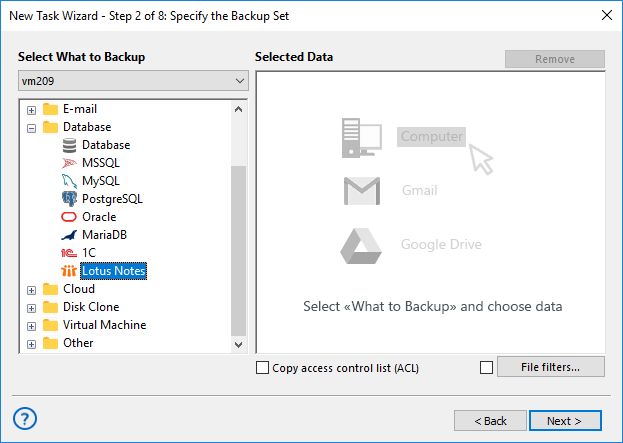
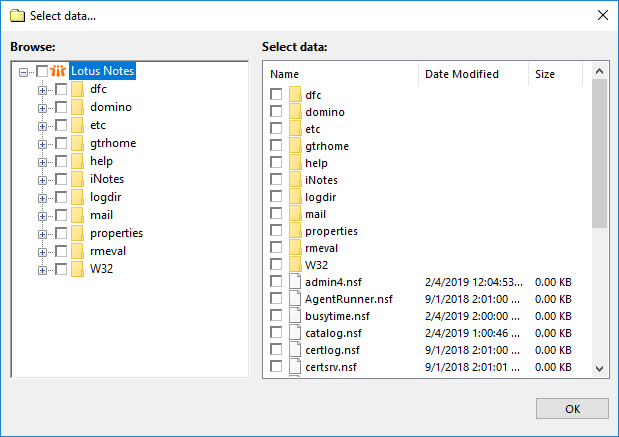
Note: Handy Backup will show the Lotus Notes option only when you properly install Lotus into the system (see above). If everything is OK, you will see the folder structure of Lotus Notes.
- Choose the folders of Lotus Notes software for backup. You can select all the folders or only one/several of them. Click OK after finishing.
- Set up destination and other parameters of the task step by step, as shown in the "Backup Task" section of this manual.
How to Restore
To restore Lotus Notes from backup, please follow this instruction:
- Open the New Task Wizard.
- Select Restore task on the Step 1, and then click "Next".
- Find the index file (backup.hbi) located in the backup storage folder on the Step 2. Select this file, and then click "Next".
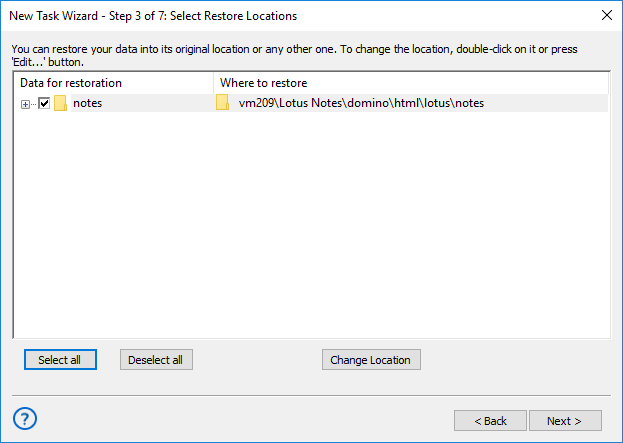
- On the Step 3, you may change the restore location for Lotus databases by clicking the "Change Location" button and then selecting another destination for Lotus backup.
- Other steps of restoration task are standard for this task type. Please read this manual for advanced guides.
This task will restore your Lotus Notes database from backup.
Related Feature Pages
Contents: