Microsoft Exchange Server Backup Solution
Microsoft Exchange backup software ensures reliable Exchange database backup and recovery, allowing data restoration from online or local storage to its original location. Handy Backup functions as a Microsoft Exchange 2022 backup solution and supports all earlier Exchange versions through its dedicated “MS Exchange” plugin.
Download a 30-day trial of our Exchange backup solution to securely protect your mail servers, ensure seamless recovery, and simplify data management.
 Download for Free
Version 8.7.0 , built on May 7, 2026. 152 MB
30-day full-featured trial period
Microsoft Exchange Backup Solution: Best Practices
Online Backup Storages
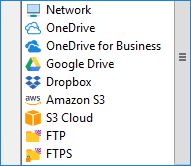
A user may have a constant need for most Exchange 2022 backup data, as Microsoft Exchange server is often a backbone of company-level business emails and other communications. Things like cloud backup are making Exchange server backups readily available from everywhere, can greatly help with it!
Scheduled Backup
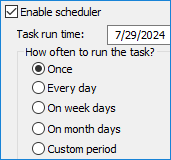
At almost any time, you will need to made regular snapshots of MS Exchange server, as manual running of these tasks can greatly increase a risk of a human error. To achieve automation, you will need a scheduled job to make, for example, Exchange server online backup on a regular basis.
Joint Server-level Data Protection
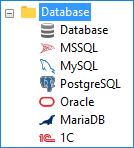
Reliable Microsoft Exchange backup software can back up not only Exchange server data but also all other server- and user-level data types, such as shared projects and databases. Our Windows Server Backup Tool ensures consistent backups for seamless restoration, cloning, or even migrating entire servers.
Key Advantages of Handy Backup as an Exchange Backup Software
In addition to the requirements mentioned above, Handy Backup offers a wide range of features, options, and benefits for users, making it one of the best Microsoft Exchange backup software solutions available. These features include:
- Making reports of Exchange mail backup task, with a possibility to send reports by email;
- Running tasks missed by some cause, as well as starting task by some system events;
- Calling for other programs before and/or after a backup task, e.g. to stop and restart Exchange;
- Hot Microsoft Exchange 2022 backup, allowing saving data without stopping other applications;
- Encrypting and compressing data backups, making partial and versioned backups for a dataset.
Compatibility note: Handy Backup supports MS Exchange 2022 and 2019 backup, as well as MS Exchange 2016, 2013, 2010 and earlier, all with one plug-in and no version-depended settings required!
What Users Say About Handy Backup
Recommended Solution
Lifetime license
Handy Backup Small Business
The ultimate single-machine solution, this Exchange backup software enables seamless Exchange 2022 database backups and is fully compatible with all earlier versions of MS Exchange, right out of the box. It also offers a range of options for Exchange online backup.
How to Backup Exchange Email Base with Handy Backup?
To make a Microsoft Exchange server backup task, e.g., for Exchange Server 2022 backup, please follow the next instruction.
- Start Handy Backup and create a new task (by a button on the panel or by pressing Ctrl+N keys).
- On Step 1, select a backup task. Go to the Step 2 and open the E-mail group.
- Click onto the MS Exchange backup plug-in.
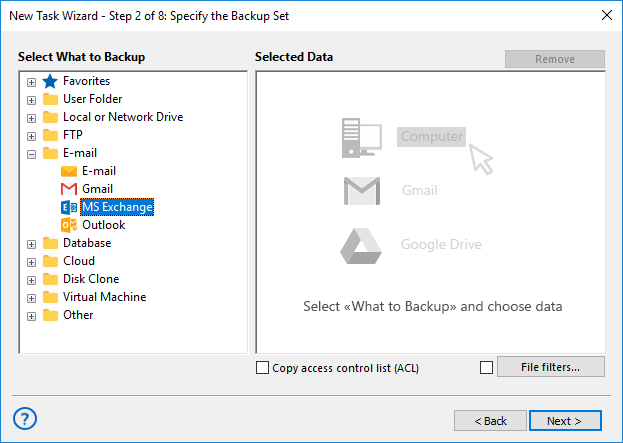
Note:For the Server Network edition of Handy Backup, an extra drop-down list of available network machines will appear in the upper left section of the Step 2 window. Select an appropriate machine containing an information for MS Exchange online backup, and then continue as described.
- You will see the Microsoft Exchange server backup dialog for selecting your data to copy.
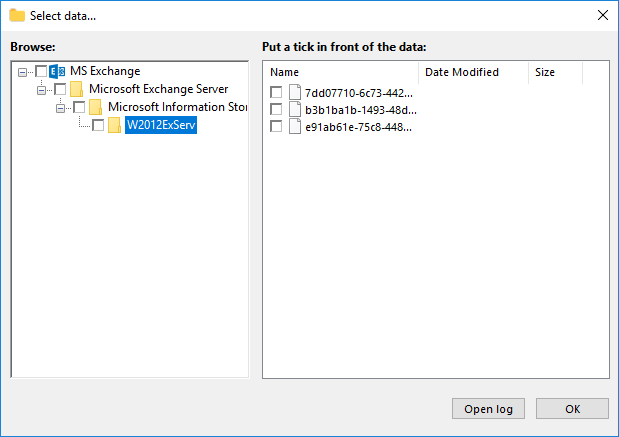
- Mark the databases and mailboxes that you plan to back up with appropriate checkboxes.
- When finishing, click OK and return to Step 2, where you can add other data.
- Continue creating your backup task, as described in the User Manual.
Note: You can also easily back up other Microsoft products, including Outlook 365, using our Microsoft 365 email backup tool.
FAQ about Exchange Backup Plug-in
Question: Does the program support brick-level backup of MS Exchange?
Answer: At present, Handy Backup doesn’t support brick-level backup of Microsoft Exchange Server data, and backs up Exchange Stores as a whole.
Download for Free
Version 8.7.0 , built on May 7, 2026. 152 MB
30-day full-featured trial period
Use Handy Backup as your Exchange backup software!
Try it by downloading now a full edition for a 30-day free trial!
Capterra’s Rating:
“Great product, very simple and effective backup program”
"We backup Exchange server 2016 for our company with Handy Backup over the five years, and it is still a same task that does all backup work for us, created once upon a time and working for now without any stop or mishap."
Alisher M. Johandi, from “The Small Marketplace Food Co.”