Mozilla Firefox Backup Tool - Save Bookmarks and History
Firefox Backup Tool enables you to backup Firefox history, bookmarks, pages, and other data, ensuring you can fully restore your Firefox environment when needed. Handy Backup simplifies all backup tasks by automating the process, allowing you to use the standard Computer plugin to backup Firefox settings and data, as well as restore them effortlessly from a saved copy.
Download the free 30-day trial and experience how effortlessly our Firefox Backup Software can save and restore your Firefox data.
 Download for Free
Version 8.7.0 , built on May 7, 2026. 152 MB
30-day full-featured trial period

Advantages of Firefox Backup with Handy Backup

Scheduling and Automating
Perform automatic backup with flexible schedules or event triggers, such as connecting a USB drive, ensuring regular backups without manual effort.

Backup and Restore Flexibility
Choose from full, incremental, differential, and mixed backups, with encryption to secure your Firefox data from unauthorized access.

Flexible Storage Options
Backup Firefox data to local or remote storage solutions, including cloud services like Amazon S3, Dropbox, FTP servers, or shared drives.

Pre- and Post-Backup Automation
Automate actions before and after backups, like closing Firefox before the backup and running programs afterward to optimize the process.

Running in Silent Mode
Run Firefox backups in the background as a Windows service, minimizing distractions and ensuring the task completes quietly.

Task Reporting and Logging
Get detailed backup logs and email notifications, providing full visibility of each task’s progress and status.
Additional Advantages of Firefox Backup Tool

Volume Shadow Copy enables backup of files in use without interrupting operations, ensuring open files and apps are backed up properly, minimizing data loss risks.
Handy Backup uses time-stamping techniques to create accurate, time-specific backups of your data, ensuring every backup is traceable and easily recoverable when needed.
30-day trial lets you test all Mozilla backup features before purchase, offering a chance to fully evaluate the software and ensure it meets your backup needs.
With a user-friendly interface and task grouping capabilities, you can organize and manage backup tasks effortlessly, ensuring efficient backups every time.
Receive expert customer support to assist with any questions or issues you may face, ensuring that you have the guidance and help needed for a seamless backup experience.
Easy setup process ensures you can get started quickly, even without technical expertise, making it simple for anyone to back up their data.
Handy Backup offers a cost-effective price, delivering exceptional value for businesses and individuals with all the necessary backup features.
With a lifetime license, you gain long-term access to all updates and features without ongoing payments, ensuring your backup solution stays current.
Recommended Solution
Lifetime license
Handy Backup Standard
The Standard edition includes a dedicated plugin for backing up Mozilla data, along with a robust set of storage plugins that enable seamless backup of Firefox bookmarks and history to various popular storage options. Our comprehensive Firefox backup software ensures your data is safe and easily accessible. Try it free for 30 days!
How to Backup Firefox with Handy Backup
To backup Firefox history, settings, bookmarks, and other data, you need to save a copy of the local Firefox folder. Handy Backup uses the standard "Computer" plugin (available in all solutions) to perform the Firefox backup.
- Launch Handy Backup and open the new task wizard by clicking the "New task" button/menu.
- Select a backup task in Step 1 and proceed to Step 2.
- Click on the "Computer" plugin in the "Local or Network Drives" section on the left panel.
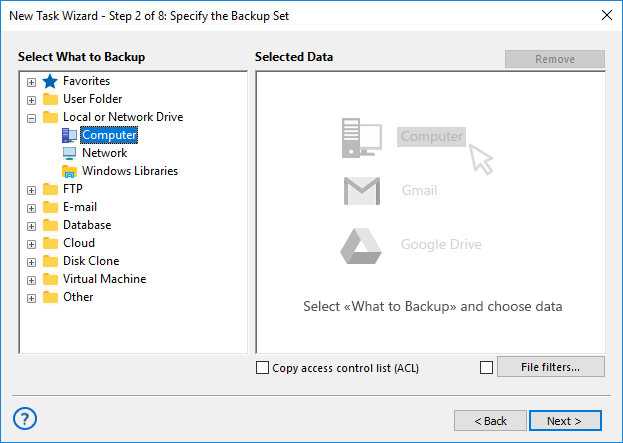
Note: You can alternatively use the "Network" plugin or select a machine from the drop-down list of available computers (for network editions only) to perform a Firefox online backup.
- In the new window that appears, locate and check the box next to the Firefox folder.
By default, the settings are usually stored at
C:\Users\[YourUsername]\AppData\Roaming\Mozilla\Firefox, but the Firefox settings location might vary based on your system configuration.
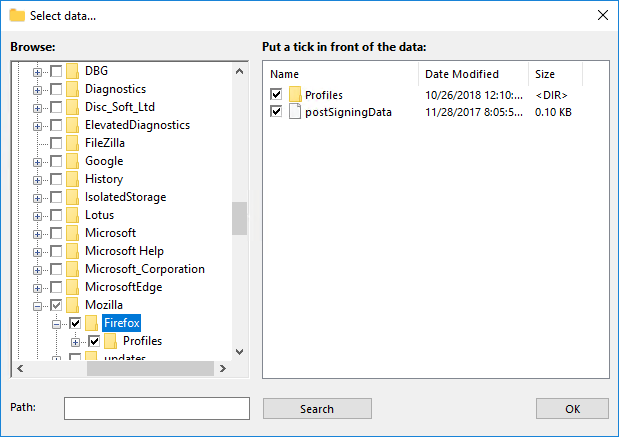
Advice: For Linux versions, this folder is typically located at ~/.firefox.
- Click "OK" to return to Step 2 and proceed with creating the Mozilla backup task as described in the User Manual. No additional steps are specific to Firefox backup.
Download for Free
Version 8.7.0 , built on May 7, 2026. 152 MB
30-day full-featured trial period
Try Handy Backup as your trusted Mozilla Firefox backup Tool by downloading a 30-day free trial version of the program,
with full access to all features, options, and settings!