Full HDD Image-Based Backup
Image-based backup with Handy Backup is a simple, fast, and automated process. You can create a full image-level backup with just a few clicks, as well as restore or clone a drive to another hard disk, such as when setting up a new PC. All features are designed to ensure reliable disk image copying at the logical level!
Ready to experience the power of Handy Backup? Download the 30-day free trial now and start protecting your data with ease!
 Download for Free
Version 8.7.0 , built on May 7, 2026. 152 MB
30-day full-featured trial period

What Is Full Image Backup?

Image backup is the process of creating a logical copy of your drive’s content, which is saved into a specialized file. Handy Backup enables you to create image backups for both Linux and Windows systems, and you can store these backups from within the running OS or directly through a USB recovery drive.
Image-Level Backup vs File-Level Backup: Features and Restrictions
Creating a drive image backup is often the most effective method for backing up a PC or server. It preserves not only the data but also system settings, dependencies, and the relationships between file system components. However, this method can be large in size and nearly impossible to access without recovery.
The following table provides a comparison between two backup methods: the image-based backup and file-level backup methods.
| image-level backup | File-level backup | |
| Typical Backup Size | Bulky | As a source (plus compression) |
| Estimated Execution Time | Several minutes | According to source size |
| Precise Data Selection | No | Yes |
| Data Consistency | Full | Depends on user actions |
| Ease of Recovery | Moderate to difficult | Very easy |
| Partial/Granular Recovery | No (except when mapping VHD) | Yes, due to native formats |
Explanation of Backup Categories
- Typical Backup Size: The estimated size of a backup file (or files), compared to common data types stored on a disk or in an online vault.
- Estimated Execution Time: The expected time for task completion, based on practical experience and logical evaluation of the data quantity to be copied.
- Precise Data Selection: The ability to select only the data you actually need to back up, rather than backing up entire folders with unnecessary files.
- Data Consistency: Ensuring all data dependencies and links between different data types are stored, allowing the data to be used immediately after recovery without re-mounting the entire infrastructure.
- Ease of Recovery: How quickly and easily a user can recover data from backup, including the number of additional actions required during the restoration process.
- Partial/Granular Recovery: The ability to recover only a portion of the entire backup dataset.
Advantages of Handy Backup for Efficient Full Image Backup

Complete Automation
Handy Backup fully automates backup process, from creating a disk image to utilizing additional features such as versioned backups or scheduling backup tasks by time (ranging from a minute to several months) or based on system events. Enjoy the convenience of Handy Backup!

Fast System Restoration
Unlike file-based backups, which require manually reinstalling the OS and all applications, a hard drive image backup significantly reduces the time and effort needed for restoration. You can use Handy Backup not only for backup purposes but also for HDD restoration.

Hard Disk Cloning
You can effectively use backup feature for hard drive cloning. For example, you can restore a single backup to multiple computers to set up identical systems. This makes it a powerful tool for managing server arrays, clusters, heterogeneous networks, and more.
Testimonials About Handy Backup’s Full Image Backup Feature
Recommended Solution
Lifetime license

Handy Backup Professional
To create a HDD image backup or clone your hard drive effortlessly, you'll need the Professional edition or higher. Experience the full power of image based backup software with a free 30-day trial — unlock all features and take your backups to the next level!
How to Create an Image Backup?
Note that the Image-based Backup plug-in can create both a full drive image and a partition image. To use it effectively, follow these instructions:
- Open Handy Backup and create a new backup task in Step 1.
- No need to choose between simple or advanced mode yet — just click "Next".
- In Step 2, select the Disk Image plug-in from the Disk Clone group.
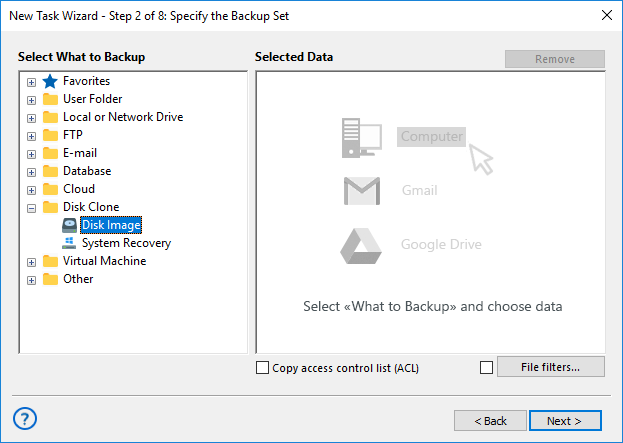
- Check the box next to the disk or partition you want to back up.
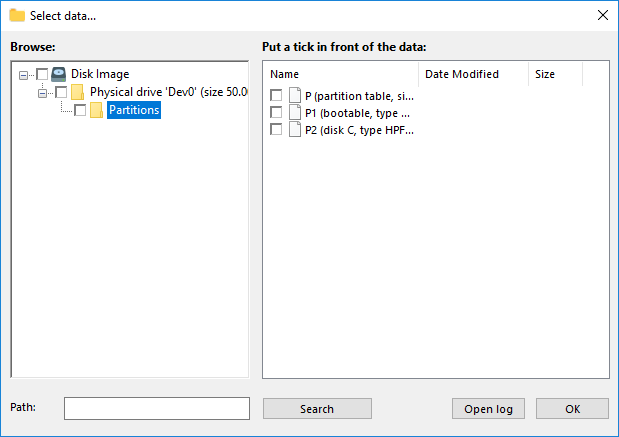
Attention! The full drive image file (located in the Physical Drive folder) contains all HDD data, including everything from the Partitions folder. Therefore, do not select individual partitions!
- Once you've selected the data, click OK. The chosen drives and partitions for image backup will appear in the Backup Set pane of the New Task Wizard.
- Continue setting up your backup task as described in the User Manual. You can enable versioning, scheduling, data encryption, or configure external applications to run before or after the backup.
With its ability to create logical drive images, Handy Backup is perfect for both local PC and server backups in Windows and Linux. Try it now with a 30-day free trial!
Why Choose Image-Based Backup with Handy Backup?

Version Compatibility
The Disk Image plug-in generates a precise binary image of a logical or physical drive, including individual partitions. You can restore backup of image anytime — use the Handy Backup restoration task for non-system drives or the Disaster Recovery utility to fully recover a HDD image backup from scratch.
The term "non-system drive" refers to any drive other than your main system drive (e.g., the disk or partition containing the operating system running Handy Backup). This means you can easily restore an inactive disk backup to its original drive without any complications!

The System Recovery Plug-in
Alternatively, use the full system backup with the System Recovery plug-in. This tool saves a complete hard drive backup in a convenient and readable VHD format. Not only does it allow you to restore the HDD image backup, but it also enables you to browse it or even use it for a virtual machine!
The System Recovery plug-in does not safeguard your backup from modifications when used as a virtual drive (this is intentional, allowing you to use these VHD files for experimentation and cloning purposes). As a result, the consistency of the your backup could be compromised if anything is written to it!

Restoring an Image Backup
To restore a disk or partition image to its original location, or to clone a hdd image backup to another HDD, you can easily use an automated restoration task created and scheduled in Handy Backup, just like you would for backup tasks.
Caution! A disk-based approach to backups offers the most effective protection against operating system crashes, hardware failures, and other disasters. We strongly recommend performing regular backups to ensure data security for both home and business environments.
Video Tutorial: How to Create an Image Backup with Handy Backup?
In this video tutorial, you will learn how to create a hard drive image backup using the Handy Backup solution for a single computer. We will demonstrate how to perform an image backup, saving the image to a local drive (other than the system drive), which will be overwritten during the restoration process.
Download for Free
Version 8.7.0 , built on May 7, 2026. 152 MB
30-day full-featured trial period
Experience effortless image-based backup with Handy Backup! Download the latest version now and enjoy a 30-day free trial, unlocking all the powerful features to protect your data.
"My Handy Backup Pro copies an image of my Windows SSD in just a few minutes, requiring no attention from me after initial setting up and scheduling. I do it every week, and it helps me migrating from my old laptop to a new Toshiba without any loss!"
Steven Marshall, a user of Handy Backup